










Last verified July 17, 2026. Minecraft commands are the fastest way to bend a world without installing mods. They can switch game modes, teleport players, change weather, set time, give items, summon mobs, adjust world rules, locate structures, and clean up problems that would otherwise take ages to fix by hand. They are also easy to overuse, especially in a survival world you still care about.
This guide covers practical commands for Java and Bedrock Edition, with the big warning up front: enabling cheats can affect achievements, especially in Bedrock worlds. Mojang's own command guidance is clear that Bedrock single-player worlds use the Allow Cheats setting, and enabling cheats permanently stops achievements in that world even if you turn the setting off later.
Pixel Twelve's Minecraft Beginner Guide is the better start if you want a normal survival path. This page is for players who want commands for testing, building, server management, creative work, screenshots, recovery, or a controlled cheat world.
How to Enable Commands
In Java Edition, commands depend on the world and permission setup. In a single-player world, you can allow cheats when creating the world. If cheats are off, opening the world to LAN with cheats enabled can temporarily give command access during that session. On servers, operators and permission systems control who can run commands.
In Bedrock Edition single-player, use the world settings and turn on Allow Cheats. The warning matters: achievements are permanently disabled for that world once cheats are enabled. That does not make commands bad, but it means you should decide whether the world is a serious survival file or a command-friendly sandbox before flipping the switch.
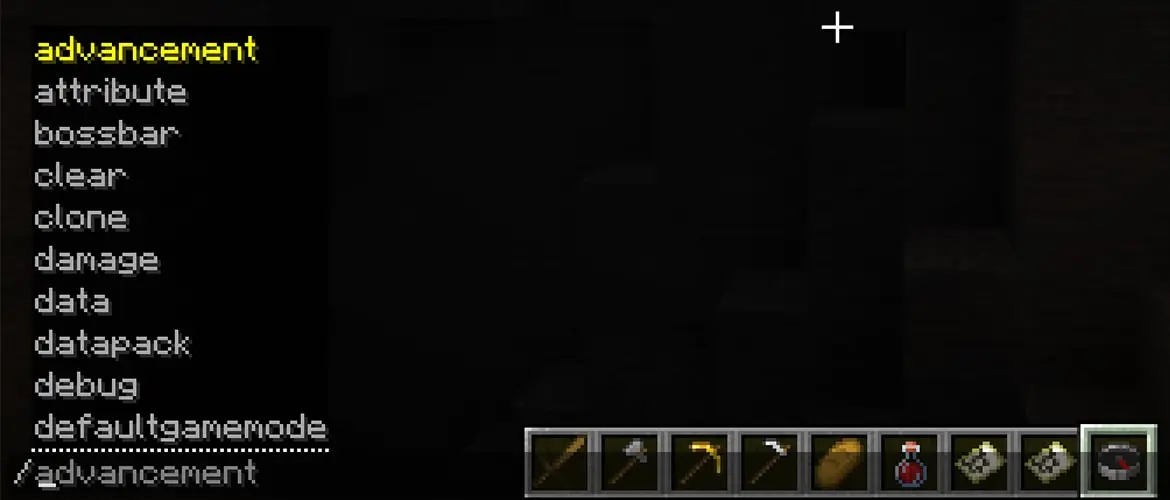
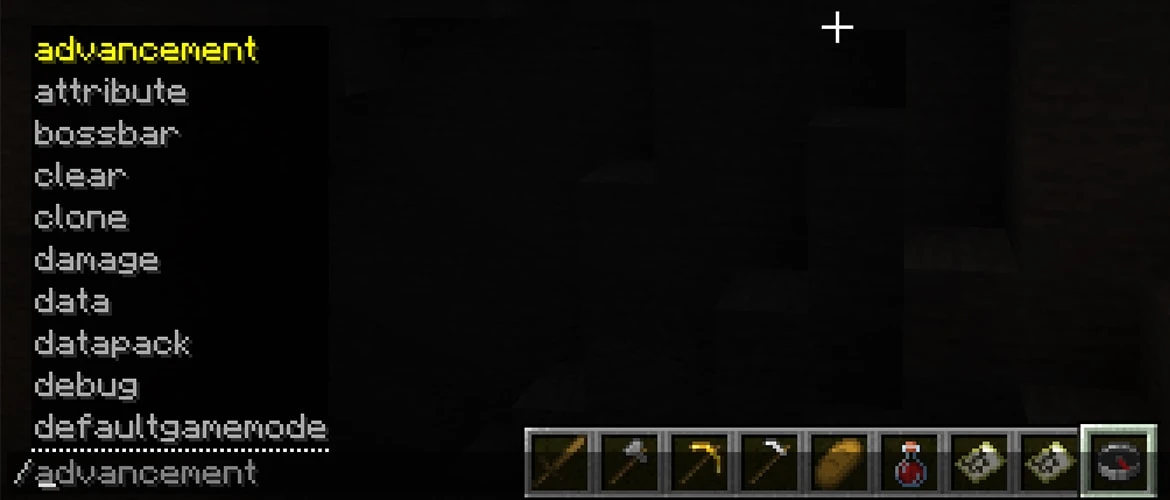
Commands are entered in chat with a slash. Type `/help` to see available commands. Bedrock's official command reference also lists permission levels and whether each command requires cheats, which is useful because not every command behaves the same way on every setup.
Java and Bedrock Differences
Many common commands exist in both Java and Bedrock: `/gamemode`, `/give`, `/tp`, `/time`, `/weather`, `/effect`, `/summon`, `/kill`, `/locate`, `/setworldspawn`, and `/gamerule`. The syntax can still differ, especially around item names, components, execute syntax, structure commands, and newer Bedrock-specific tools.
Java players often see command examples built around namespaces like `minecraft:diamond_sword`. Bedrock players may see slightly different names, permission notes, or feature availability. If a command fails, do not assume the idea is wrong. Check the edition syntax.
The safest guide habit is to understand the command's purpose first, then adjust syntax for your edition. Teleporting moves targets. Giving items adds inventory. Gamerules change world behavior. Effects apply potion-style status. Once the logic is clear, the edition-specific formatting becomes easier to troubleshoot.
Essential Player Commands
`/gamemode creative` switches you to Creative. `/gamemode survival` returns you to Survival. You can also target another player if you have permission. Use this carefully in survival worlds because Creative access can change how the world feels even if you only meant to fix one block mistake.
`/give @s minecraft:diamond 3` is a Java-style example that gives the nearest self target three diamonds. Bedrock item names and syntax can vary, but the idea is the same: choose a target, choose an item, choose an amount. Use `/give` for testing and recovery, not as a mystery replacement for normal progression in a world where achievements or survival integrity matter.
`/effect give @s speed 60 1` gives Speed for 60 seconds with an amplifier. Effects are useful for testing parkour, screenshots, adventure maps, and temporary movement. Clear effects with `/effect clear` when you are done.
`/kill` removes the target. It is useful for clearing a broken mob or resetting yourself, but it is destructive. Do not run broad kill commands unless you understand selectors, or you may wipe entities you wanted to keep.
Teleport Commands
`/tp` or `/teleport` moves players and entities. `/tp @s 0 80 0` sends you to coordinates. `/tp PlayerName OtherPlayerName` moves one player to another. Coordinates are powerful, so learn how Minecraft displays position before teleporting into stone, lava, or the void.
Use relative coordinates with care. The tilde symbol means relative to the command executor's current position. A command like `/tp @s ~ ~10 ~` moves you ten blocks upward. That is great for getting unstuck, but a careless negative value can drop you into danger.
Teleporting is one of the cleanest commands for testing builds and returning to distant projects. In normal survival, though, it removes travel cost. Decide whether that is what you want before using it constantly.
Time, Weather, and World Comfort
`/time set day` makes it day. `/time set night` makes it night. `/weather clear` clears weather. `/weather rain` starts rain. These are some of the least confusing commands because they change the world state without adding items or rewriting progression.
`/gamerule doDaylightCycle false` freezes time. `/gamerule doWeatherCycle false` stops weather changes. Builders use these constantly for screenshots and long construction sessions. Survival players may prefer to leave cycles on, since day, night, and weather are part of the game's rhythm.
`/gamerule keepInventory true` lets players keep inventory after death. It is one of the most common comfort cheats. It can make a world friendlier, especially for young or casual players, but it dramatically lowers the fear of caves, lava, and long trips.
Advertisement

World Spawn, Spawn Points, and Location Help
`/setworldspawn` changes the world spawn. `/spawnpoint` changes a player's personal spawn point. These are useful for custom maps, servers, and fixing awkward spawn locations. Be careful on shared worlds because spawn changes affect other players too.
`/locate` helps find structures or biomes depending on edition and version. It is a good command for players who want to find a village, ancient city, mansion, stronghold, or biome without using an external seed map. It still requires travel unless you combine it with teleporting.
Commands can make exploration cleaner, but they can also remove discovery. A good compromise is to use `/locate` when you are stuck looking for one specific feature, then travel there normally instead of teleporting straight to the reward.
Selectors Without the Headache
Selectors tell the command who or what to affect. `@s` means yourself. `@p` targets the nearest player. `@a` targets all players. `@e` targets entities. `@r` targets a random player. The danger is obvious: `@e` is broad, and broad commands can do broad damage.
If you are learning commands, start with `@s`. It keeps mistakes contained. Move to named players when helping someone else. Save broad selectors for situations where you understand filters, distance, type, and limits.
A sloppy command with `@e` can kill mobs, move armor stands, affect item frames, or break an adventure map. Precision is not fancy command culture; it is how you avoid turning one fix into ten new problems.
Command Blocks and Creative Testing
Command blocks are for repeated or automated commands. They are powerful for maps, minigames, server tools, and build showcases, but they are not necessary for normal command use. Most players can do everything in this guide from chat.
If you experiment with command blocks, use a copy of the world. Repeating command blocks can run constantly, and a bad loop can make a world unpleasant fast. Label your builds, keep coordinates noted, and test small before wiring commands into a large project.
Creative test worlds are the best place to learn. Build a flat world, enable cheats, try commands, and break things there. Once you understand them, bring only the commands you actually need back to a world that matters.
Best Commands for Survival Recovery
For a survival world, the most defensible commands are the ones that repair frustration without replacing the whole game. Teleport out of a bugged spot. Clear weather for a screenshot. Use `/setworldspawn` if the original spawn is terrible. Use `/gamerule keepInventory true` only if the group agrees that death penalties are making the world less fun.
Avoid using `/give` as a reflex. Replacing one item lost to a glitch is different from giving yourself a full kit because a cave went badly. The more commands replace consequences, the less survival feels like survival.
Pixel Twelve's Minecraft Enchanting Guide, Mining Guide, and Villager Trading Guide are better for players who want progression help without turning the world into a cheat file.
A Simple Command Starter List
`/help` shows command help. `/gamemode creative` and `/gamemode survival` switch modes. `/tp` moves players or entities. `/give` adds items. `/time set day` changes time. `/weather clear` changes weather. `/effect` adds or clears effects. `/locate` finds structures or biomes. `/setworldspawn` changes world spawn. `/gamerule keepInventory true` changes death inventory behavior.
That starter list covers most real needs. Minecraft has far more commands, especially for creators and servers, but a normal player does not need to learn everything at once. Learn the safe commands, keep backups, avoid broad selectors until you understand them, and decide which worlds are for achievements and which worlds are for bending the rules.
Commands That Are Helpful Without Feeling Like Full Cheating
Some commands are softer than others. `/seed` helps you record a world. `/help` teaches syntax. `/list` shows players on a server. `/me` and `/say` are communication tools. In Bedrock's official command list, some commands do not require cheats, while others clearly do. That distinction is useful for server owners and realm players who want utility without turning the world into a full cheat space.
For survival comfort, the least disruptive commands usually change conditions rather than inventory. Time, weather, spawn points, and location help can make a world easier to manage without giving players diamonds or enchanted gear. That can be a good middle ground for family worlds, build servers, or long-term realms where the goal is fun rather than strict survival purity.
Server and Realm Etiquette
On shared worlds, commands should be agreed on before anyone starts using them. One player's harmless teleport can feel unfair to another player who spent an hour building roads. One admin's item gift can damage the economy of a realm where trading and mining are part of the fun.
If you run a server, write down the command rules in plain language. Are teleports allowed? Is keep inventory on? Can operators replace items lost to bugs? Are creative mode fixes allowed near survival builds? Minecraft commands work best when everyone knows whether the world is strict survival, relaxed survival, creative-supported, or full sandbox.
Back Up Worlds Before Big Command Sessions
Before using commands to edit large areas, clone builds, fill blocks, or test command blocks, make a world backup. A single wrong coordinate can replace the wrong area. A repeating command can keep firing after you forget about it. A broad selector can affect more entities than expected.
This is especially important in Bedrock worlds shared across devices and Realms. If a world has months of family builds, server projects, or survival history, do command experiments in a copy first. Minecraft makes creativity feel casual, but commands can change a world faster than any pickaxe.
Good Creative Uses
Commands are excellent for creative prep. Set the time for screenshots, clear weather for visibility, teleport between build sites, give yourself test blocks, summon mobs for scale checks, and use structure tools when your edition supports them. In that context, commands are not cheating the game; they are the toolbox for making something specific.