You can grow ordinary herbs, flowers and vegetables in the updated base game. You do not need Cottage Living, a greenhouse or a gardening career. Start with one container and one starter packet: it is easier to spot a missing step before filling the whole yard.
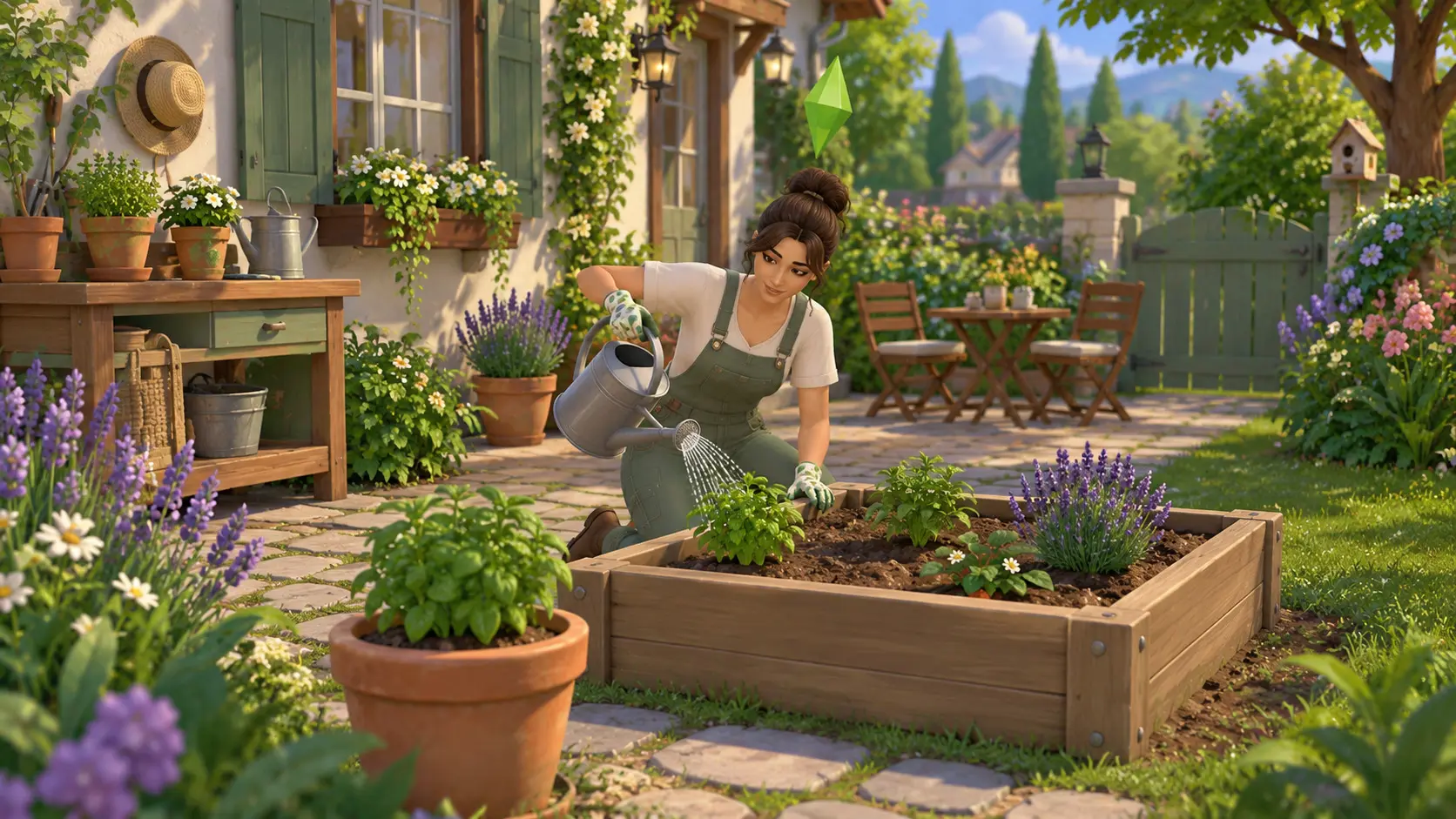
The cottage garden pictures are original Pixel Twelve illustrations. They explain the objects and planting sequence, not the exact look of every game item. The labeled Live Mode image below comes from an older official EA manual; surrounding buttons can differ by platform or update.
1. Find a real planting container
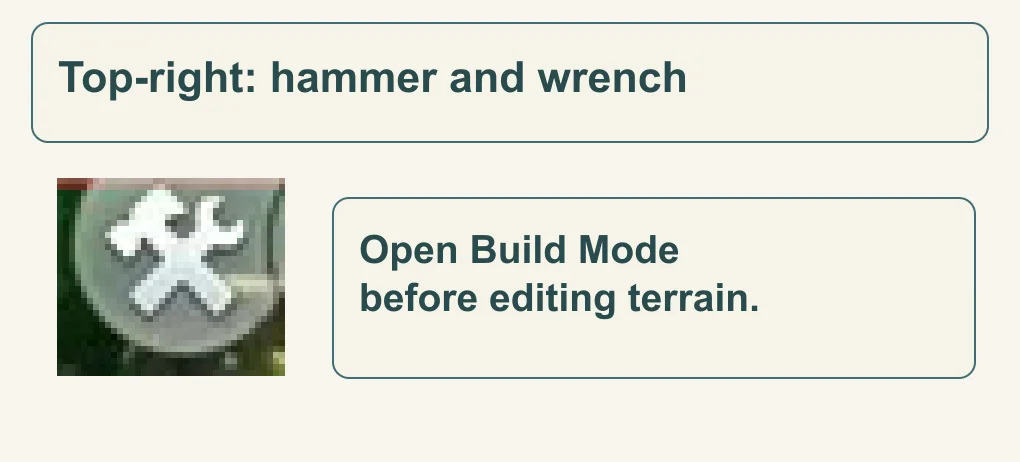
Load your household, then look at the top-right toolbar for the crossed hammer and wrench. Select that button to open Build Mode, where you place furniture and garden objects. The enlarged official icon below is your landmark.
Official 2021 UI detail: the crossed tools open Build Mode. The icon is magnified, not redrawn.CreditsElectronic Arts
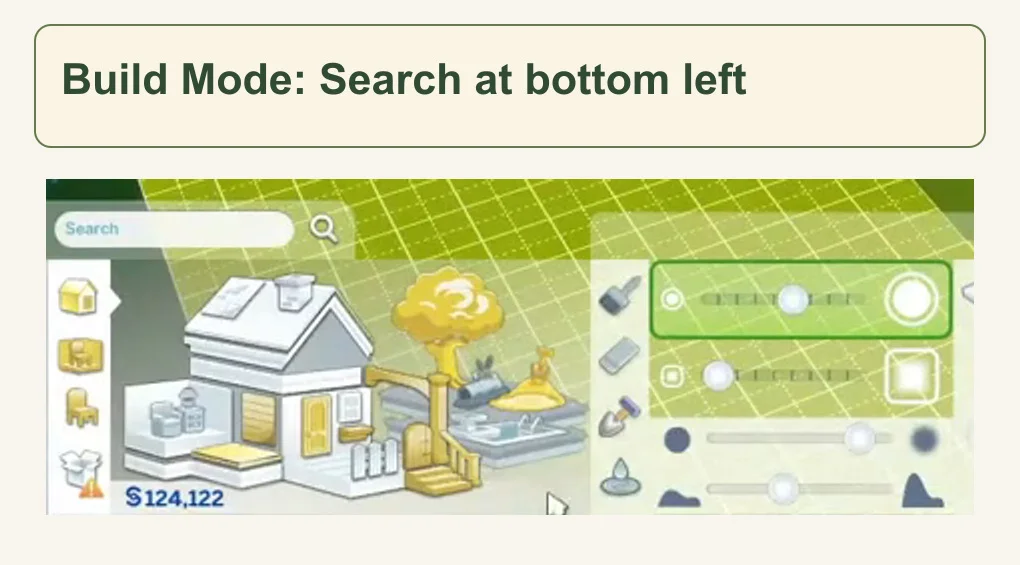
In the catalog at the bottom left, use the Search field and enter Garden Pot. Choose the result whose item card has that name: it is a planting container with visible soil, not an ordinary decorative vase. Garden Planter Box is the larger alternative. The picture below shows their different shapes; colors and styles can vary.
Official 2021 catalog detail: select Search beside the magnifying glass, then enter the object name. This example locates the field; it does not show Garden Pot search results.CreditsElectronic ArtsPixel Twelve object-recognition diagram, not a screenshot. Match the catalog name as well as the shape. The plants shown are examples, not items included with an empty planter.CreditsOriginal Pixel Twelve illustration.
Place the container on an open patch beside the house. Keep the side your Sim will approach free of fences, furniture and dense decorations. A stone path and a few flowers can make it feel like a cottage garden without blocking the working space.
2. Buy one starter packet from the planter
Return to Live Mode, where your Sims move and act. Select the pot or planter you placed, then choose Purchase Seeds from its interaction choices. In the purchase window, pick an available starter type such as Starter Herbs or Starter Vegetables, set the quantity to one, and confirm with the checkmark at the window’s bottom right.
Pixel Twelve action diagram, not a reconstructed game menu. These are the action names to find on your own screen. The loose carrot is an example; a packet may contain other produce.CreditsOriginal Pixel Twelve illustration.
The packet goes to the Sim who bought it. Buying a packet does not plant anything yet. For this first garden, stay with ordinary starter packets: Purchase Oversized Crop Seeds and the Garden Patch belong to a different Cottage Living system.
3. Open the packet in your Sim’s inventory
Stay in Live Mode and keep the buying Sim selected. Their portrait is at the bottom left. Look at the small tabs along the bottom-right edge: Inventory is the storage-box tab between Relationships and Simology in EA’s labeled example. On PC or Mac, hover until the tooltip says Inventory, then open it. On console, focus that tab and use the select prompt shown by your game.
Official EA manual detail: follow the Inventory label to its native tab. This is personal inventory in Live Mode, not the household furniture inventory in Build Mode.CreditsElectronic Arts
Find the purchased packet in that panel. Select the packet and choose Open Seed Packet. Separate fruit, flowers or vegetables will appear there. Those loose items are what you plant; you do not drag the unopened paper packet into the soil.
4. Put the loose item in soil, then choose Plant
On PC or Mac, drag one loose item from personal inventory onto an empty patch of soil in your planter. After placing it, select the item on the soil and choose Plant. On console, use the inventory’s item-move control and its on-screen prompts to place it, then select the placed item. Do not choose Eat if you want to grow it.
Pixel Twelve planting diagram, not gameplay. Open the packet, place a loose item, then select Plant. The sprout represents later growth, not an instant result.CreditsOriginal Pixel Twelve illustration.
Let your Sim finish the planting action. A planted item begins as a soil mound, not a fully grown vegetable. If Plant is missing, first check that you placed loose produce rather than a packet and that the spot is valid soil. If the Sim cannot reach it, clear the route beside the planter.
Official example: recognize the soil mound in the front box and grown plants behind. The Sim pictured is fertilizing, a later skill action; fertilizing is not required to start.CreditsElectronic Arts
5. Check the plant, not a fixed countdown
Select the planted mound or growing plant. Choose Water when that option is available; the close-up below shows the watering action. As it grows, look for unwanted weeds or bugs and use the matching Weed or Spray for Bugs option when needed. Keep checking the plant rather than assuming every crop takes the same time.
Pixel Twelve care diagram, not gameplay. Select the planted mound or plant in your game and use Water when it is available. The picture illustrates the action, not instant growth.CreditsOriginal Pixel Twelve illustration.
With Seasons installed, hover over a plant to read its growing-season information. An out-of-season outdoor plant can be dormant rather than broken. Without that pack, you do not need to solve a seasonal growing restriction for this basic setup.
Give the garden a home
For the walls, doors and usable paths around your new garden, follow our first-home Build Mode guide. Want a landscape project beside it? The garden pond guide explains the terrain and water tools. Our Sims 4 guide hub groups the rest by what you want to do.
This website is not endorsed by or affiliated with EA or its licensors.
Get Pixel Twelve's biggest stories first.
Utility
More Guides for The Sims 4
More practical guides, explainers, and useful next reads connected to The Sims 4.