

Pixel Twelve
The Sims 4 Gallery Guide: Download, Place and Share Creations

How To

The Sims 4 Gallery Guide: Download, Place and Share Creations

A visual beginner guide to The Sims 4 Gallery with tabs, filters, saving versus placing, Household/Room/Lot routes, pack and custom-content checks, and sharing a creation.

Game: The Sims 4Verified Sep 23, 2026
Add to list

Find a creation without scrolling forever

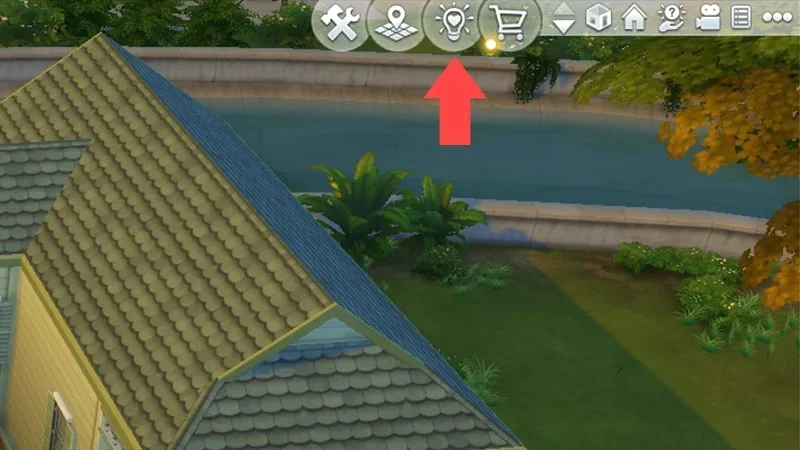
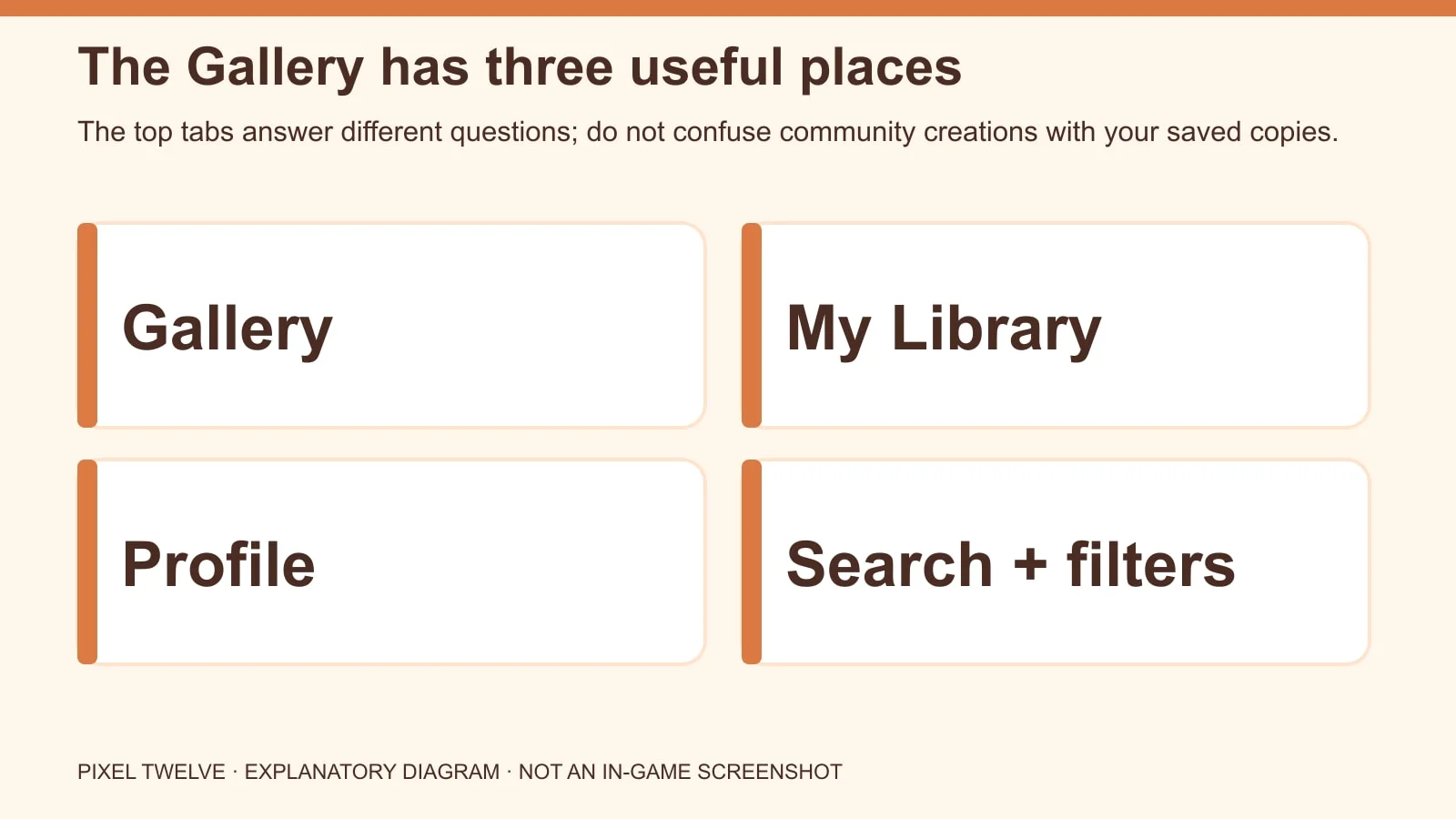
  1. Open Gallery and choose the type you want: Household, Lot or Room. The left-side filters narrow the results.
  2. Type a creator name, a creation name or a useful term into search. Check which search category is active before deciding that a build is missing.
  3. Open the card you like. Read its type, lot dimensions if it is a Lot, and any pack or custom-content details. A pretty thumbnail is not enough to tell whether it fits your save.

A creator may use objects from a pack you do not own. The Gallery can still show the listing, but the placed result may be missing pieces. If you want a clean base-game look, use the relevant filters and check the card before saving.

Save versus place: two different clicks

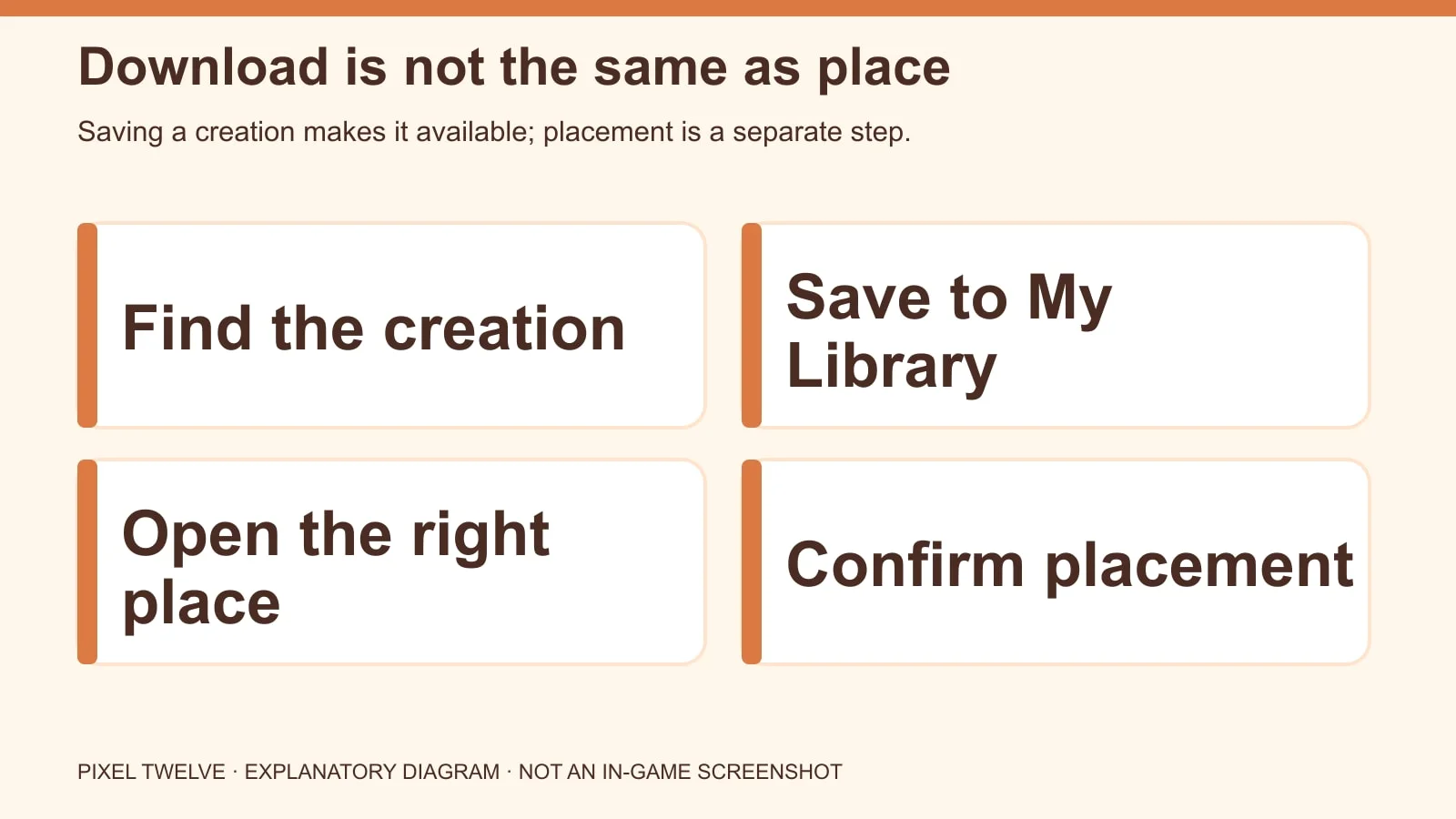
Four-stage diagram showing find, save to My Library, choose the proper mode and confirm placement.
The download arrow saves a copy; it does not instantly put the creation into your world.
  1. On the creation card, choose the download arrow to save it to My Library. Then find it again under that tab.
  2. Decide where it should go. A Household, a single Room and a whole Lot use different placement routes.
  3. Use the placement command for that type and confirm only after checking the destination. Replacing a lot can overwrite the existing build on that lot.

If you saved something but cannot see it on your map, this is usually why: saved to library and placed in the world are separate actions.

How to place a Household, Room or Lot

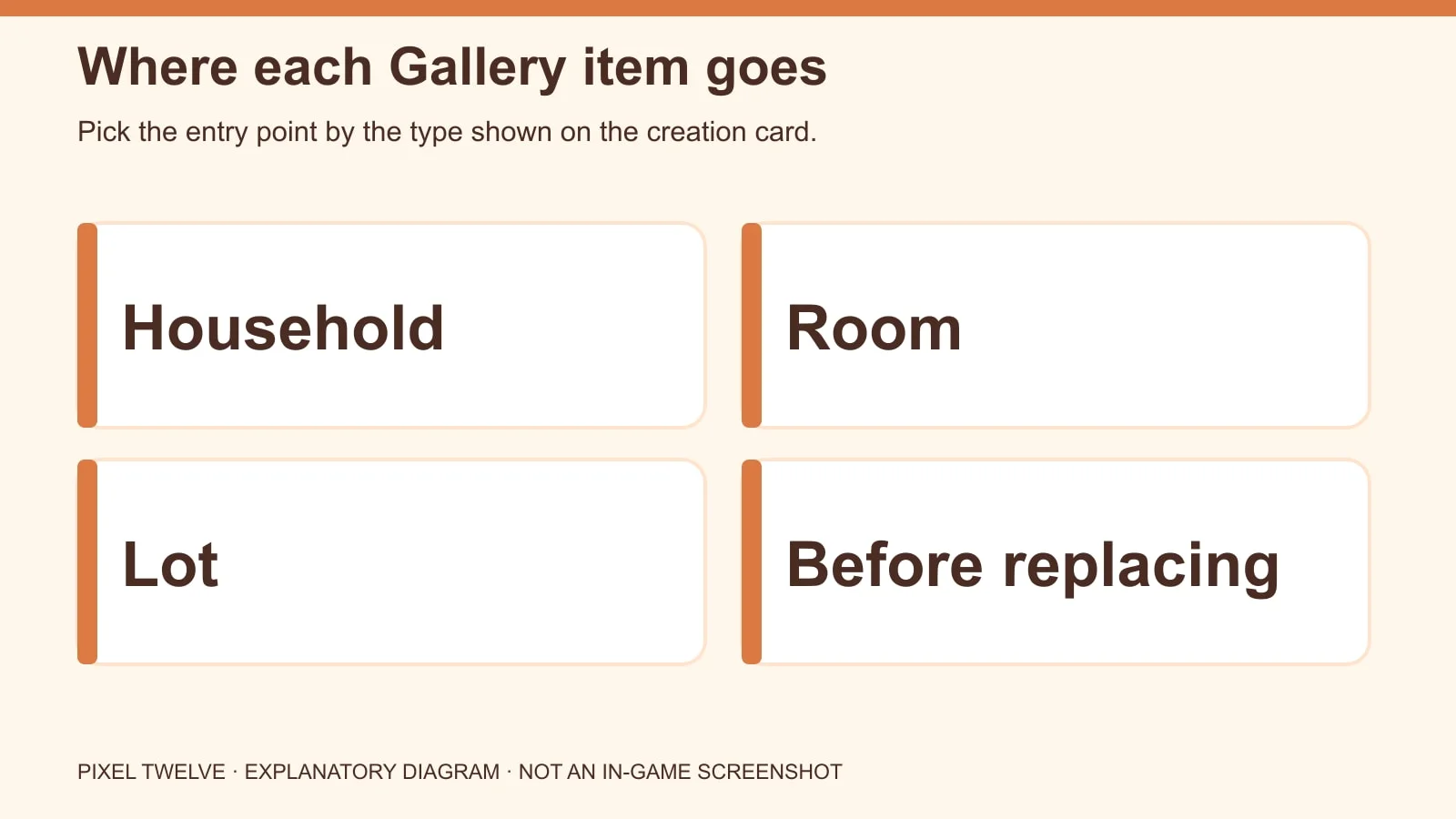
Diagram mapping Gallery Household, Room and Lot to their placement screens.
Match the creation type to its destination; a Room cannot be placed from Manage Worlds.
  • Household: in Create a Sim, open Gallery at the upper right, filter to Households, select one and choose Place Household at the lower right. In Live Mode, open Gallery, find the Household in Gallery or My Library and choose Place Household to merge it with your current household. A Household is a group of Sims, not a building.
  • Room: open the destination lot in Build Mode. Open Gallery from there, select the Room, choose the Room placement button and position it on the floor plan. EA says Rooms cannot be placed from Manage Worlds.
  • Lot: open the game menu and choose Manage Worlds. Select the destination lot, open Gallery, choose the Lot and select Place Lot or Place Lot and Edit. Pick a lot large enough, confirm with the checkmark and choose furnished or unfurnished before replacing the existing lot.

If the destination already has a home you care about, save your current work first. It is much less stressful to experiment with Gallery lots when you have a copy of your original build.

When the downloaded build looks wrong

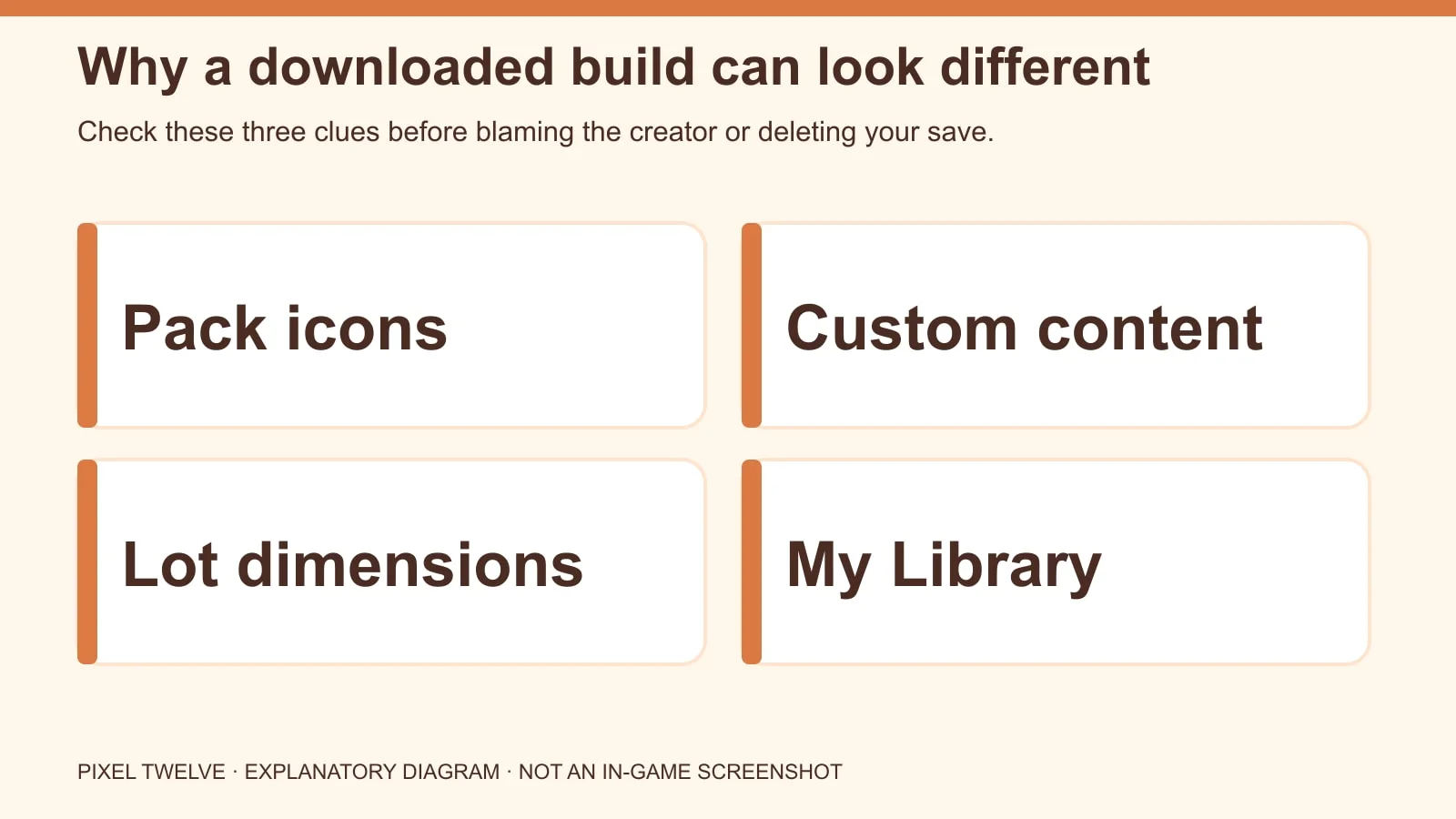
Troubleshooting diagram for packs, custom content, lot dimensions and library placement.
Missing objects usually have an explanation: packs, CC, lot size or an unplaced library copy.
  • The lot will not fit: compare the Lot dimensions on the Gallery card with the destination. A larger Lot cannot be dropped onto a smaller one.
  • Furniture or clothing is missing: check the pack icons on the card. A Gallery download does not give you paid pack content you do not own.
  • Custom-content hair or objects are gone: CC is made outside the base game and is not automatically installed with a Gallery creation. On console, do not expect PC custom-content files to appear.
  • You see it only in My Library: return to the right game mode and place it. Saving was successful; placement has not happened yet.

Share your own Sim or build

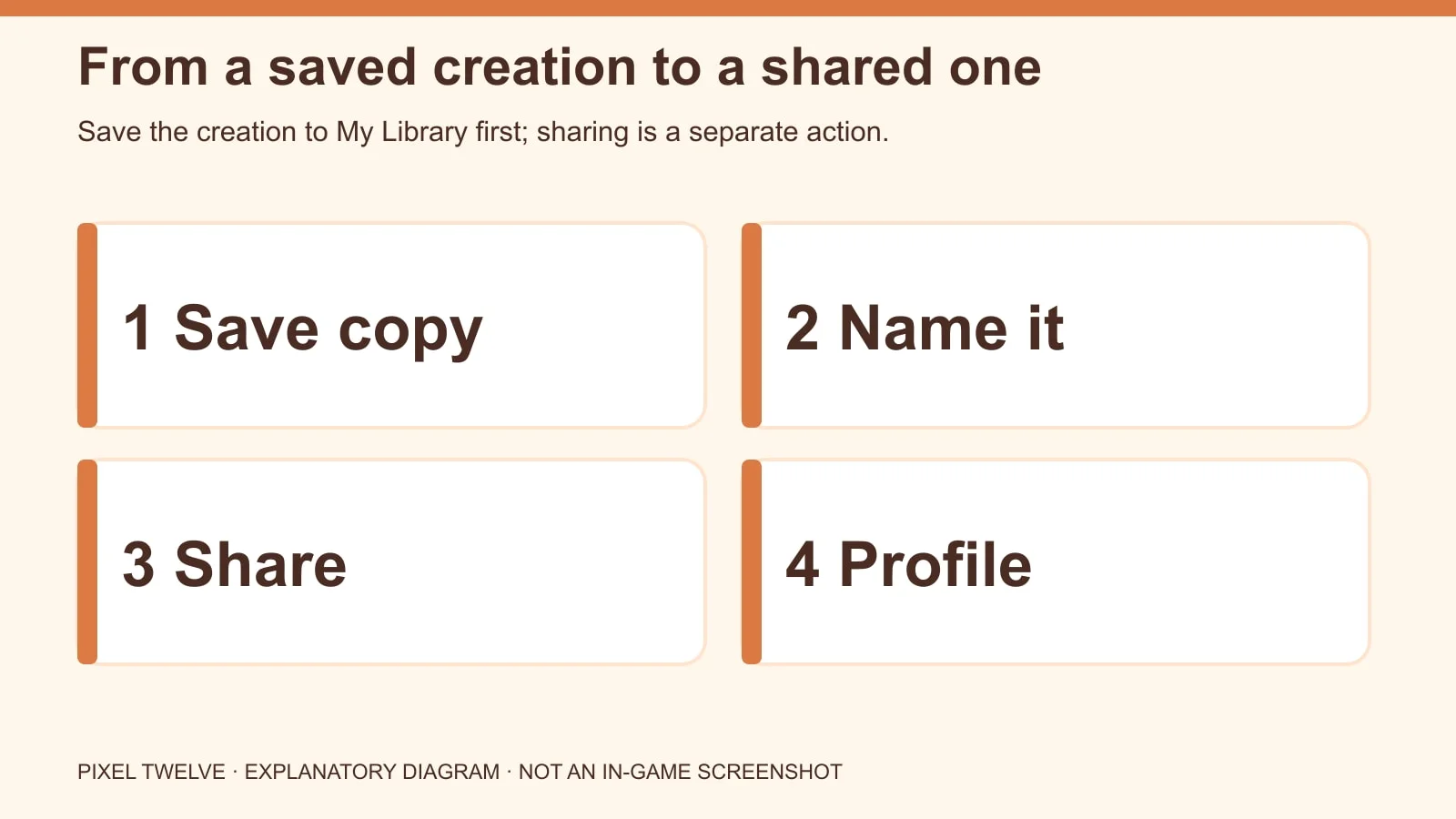
Four-step diagram for saving a creation to My Library, naming it, sharing it to the Gallery and checking Profile.
Save to My Library, give the creation a clear name, then choose Share to the Gallery. Check Profile to confirm the upload.
  1. For a Household, open the Gallery, select the Sim or Household you created, give it a name and description, then select Share Household to the Gallery at the lower left. If you only want a private saved copy, use the library save action instead.
  2. For a Lot, open Build Mode and select Save to My Library, the arrow-and-folder icon at the top. Choose Save Lot, write a name and description, set bedroom and bathroom counts, then save it. Select Share Lot to the Gallery at the lower left when you are ready to publish.
  3. For a Room, open Build Mode, select Save to My Library and choose the Room option from the save dropdown. Name and describe the room, save it, then select Share Room to the Gallery at the lower left.
  4. After uploading, check your Profile tab for the shared item. If it is absent, confirm you are online and signed in before repeating the upload.

Keep the description honest. “Base game” should mean a player without extra packs can actually use the important pieces. Sharing is part of the fun of The Sims, but a useful listing helps another Simmer decide what to put in their save.

Get Pixel Twelve's biggest stories first.

Add as a preferred source on Google