




Pixel Twelve
The Sims 4 Create a Sim Guide: Make Your First Household

How To

The Sims 4 Create a Sim Guide: Make Your First Household

A visual first-time guide to The Sims 4 Create a Sim, including appearance, outfits, personality, detailed gender and romance settings, household relationships and the move-in check.

Game: The Sims 4Verified Sep 23, 2026
Add to list

Start here: what Create a Sim actually controls

Sul sul! Create a Sim, usually called CAS, is where you decide who will live in your save. You can change a Sim’s appearance and outfits, give them a personality and an aspiration, and put multiple Sims into one household. This is a guide for a first household, not a list of every cosmetic option in the catalog.

If you are on the opening screen, choose New Game to begin a new household. The Sim in the center is the person you are editing; look around them for clothing and body options. The small portraits represent other household members. Before you press the final checkmark, work through the four decisions below.
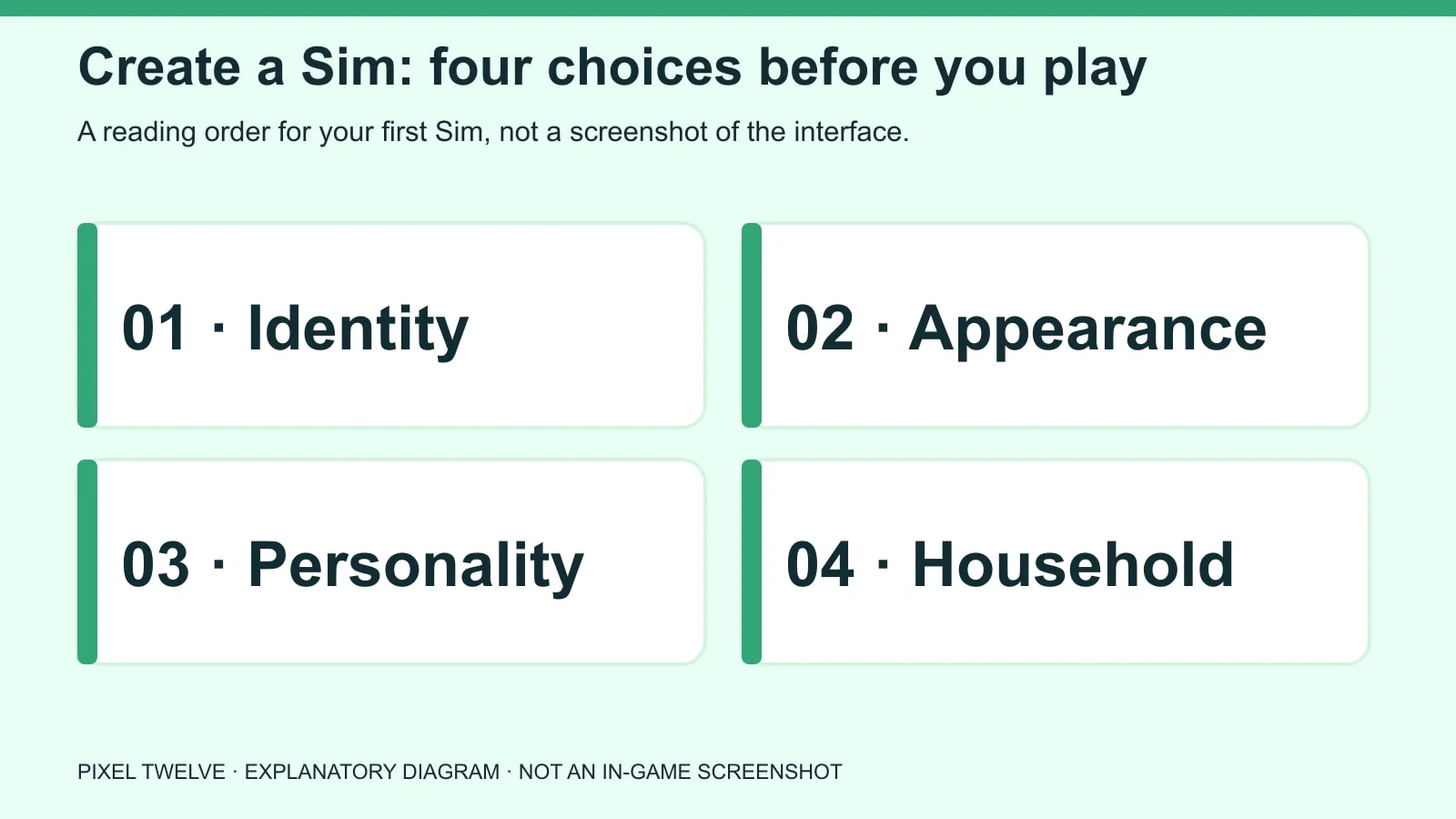
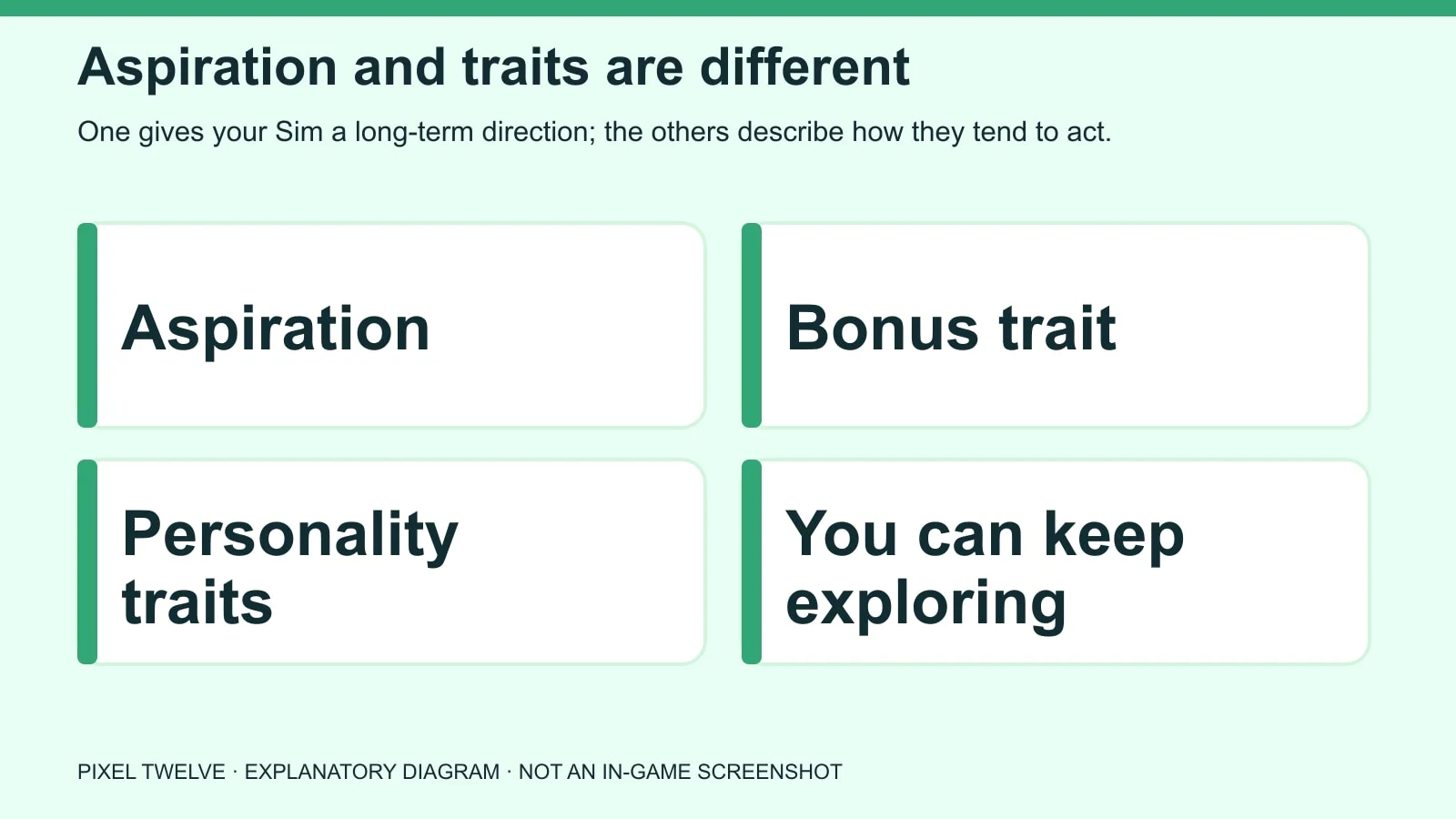
Diagram listing identity, appearance, personality and household as the four Create a Sim decisions.
Start with one Sim, then check the whole household before moving into a world.

Name, age and appearance: make a Sim you can recognize

  1. Select the Sim you want to edit. Find their identity controls near the upper-left area of Create a Sim and give them a name. Check the age category: it changes what that Sim can do later.
  2. Click the Sim’s face, hair or body to open the matching appearance choices. Choose a starting look; you can spend more time fine-tuning later.
  3. Open the clothing categories and inspect Everyday first. Then check sleepwear, formalwear and any other category you care about. A great everyday outfit does not automatically fix the other outfits.

If a clothing item seems to have vanished, check the catalog filters before assuming it is gone. Outfits and hairstyles available to you depend on the base game and any packs you own. A screenshot from another player can show items you do not have.

Aspiration versus traits: pick a story, not random icons

Diagram explaining how aspiration, bonus trait and personality traits differ in The Sims 4.
An aspiration is a goal track; traits describe personality. Read each description before choosing.

An aspiration gives your Sim longer-term milestones to pursue. Personality traits influence everyday behavior and reactions. The aspiration category can also grant a bonus trait. These are not four names for the same setting.

  1. Find the aspiration choice in the personality area of CAS. Open it, hover over a category and read the goal description before selecting. Think about what you actually want to play: a creative Sim, a family story, a social butterfly or something chaotic.
  2. Move to the trait choices and read the description of each one. Pair traits that suit your story, rather than choosing the first three icons that look cute.
  3. If you added another household member, select their portrait and repeat. A family can be much more fun when the Sims do not all want exactly the same thing.

Your choice is a starting point, not a test with one correct answer. If a goal stops being fun, focus on the Sim you want to play now rather than forcing a “perfect” build.

The three dots: gender, orientation and boundaries

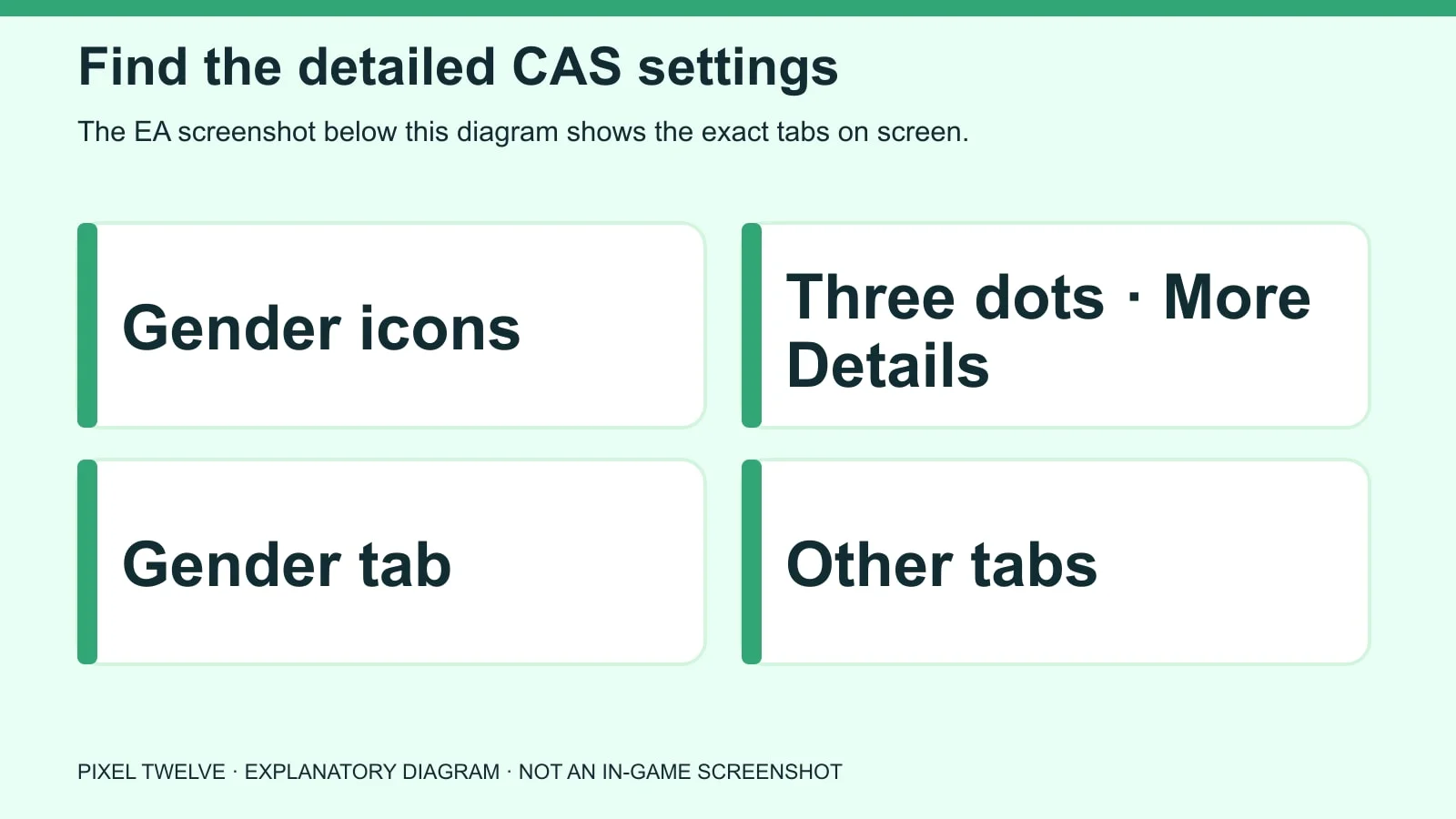
Diagram locating the upper-left gender icons, More Details three-dot menu, and separate CAS setting tabs.
Use the three dots beside the upper-left gender icons to open detailed settings.
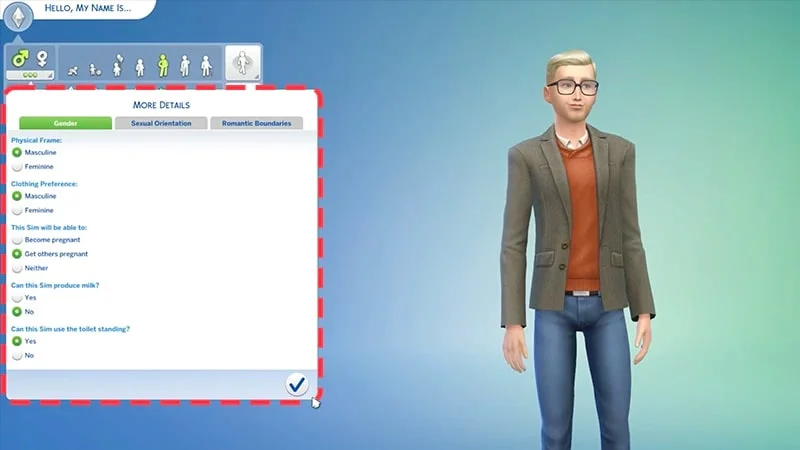
Official EA screenshot of the Create a Sim Gender tab and its five options.
Real CAS screen: the Gender tab includes physical frame, clothing preference, pregnancy, milk and toilet options.
  1. At the upper left of CAS, find the gender icons. Select the three dots beneath them for More Details.
  2. Open Gender to set the physical frame, clothing preference and pregnancy option that fits your Sim. These settings are separate from how your Sim looks.
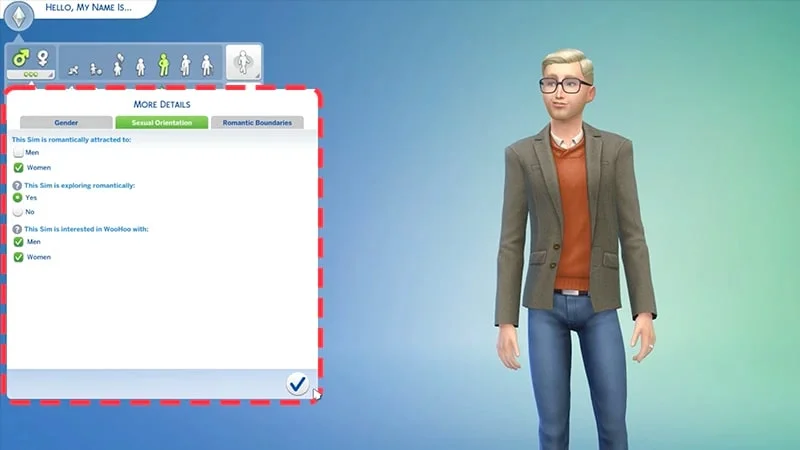
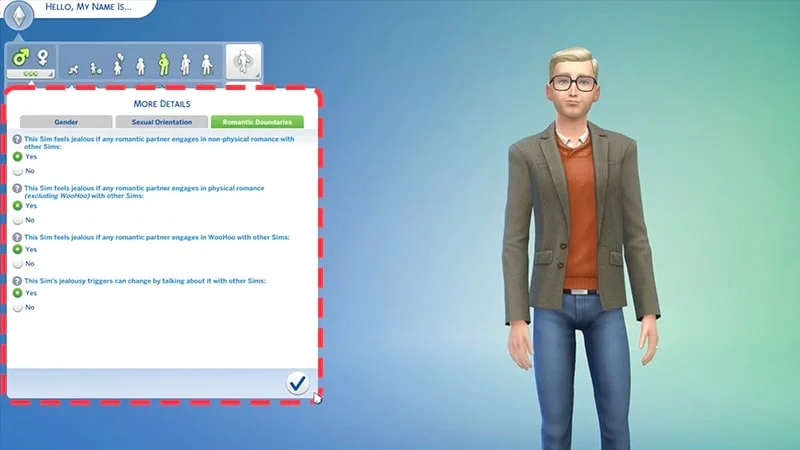
  3. Open Sexual Orientation if you want to set romantic attraction and WooHoo interests. Open Romantic Boundaries separately to choose which situations trigger jealousy.
Official EA screenshot showing the Sexual Orientation tab in Create a Sim.
Real CAS screen: attraction and exploring romantically are separate choices; neither is the pregnancy setting.
Official EA screenshot of the Romantic Boundaries tab in Create a Sim.
Real CAS screen: Romantic Boundaries control jealousy responses, not household relationships.

Do not confuse those settings with Romance Dynamics: that additional relationship feature comes with the Lovestruck expansion. You do not need Lovestruck to make a Sim or set the base-game options above.

The final CAS check and move-in

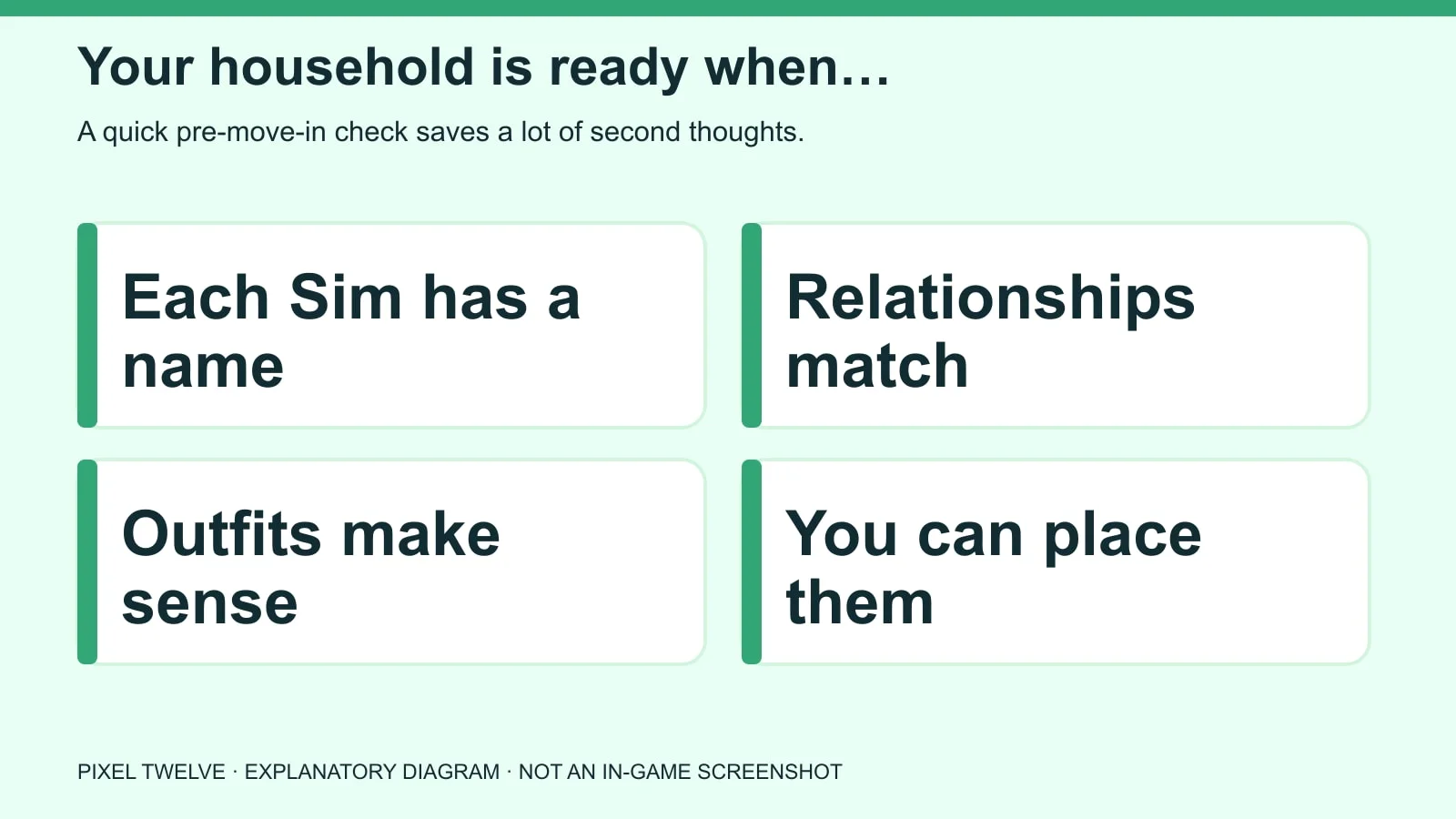
Four-point checklist for Sims names, relationships, outfits and home placement before confirming a household.
A one-minute check now is easier than discovering the wrong household setup after moving in.
  1. Select every household portrait once. Check name, age, aspiration and traits for that Sim.
  2. Open the outfit categories again and verify at least Everyday and Sleep. Then check the relationship menu for every pair that matters to your story.
  3. Confirm the household with the checkmark and choose a world and an available residential lot. Compare the household funds with the lot price before moving in.

Want to build instead of buying a finished home? Move into an affordable empty lot, then open Build Mode. Our dedicated first-home guide covers the exact order to add rooms, doors, furniture and a Live Mode route test.

  • If the checkmark does not let you continue, look for an incomplete required identity, trait or aspiration choice on the currently selected Sim; then check the other household portraits.

If CAS feels overwhelming, make one decision at a time

You do not have to finish every possible detail in one sitting. For a first save, choose one clear aspiration, a few traits you understand and a usable everyday outfit. Then play a little. You will learn much more about the Sim by seeing how they behave than by scrolling through every hairstyle for an hour.

  • Can’t find an option shown in somebody else’s video? First check whether the video uses a pack. Lovestruck adds Romance Dynamics and extra attraction choices, while the basic CAS steps above do not require it. If a clothing item is missing, clear filters in the clothing list and check whether it belongs to a pack.
  • Made the wrong Sim active? Click their household portrait before changing traits or clothes. The center character and highlighted portrait tell you who you are editing. Before you move in, click every portrait once and repeat the checklist.

The fun part is the story that follows. A bookish Sim with messy outfits is a valid choice; a coordinated family with matching colors is too. CAS gives you a starting cast, not a scorecard.

Get Pixel Twelve's biggest stories first.

Add as a preferred source on Google