



Pixel Twelve
How to Check Fisch’s Player Count and Server Size

How To

How to Check Fisch’s Player Count and Server Size

Find Fisch’s Active, Visits and Server Size labels on Roblox, and understand why an empty Servers list is not the same as a zero player count.

By Nova RainesGame: FischVerified Oct 4, 2026
Add to list
Guide Type
How To
Last Verified
Oct 4, 2026

Guide details

Overview

Find Fisch’s Active, Visits and Server Size labels on Roblox, and understand why an empty Servers list is not the same as a zero player count.

What this guide checks

Fisch’s player count and its room capacity are different numbers. Active is the number of people Roblox reports playing the experience across its servers. Server Size is the maximum number of players in one server, meaning one separate copy of the game world. Neither number tells you how many places are free in the room you want to join.

This walkthrough uses the Roblox website in a browser, not the menus inside Fisch. You can read the public About page without starting the game. The screenshots show the English website; the event name, artwork and numbers can change. You do not need to buy a private server or install a browser extension to read these labels.
1. Search for Fisch in Games

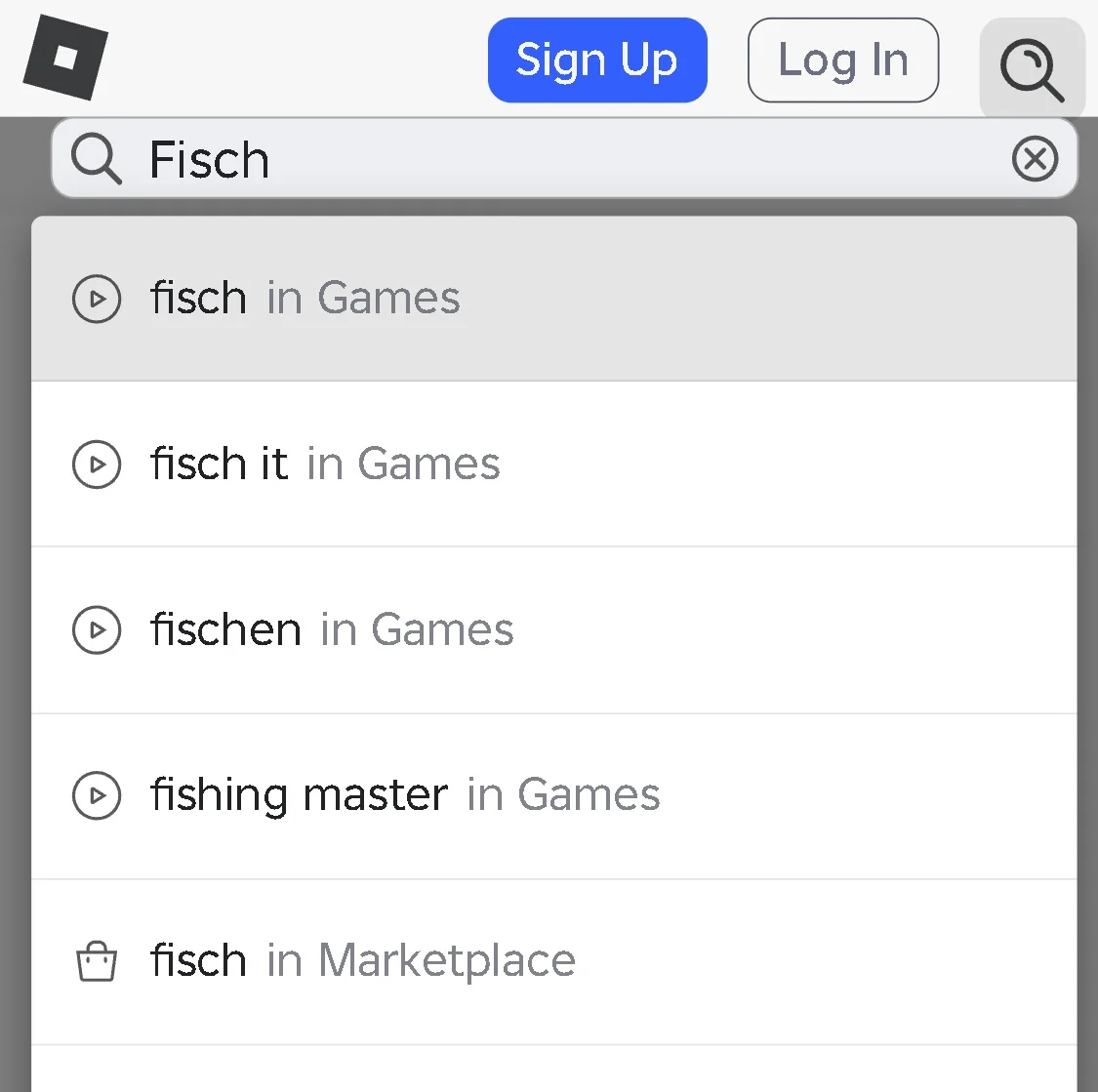
On the Roblox website, look for Search in the top bar. On a narrow phone screen, tap the magnifying-glass button at the top right to reveal the field. Type Fisch. In the suggestions below it, choose fisch in Games: it has a small play-triangle icon. Do not choose Marketplace, which searches avatar items, or Communities, which searches groups.

Roblox’s mobile search field contains Fisch, with fisch in Games above the Marketplace suggestion.
Tap the first suggestion labelled fisch in Games. The magnifying glass at the top right opens the search field on a narrow screen.

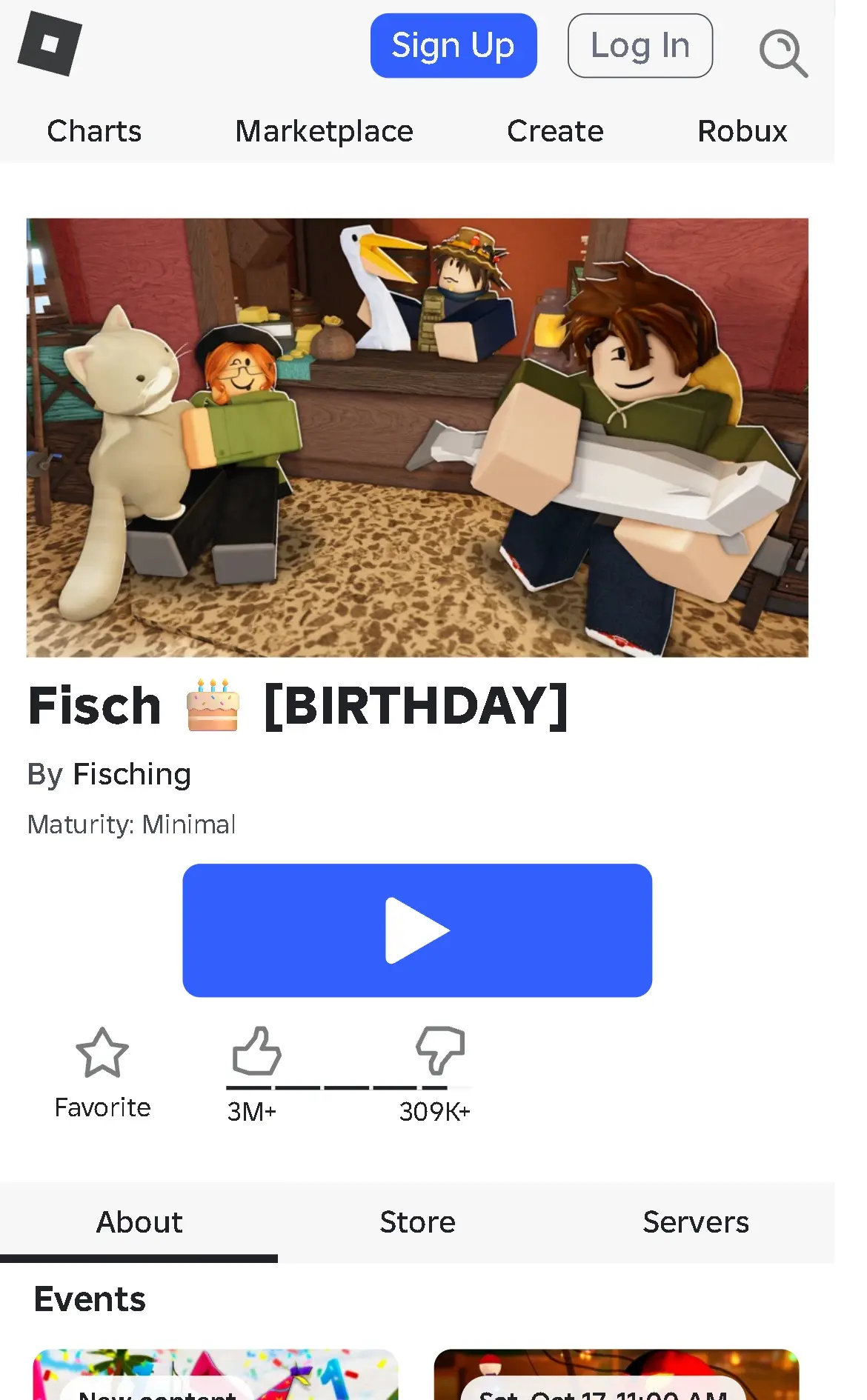
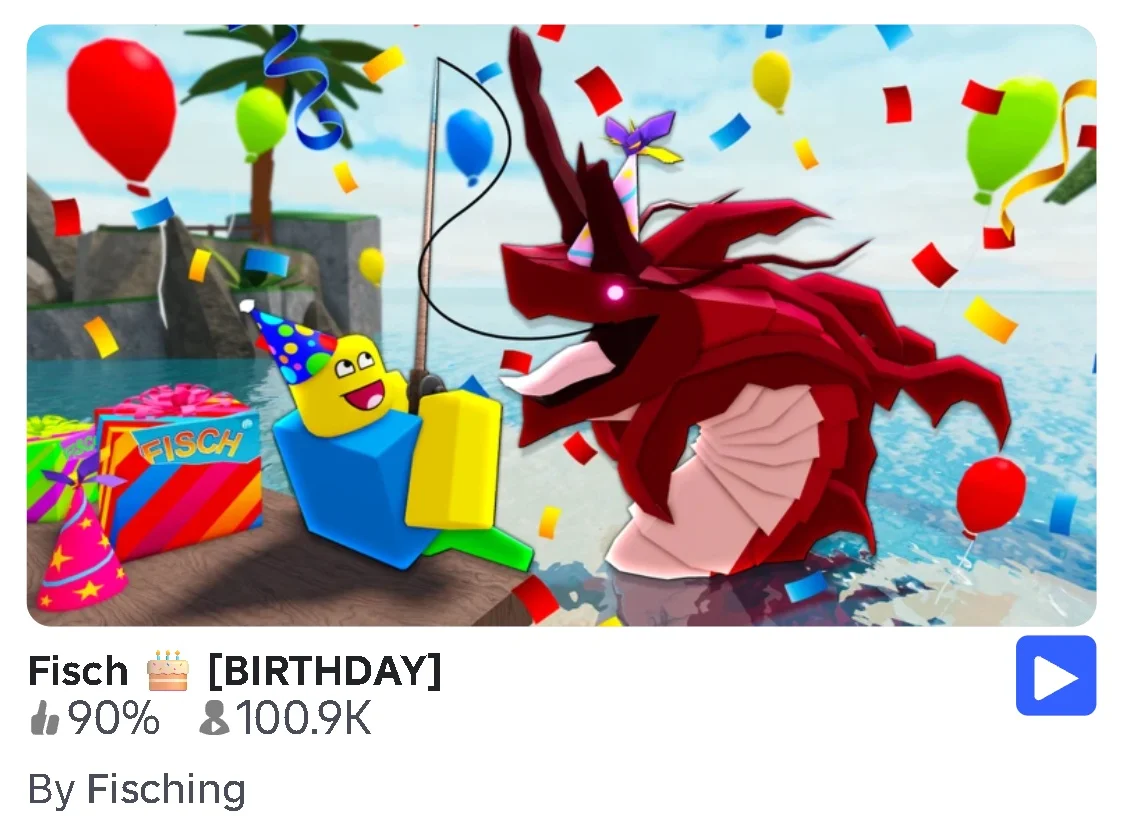
Look for a Fisch result labelled By Fisching. Open the result by tapping its name or picture, not the blue play-triangle button. The example has a birthday label and a red sea creature, but an event can change both. The creator name is a better check than matching that temporary picture.

The Fisch birthday result in Roblox search has By Fisching beneath its title and player count.
Check By Fisching beneath the game’s name. Open the name or picture to read the page, rather than starting the game.

2. Open About beneath the play button

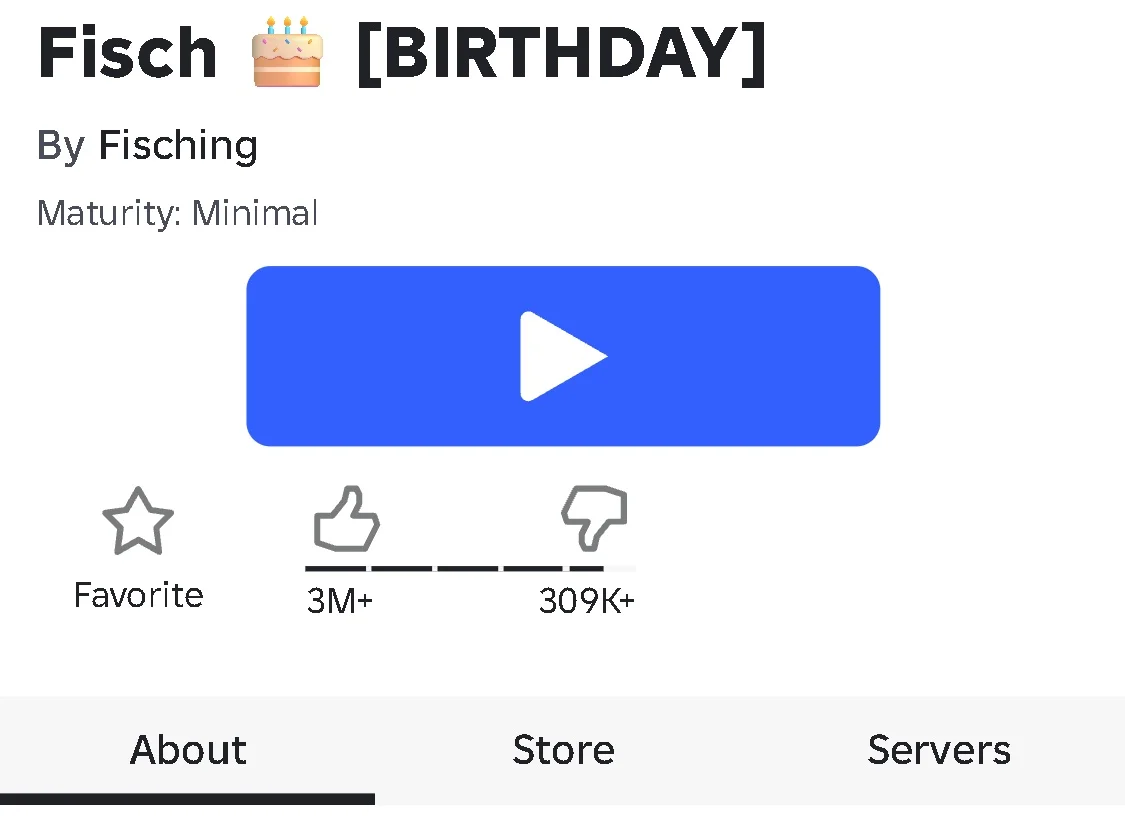
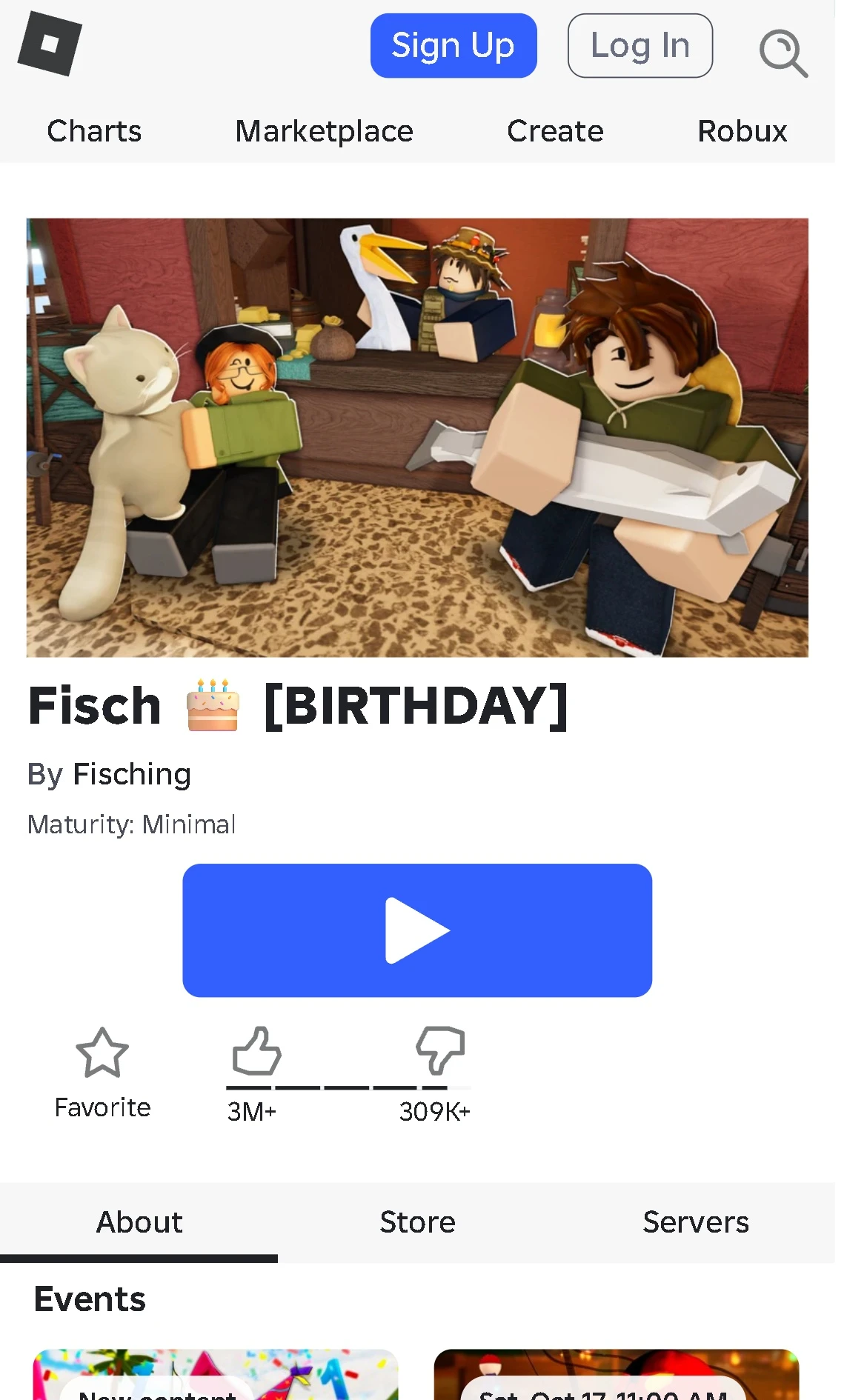
On the game page, confirm By Fisching below the Fisch title. Scroll past the large play button and the favourite and rating icons until you reach the three tabs: About, Store and Servers. Select About on the left. A dark line beneath About marks the selected tab. You are looking for page information, not something sold in Store.

Fisch’s title and creator are above the About, Store and Servers tabs, with About underlined.
Select About, the left-hand tab. The dark underline shows that its page is open.

3. Read Active and Server Size below Description

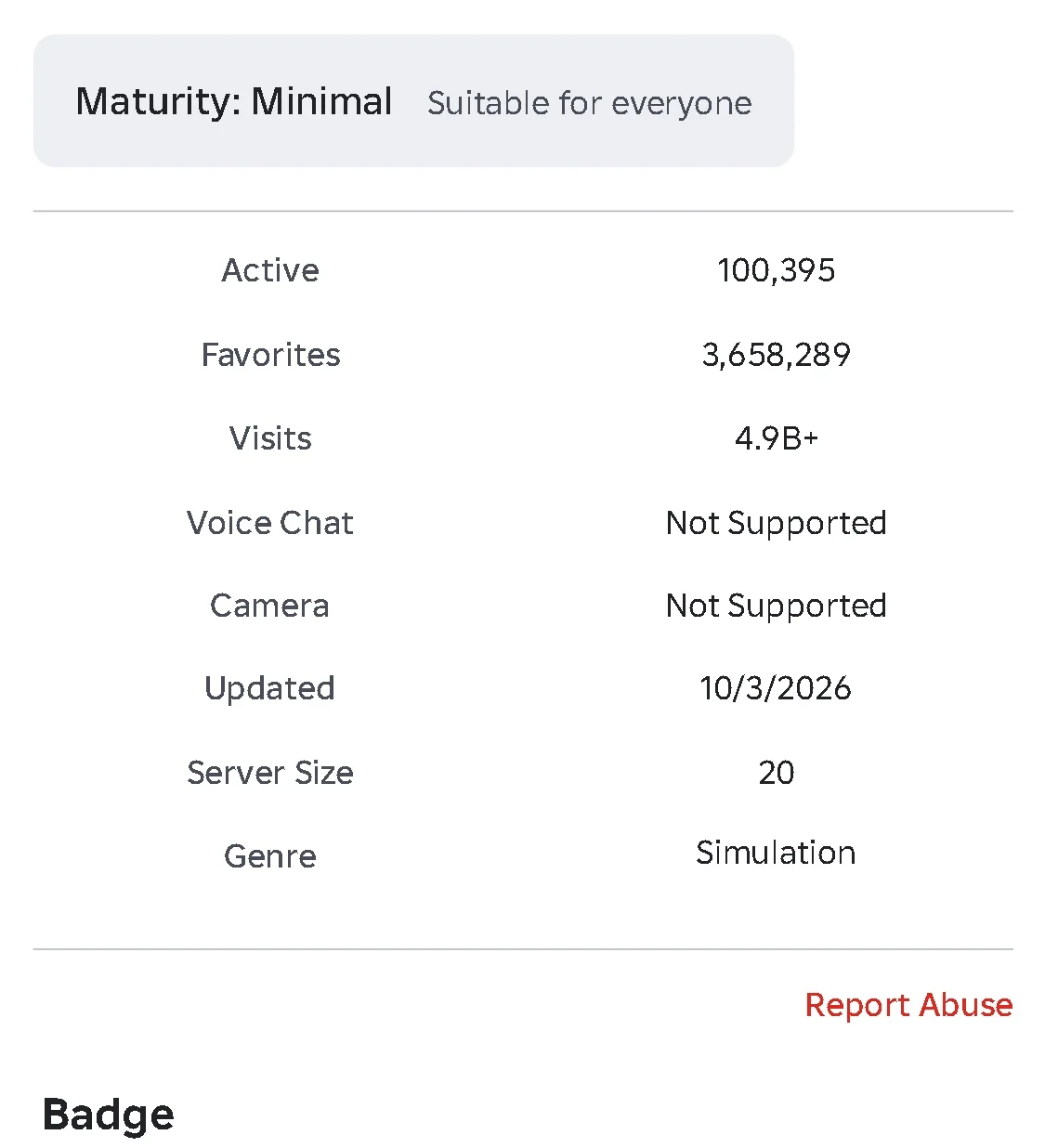
Stay on About and scroll down past Events and the game’s Description. Beneath the maturity panel, find the block of labels that includes Active, Favorites, Visits, Updated and Server Size. On the phone layout shown here, the label is on the left and its number is on the right.

The official Fisch About page lists Active100395, Visits4.9B+ and Server Size20 as separate rows.
Active is near the top; Server Size is near the bottom. These are values from the screenshot, not a promise of today’s exact numbers.

Read the number beside Active for the reported overall player count. Read Server Size for the capacity of one room. In this screenshot the size is 20: that does not mean only 20 people are playing Fisch, and it does not mean 20 places are free. Check the live label again when you need the current capacity.

Visits is a running total of visits, not a count of people online or unique players. A person can visit more than once. A figure ending in B is shortened into billions; K in a search result means thousands. Updated is a page date, not a countdown and not a notice that your saved progress will reset.

4. Treat the Servers list as a separate check

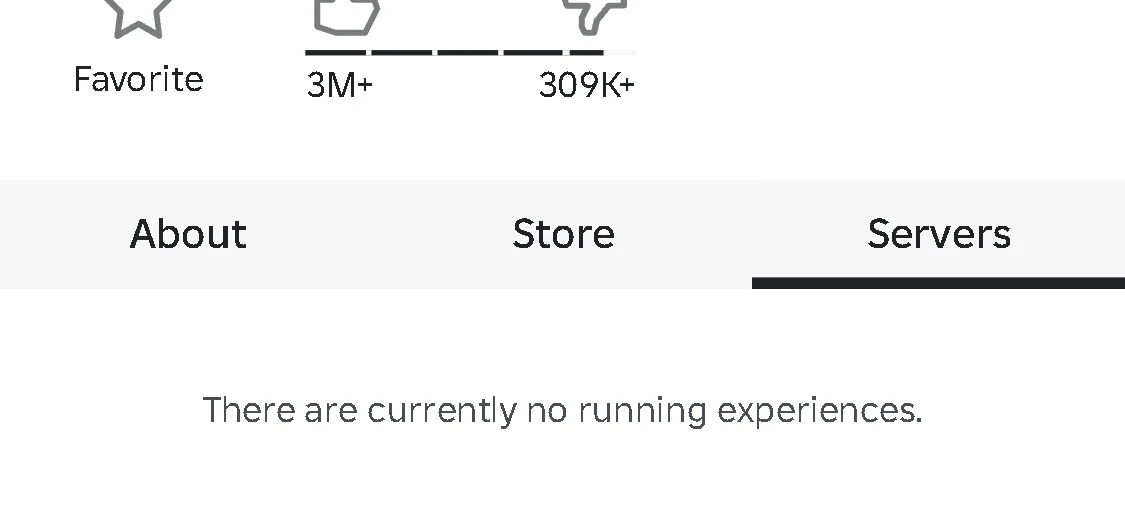
To look at the room-list area instead, scroll back to the three tabs and select Servers on the right. The dark underline moves from About to Servers. The labels you read in About are not a list of rooms with spare spaces.

The Servers tab is underlined and the page reads There are currently no running experiences.
An empty Servers list can appear separately from the Active number shown in About.

If you see “There are currently no running experiences,” do not turn that message into a claim that Fisch has zero players. Our logged-out view showed that message while About reported more than 100,000 Active players. It tells you that this page is not showing running rooms in that view; it does not identify the cause or prove a game-wide outage.

Check About again for the reported count. If your goal is troubleshooting a failed join, keep the exact error text from the Roblox app as well: this website message alone cannot diagnose your device or account. This guide does not promise that signing in, paying for a private server or entering a code will fix it.

Choose the next Fisch guide by what you need

For in-game reward promotions, use the Fisch codes guide, which separates code availability from actually claiming a reward. For a first trip away from the starting island, use the first-boat walkthrough. The Fisch guide hub groups the rest by the action you want to learn.

Get Pixel Twelve's biggest stories first.

Add as a preferred source on Google