







Pixel Twelve
Fisch: How to Equip Bait in the Equipment Bag (PC)

How To

Fisch: How to Equip Bait in the Equipment Bag (PC)

Find bait in both Fisch Equipment Bag layouts, choose Equip, check Unequip, switch bait and return to your fishing rod on PC.

By Nova RainesGame: FischVerified Oct 3, 2026
Add to list
Guide Type
How To
Last Verified
Oct 3, 2026

Guide details

Overview

Find bait in both Fisch Equipment Bag layouts, choose Equip, check Unequip, switch bait and return to your fishing rod on PC.

Before you start: own at least one piece of bait

To equip bait in Fisch on PC, open Equipment Bag, find the bait area on the right and choose Equip on an owned bait’s card. Buying or receiving bait does not mean it is selected. The Unequip label on its card is the useful check.

You need at least one piece of the bait you want to use. This guide covers selecting, switching and removing bait you already own, with both Equipment Bag layouts. It does not cover Crab Cages, which do not use this rod-bait selection.

If you need to restock first, the bait guide’s crate locations and reward routes explain where supplies come from. You can also fish normally without bait.
1. Open Equipment Bag, not the fish inventory

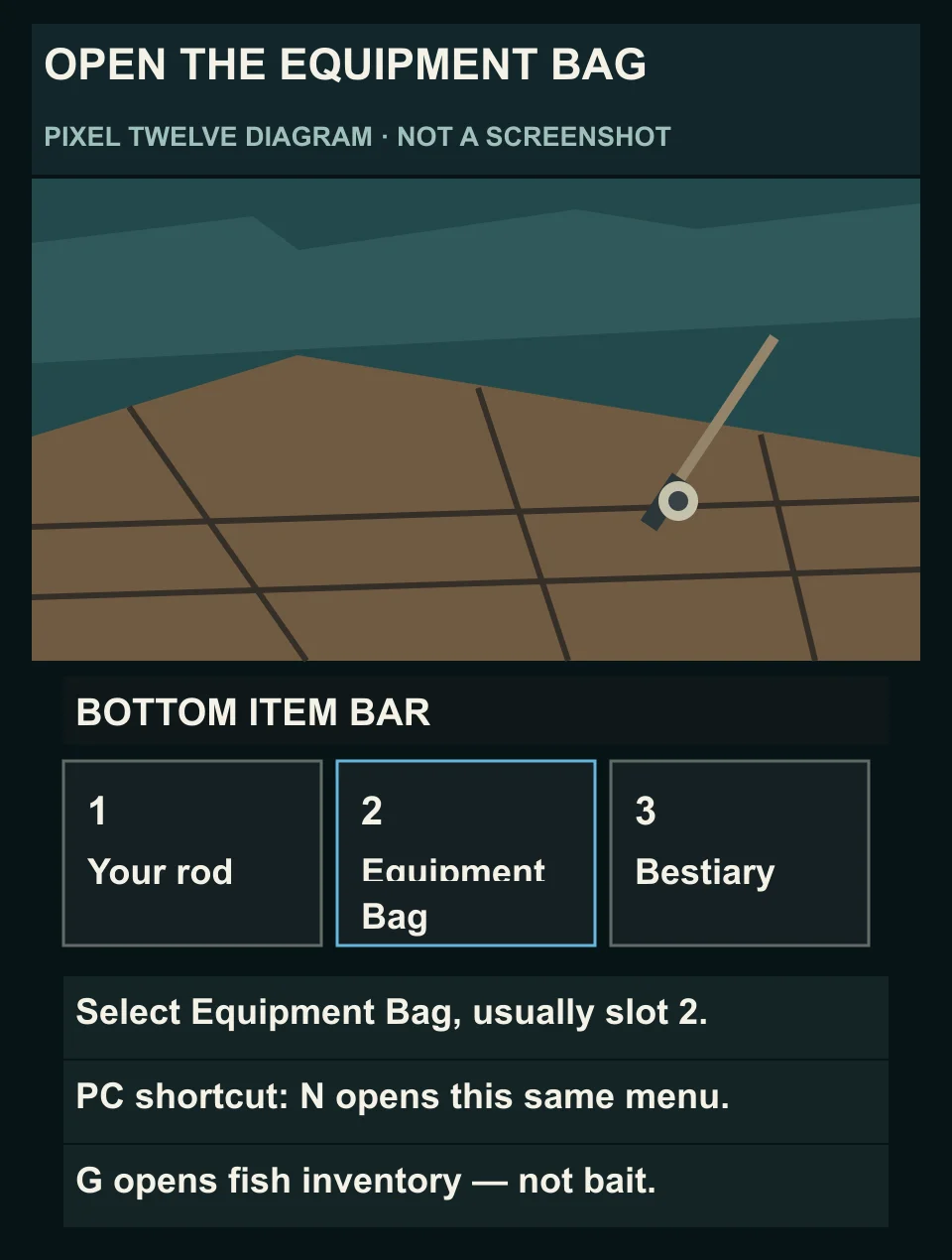
Look at the numbered item bar along the bottom of the game screen. Find the slot labelled Equipment Bag, usually number 2. Select that slot, or press N on PC to open the same menu. If you have rearranged the bar, follow the name rather than assuming it is still in slot 2.

Original diagram places Equipment Bag in the second slot of Fisch’s bottom item bar and distinguishes N from the G fish-inventory shortcut.
Diagram: look for Equipment Bag in the bottom item bar, usually slot 2. N is the PC shortcut; G is a different inventory. The background and slots are simplified.

The menu contains your rods and bait. A grid of caught fish is the wrong screen: G opens that fish inventory instead. Also note your fishing rod’s name in the bottom bar, usually slot 1; you will select that slot again when you are ready to cast.

2. Find the bait area in your version of the menu

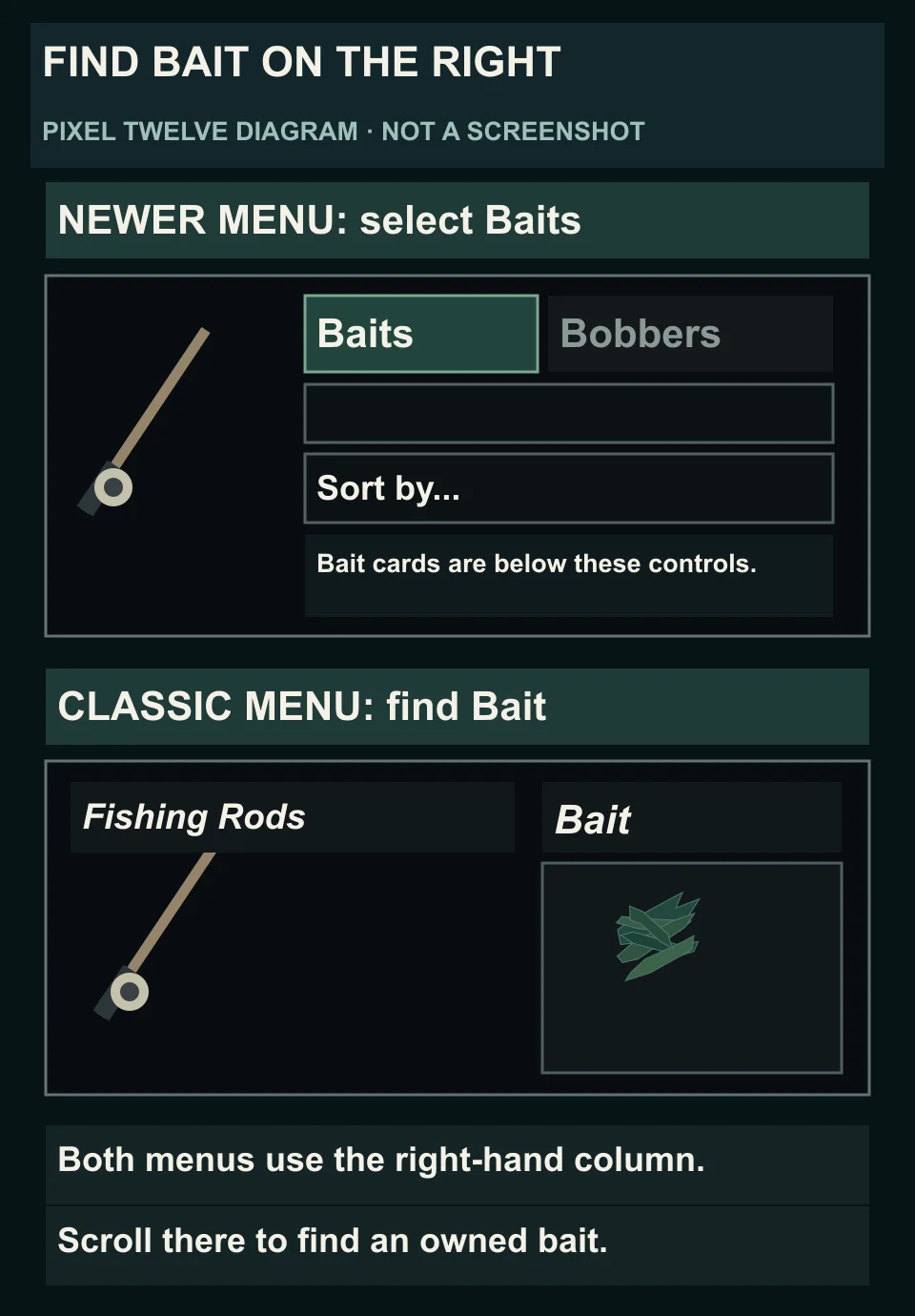
In the newer Equipment Bag, look across the top of the right-hand column for Baits and Bobbers. Choose Baits. The bait cards sit below the small search field and Sort by... control. Keep the pointer inside that right-hand area when you scroll through the cards.

Original comparison of the observed newer Fisch Equipment Bag Baits tab above search and Sort by controls, and the classic Bait heading to the right of Fishing Rods.
Diagram: the newer layout has a Baits tab at the top right. The classic layout has a Bait heading to the right of Fishing Rods. Both are enlarged and simplified; stat rows are omitted.

In the classic layout, Fishing Rods is the large left-hand area and Bait is the narrower column on the right. Scroll that Bait column, not the rod list. You do not need to change a setting just because your menu looks like one version or the other.

3. Match the name, choose Equip and check the result

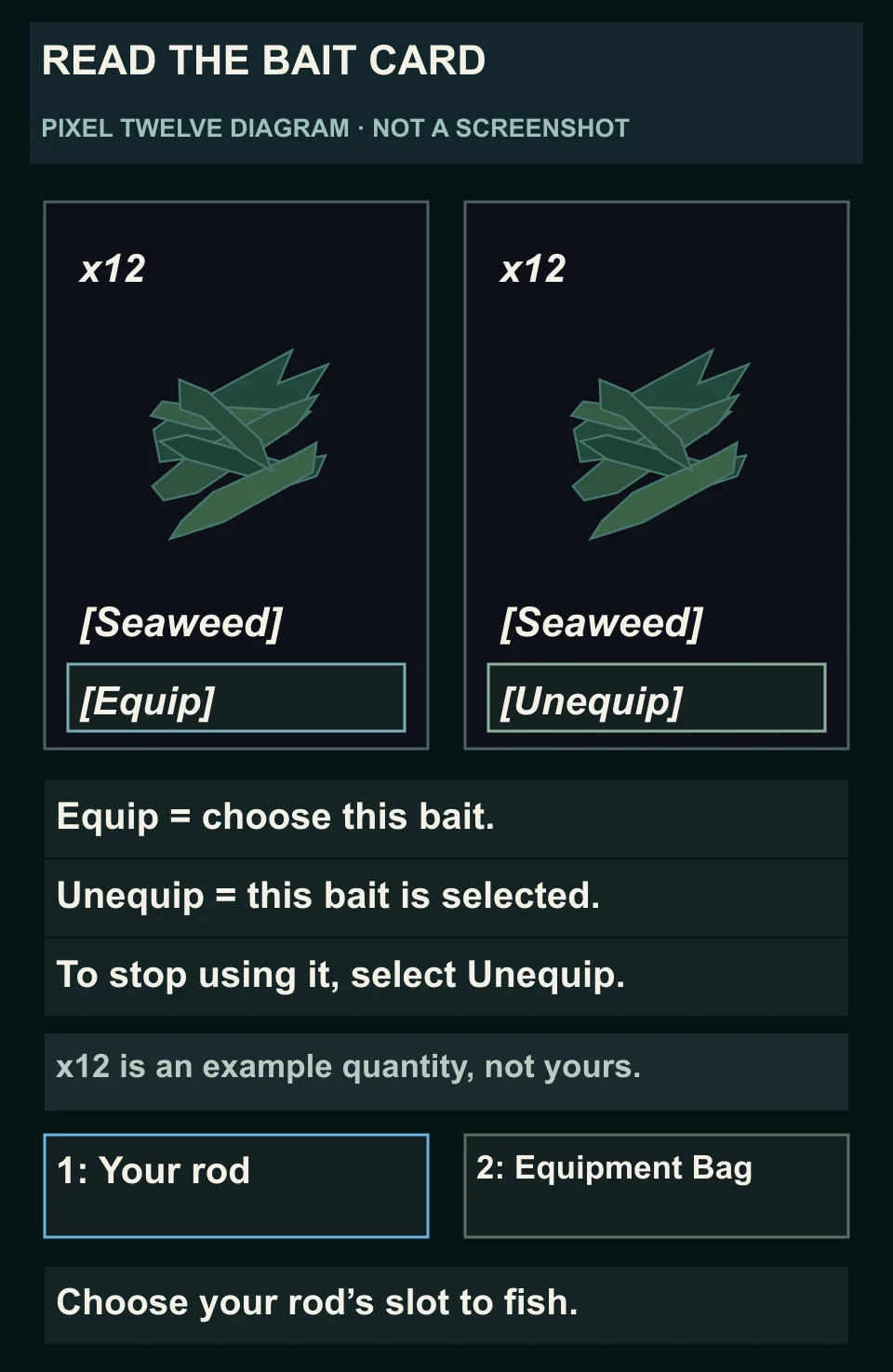
Find an owned bait by its picture and bracketed name. For example, Seaweed looks like a pile of flat dark-green strips and has the name [Seaweed]. A number beginning with x on the card is your remaining amount. The picture alone is not enough: read the name before selecting a rare bait.

Choose Equip at the bottom of that bait’s card. Check the same card again: Unequip means that bait is selected. If it already says Unequip, it is already active; selecting that label would remove it instead of equipping it a second time.

Original Seaweed bait-card comparison with an example x12 quantity, the name in brackets, the real Equip versus Unequip labels, and the rod slot selected in the bottom item bar.
Diagram: match the bait’s name and quantity, then choose Equip. Unequip on that card confirms selection and also lets you remove it. Select your rod’s bottom slot to return to fishing. Counts, proportions and Your rod are illustrative, not an account screenshot.

To return to fishing, select the bottom item-bar slot with your fishing rod’s name, usually number 1. That is the rod slot you noted in step 1, not Equipment Bag or Bestiary. Check that your character has the rod before you cast. The diagram’s Your rod wording and x12 count are examples, not labels or quantities promised for your account.

Switch bait or fish without using it

To switch, open Equipment Bag again, return to Baits or the classic Bait column and choose Equip on the different bait’s card. Recheck that card for Unequip before going back to your rod. To use no bait, choose Unequip on the currently selected bait, then return to your rod. The label comparison in step 3 shows both actions.

Check the remaining x count before a long session, especially if the selected bait is rare or from a limited event. Do not leave your last rare bait selected while you are only checking a location.

For choosing what to equip, compare bait stats and target-specific choices after you know how to select it.

If you cannot find or equip the bait

If you only see rods, check the right-hand Baits tab or Bait heading from step 2. In the newer layout, also look at the small search field above Sort by...: if text is still in it, clear that text so it does not hide other bait names.

If a bait is missing or has no usable quantity, do not assume that receiving one crate guaranteed that bait. Crate rewards vary. Restock through the linked bait guide, or select a bait you can actually see and own. Buying more is not the same action as choosing Equip.

If the pictures differ after an update, use the live bait name, remaining quantity and Equip or Unequip label as your check. These are original Pixel Twelve diagrams, not gameplay screenshots. This walkthrough uses PC controls; it does not invent mobile or console button positions.

Find the rest of our beginner walkthroughs in the Fisch hub.

Get Pixel Twelve's biggest stories first.

Add as a preferred source on Google