Find the Moosewood Merchant, select a fish and choose a single sale or a bulk sale. Learn how the inventory star keeps a fish out of bulk selling.
Before you start: have a fish to sell
This walkthrough starts after you have caught a fish. You sell catches for C$, Fisch's in-game money. C$ is not Robux. For a first sale, sell one ordinary fish so you can check what happened before trying a whole bag.
The controls below are for PC. The pictures are original Pixel Twelve diagrams based on the game's objects and menus, not screenshots or proof of a live test. Menu positions and input prompts may change with updates; read the labels shown in your own game.
1. Find the red Merchant hut at Moosewood
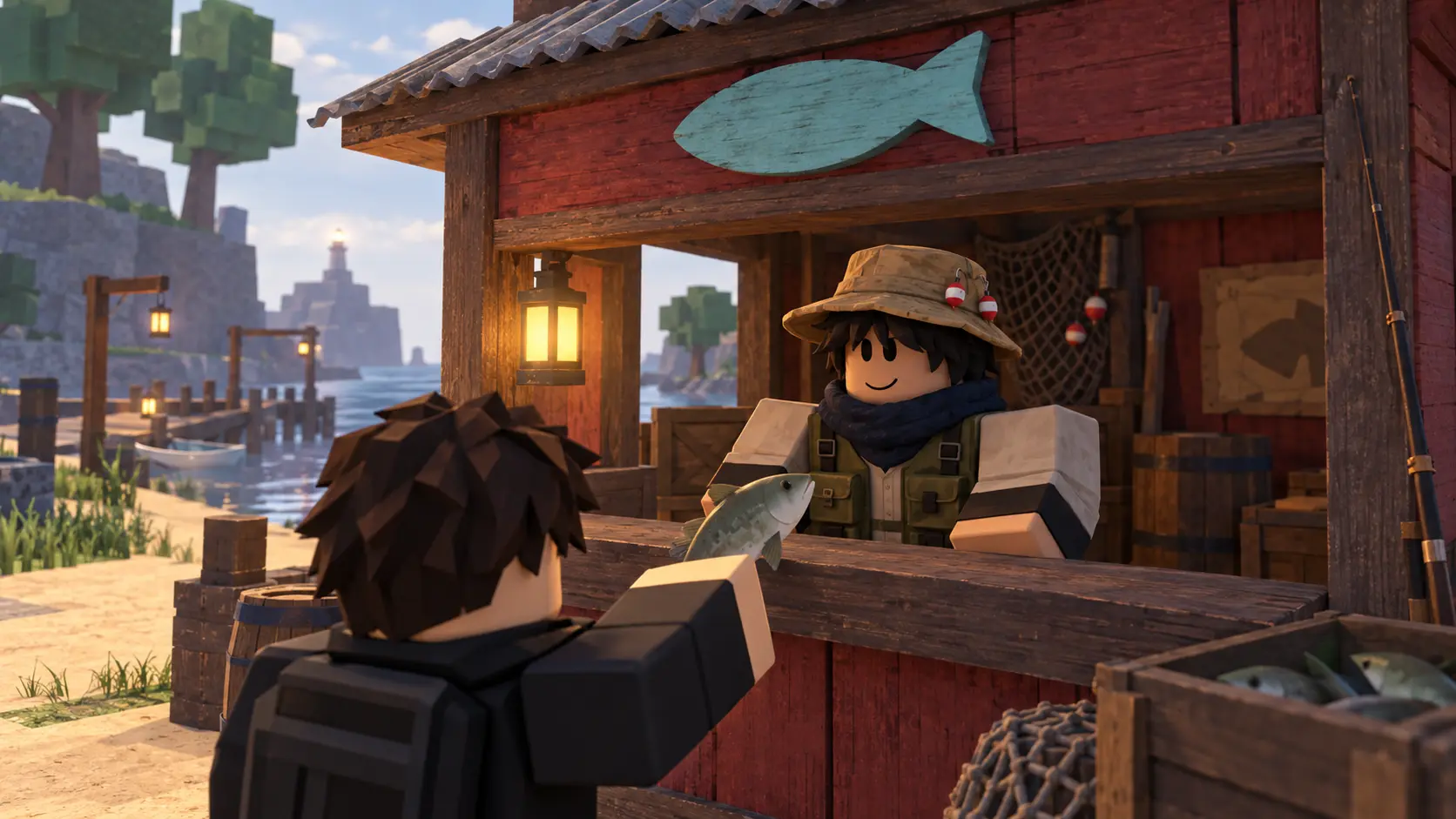
In Moosewood's village, look for a small red wooden hut with a light-blue fish sign above the open counter. The Merchant stands behind that counter. He wears a tan fishing hat, a dark scarf and a vest with pockets; a lantern sits beside him.
Walk up to the person at the counter, not the rods and other goods around the shop. Look for the Merchant interaction prompt when you are close. Use the input shown there to open the conversation. If the prompt names the Appraiser or Shipwright instead, you are at a different service: the Merchant is the person who buys your fish.
Diagram: look for the light-blue fish sign on the red hut, then the Merchant at the counter. The village setting is simplified, not a map or screenshot.
2. Select the fish you want to sell
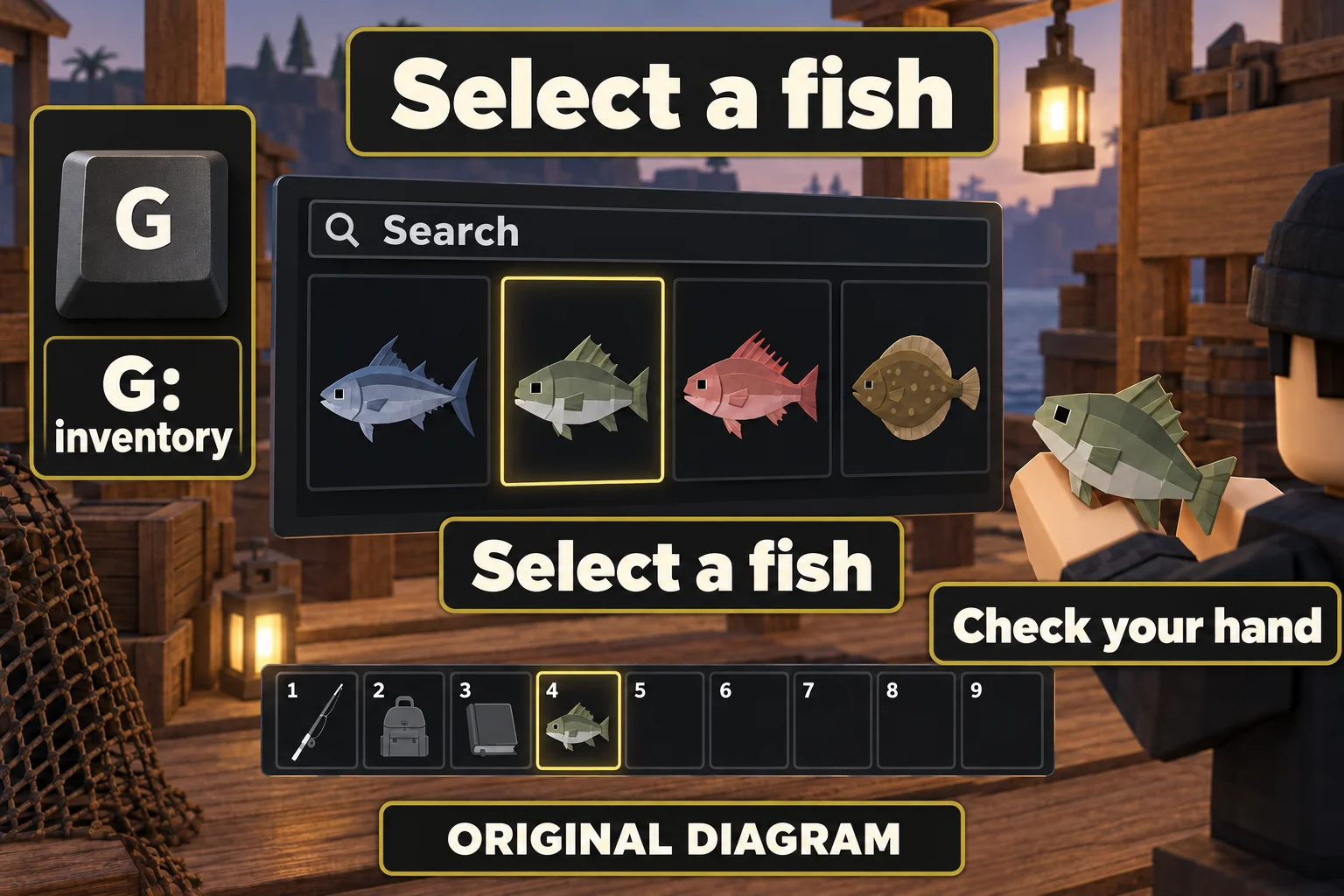
On PC, press G to open the fish inventory. This is the dark grid of item squares with a Search box at the top and your numbered item bar along the bottom. It is not the Equipment Bag, which holds your rod and other equipment.
Left-click the fish's tile to equip it. If the fish is already in a numbered square along the bottom, click that square instead. Check your character's hand: the actual fish should be visible. Holding a rod or an empty hand is not the same as selecting a catch.
Press G again to close the inventory if it is blocking the conversation. Return to the Merchant's counter with that fish selected.
Diagram: use G for the fish inventory and select a catch. Check that the fish is in your hand. The grid and hotbar are simplified examples, not a real account.
3. For one fish, choose the single-sale line
In the Merchant conversation, choose the line that says I'd like to sell this. This sells the fish you are holding. Read the whole line: I'd like to sell my inventory is a different choice and can sell many fish at once.
If the Merchant asks you to show a fish, close the conversation and repeat the selection step. Open G, choose a fish tile and check the fish in your hand before talking again.
Diagram: the two real dialogue labels mean different things. The comparison panel is editorial, not the position or complete layout of the game conversation.
4. Before a bulk sale, put a star on fish you need
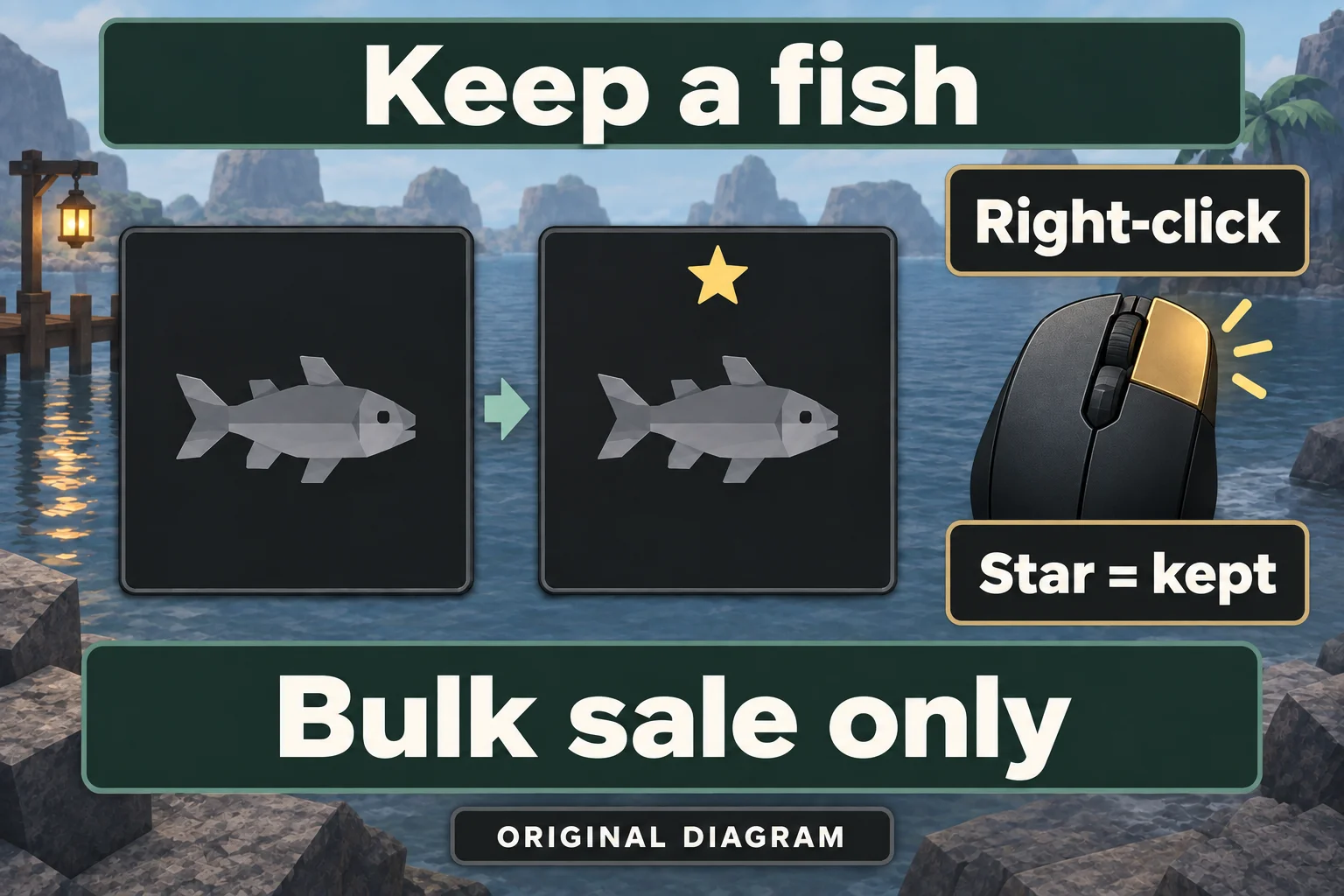
Open G and find each fish you want to keep. On PC, right-click its tile. A small star appears at the top of that item square. Check the star on the actual fish, not just a sorting button: it means that item is marked as a favourite.
Do this for catches you are saving for a quest, collection or another goal. Marking an item as a favourite keeps it out of bulk inventory selling. The protection applies to a bulk sale; do not choose the single-sale line while holding a fish you want to keep.
After checking the stars, close the inventory and speak to the Merchant. Choose I'd like to sell my inventory only when you intend to sell the fish that the game can sell from your bag. Favourites and fish excluded by your Auto-selling settings stay behind, so this choice does not always empty the bag.
Diagram: on PC, right-click the fish tile and check its star. The star keeps that item out of bulk selling, not a deliberately selected single sale.
The two dialogue lines are compared in the picture above. If you are unsure which fish will be included, use a single sale instead. There is no need to turn on bulk selling for rare catches just to complete your first sale.
5. Check that the Merchant paid you
After a single sale, look for the Merchant's payment message with a C$ amount. Check that you are no longer holding that fish. Reopen G and look for the same catch: it should no longer be there. If you own several fish of the same species, check the number or the catch's details rather than assuming every matching picture will disappear.
After a bulk sale, reopen G and check that the fish with stars are still in the bag. If no sale happened, read the Merchant's message first. You may have no fish available for that choice, or the fish may be excluded from bulk selling. Do not remove a star from an important fish just to make that message go away.
Diagram: check both the Merchant payment and the sold catch. The receipt shape explains the result; it is not a game receipt, HUD position or promised price.
What to do with your first C$
A fish's value depends on the catch; selling the same catch to a different Merchant is not a way to raise its price. Once you understand the sale, plan what you want to save for instead of spending every payment at once.