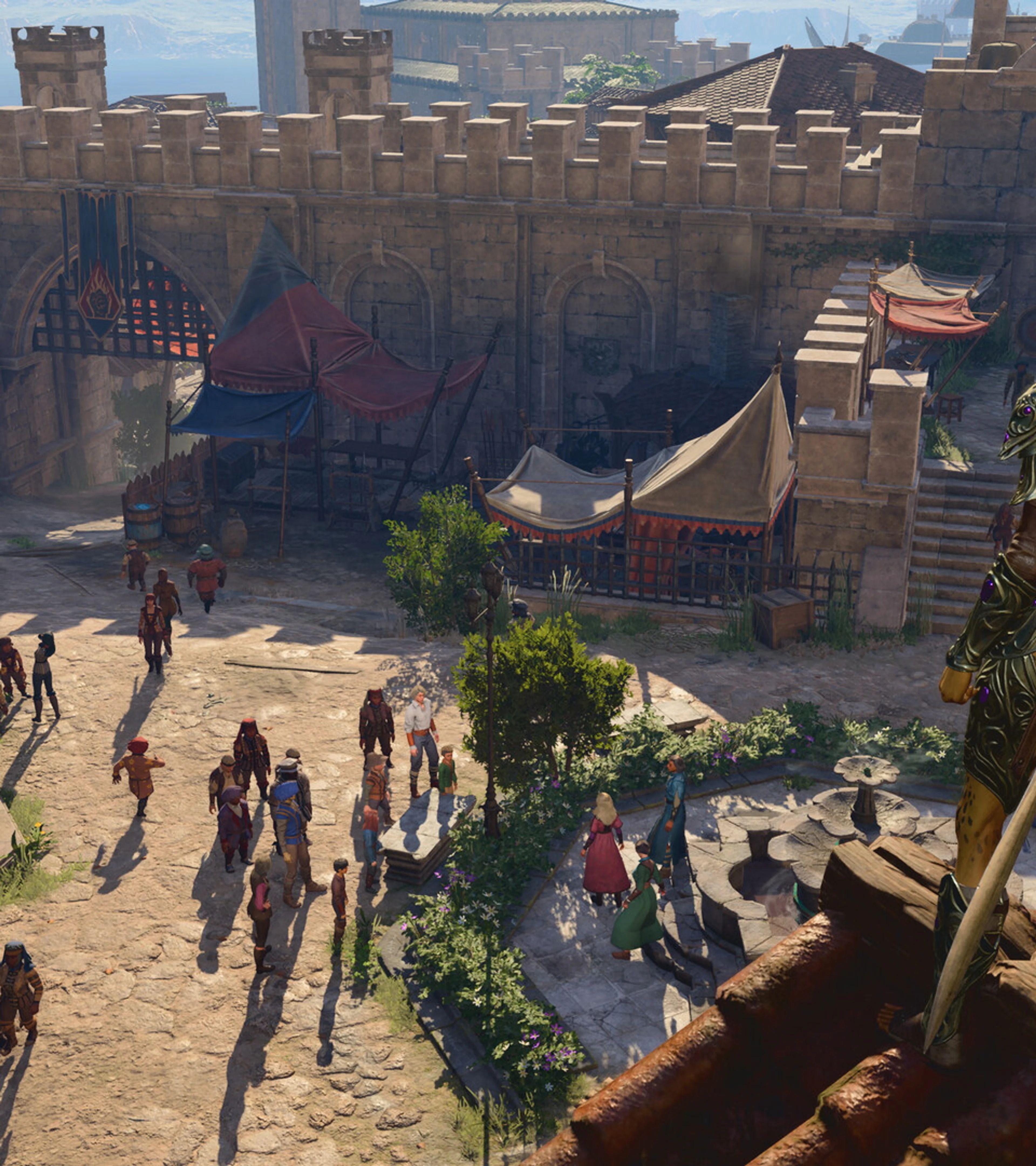
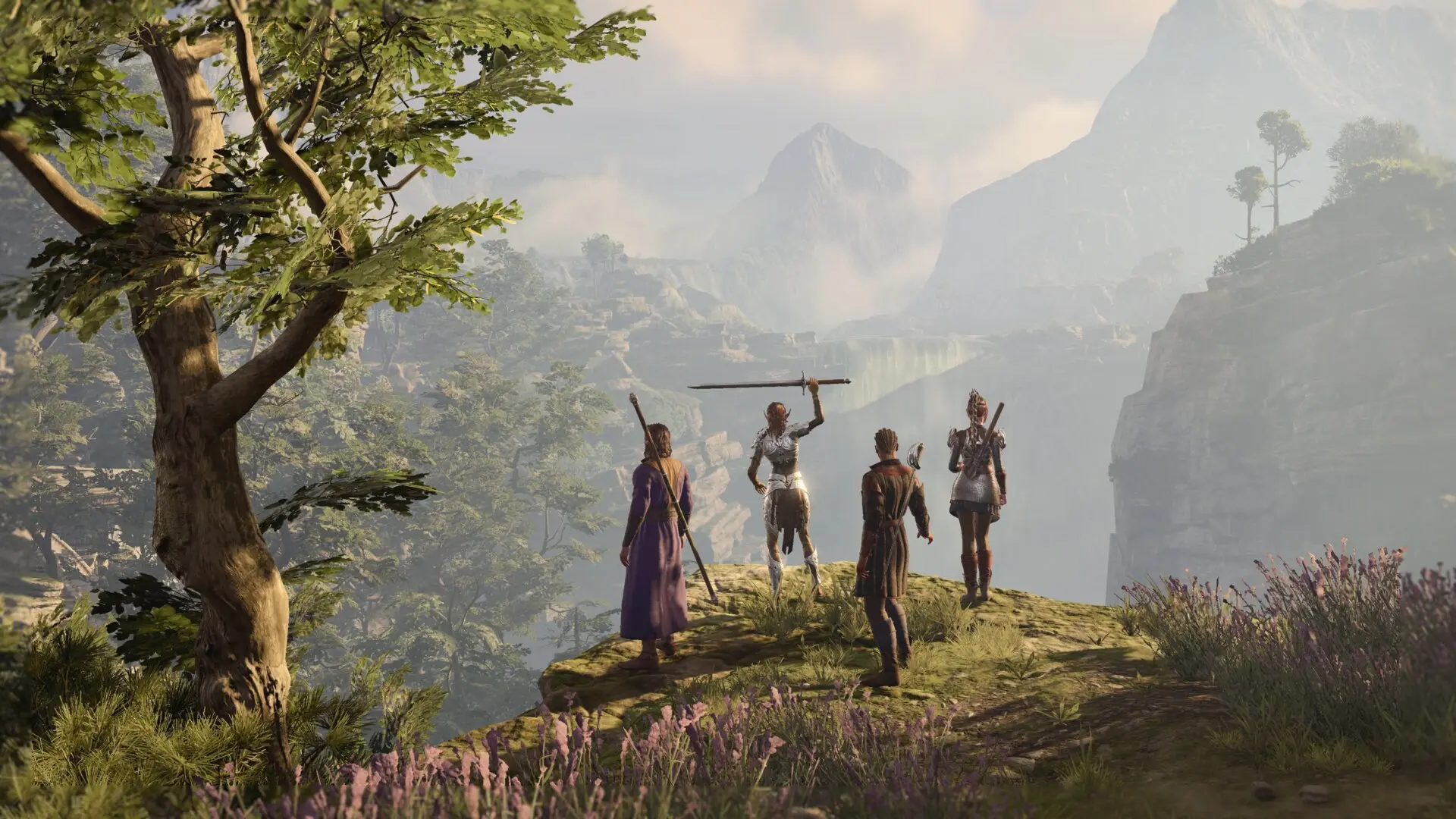
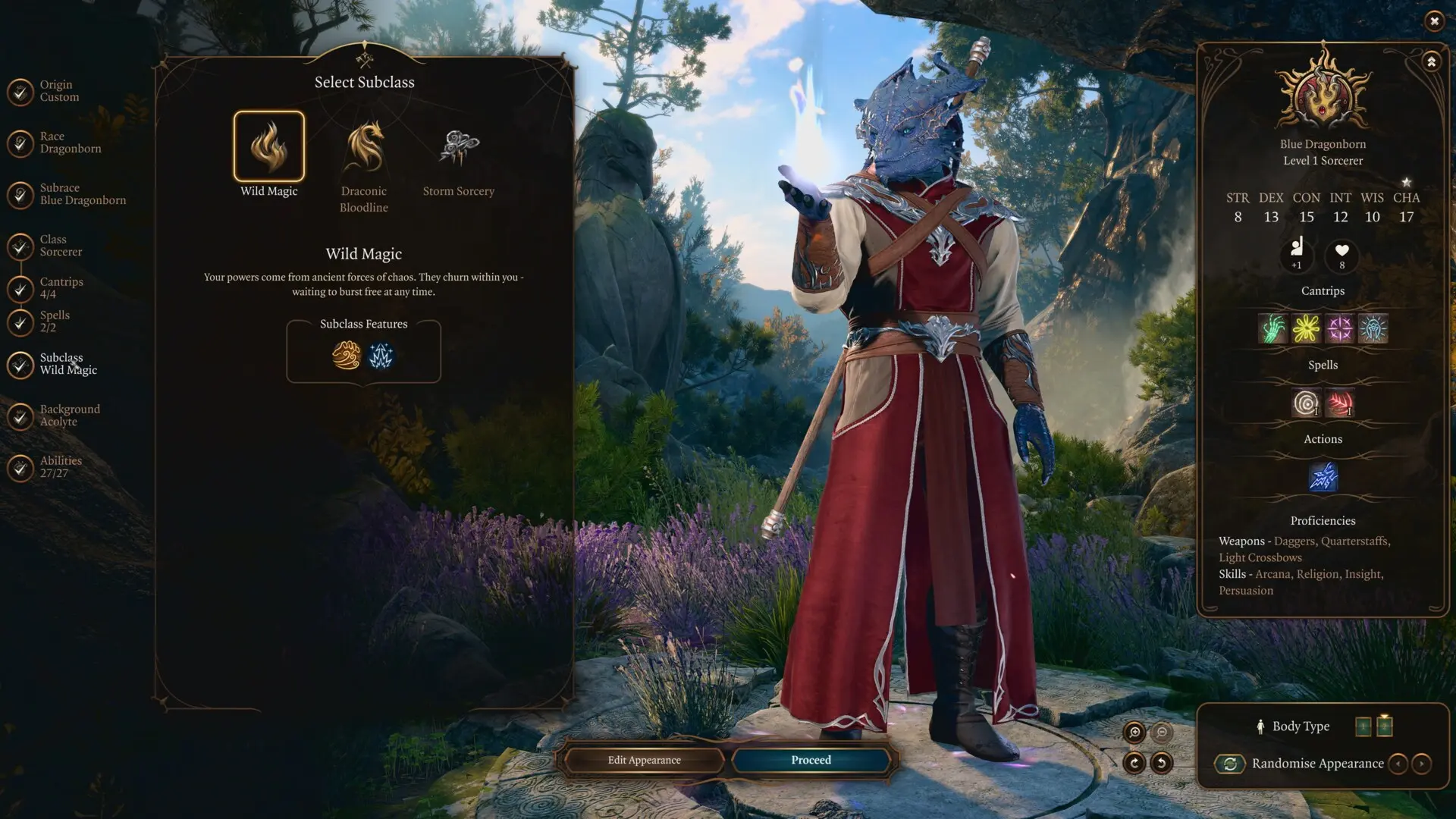
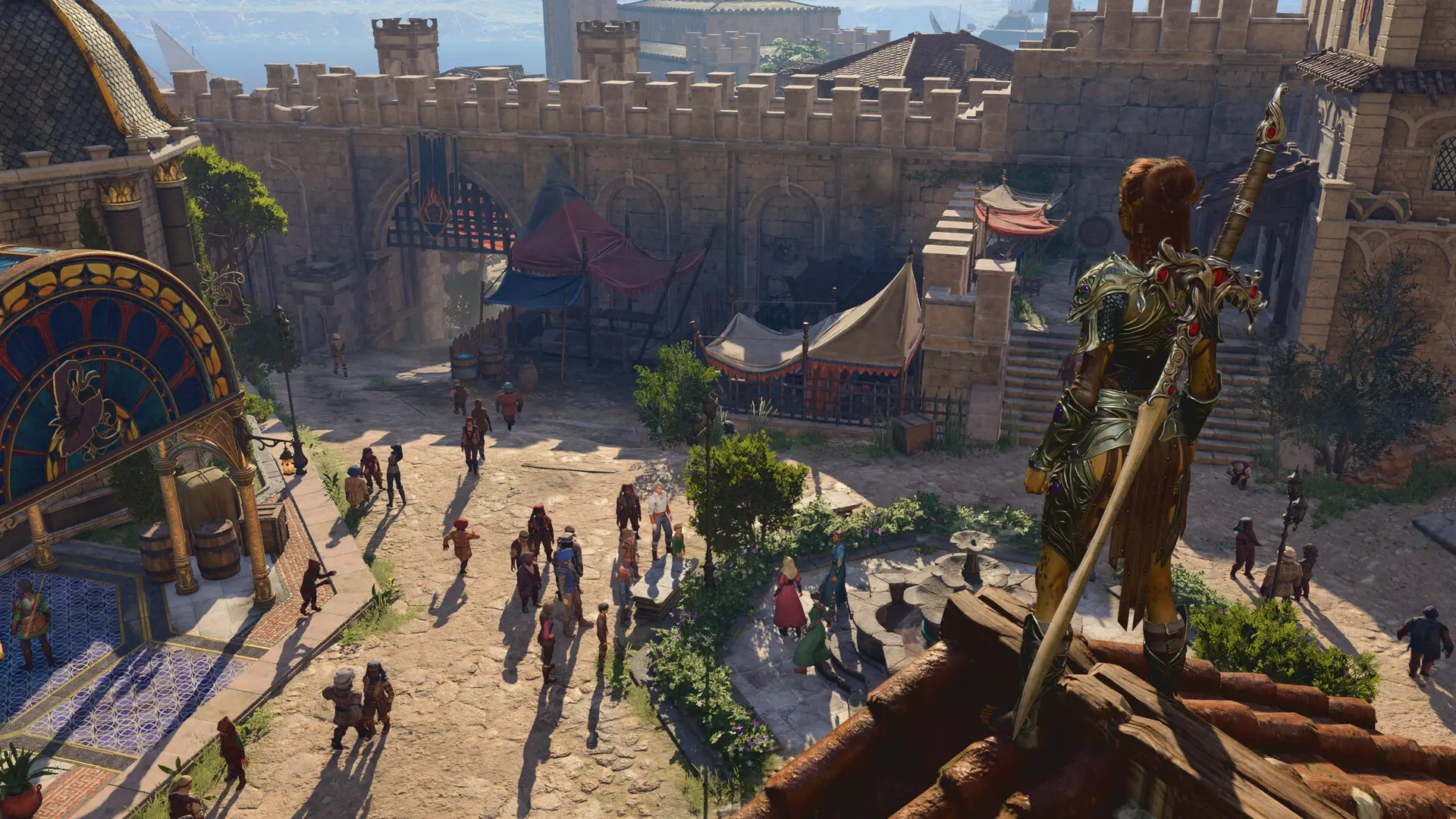
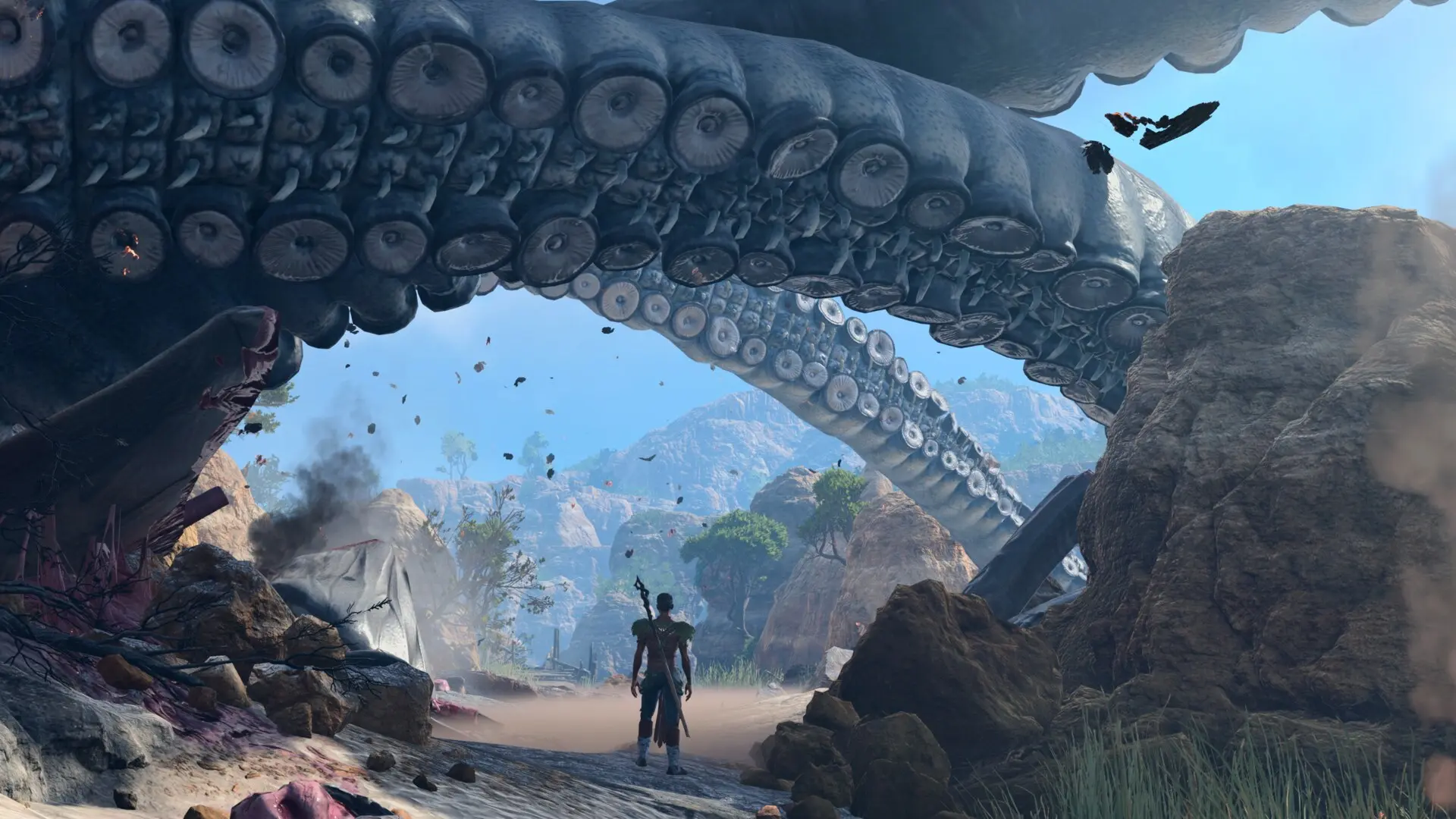

The True Third-Person Camera mod gives Baldur's Gate 3 a close, over-the-shoulder view that feels more like a modern third-person RPG. It works on Windows PC, switches back to the wider tactical camera when needed, and can be toggled with a controller or keyboard.
This is a native Nexus mod, so installing it takes more work than pressing Download in Baldur's Gate 3's official Mod Manager. You need Native Mod Loader, BG3 Script Extender, Mod Configuration Menu, and BG3 Mod Manager before adding the camera itself. The optional WASD movement mod is useful, but it is not required.
Back up your saves before starting. Game updates can temporarily break native mods, and every required tool should come from its original page.
What the True Third-Person Camera mod changes

The mod moves the exploration camera behind your character instead of leaving it high above the party. You can walk through the Sword Coast, enter buildings, and look around from a much closer angle. Holding the camera toggle returns you to the regular view whenever you want to inspect the area or move the whole party more traditionally.
Combat still uses Baldur's Gate 3's normal turn-based rules. The mod changes the camera, not your actions, initiative, movement range, dice rolls, or party controls. Version 2.0’s optional Immersive Close Combat view pulls back for action selection and moves closer during actions. The creator recommends enabling Dynamic Combat Camera and Follow Flying Creatures in BG3’s Gameplay settings for that mode.
The current release is version 2.0, listed by creator Relysia on Nexus Mods with an August 25, 2026 update. It changes the controller bindings and native file names, adds camera presets and a dynamic combat view, and stores settings as JSON managed through MCM instead of a camera TOML file. These instructions follow the creator’s documentation; they are not a claim of hands-on testing.
What you need before installing it
Download these requirements from their original pages. If a name is not clickable, copy its web address into your browser:
- Native Mod Loader (nexusmods.com/baldursgate3/mods/944): loads the native camera files placed inside the game's
binfolder. - BG3 Script Extender (nexusmods.com/baldursgate3/mods/2172): provides scripting support required by the MCM package.
- Mod Configuration Menu (MCM) — nexusmods.com/baldursgate3/mods/9162: adds the in-game settings menu used by the camera mod.
- BG3 Mod Manager (github.com/LaughingLeader/BG3ModManager): imports the
.pakfile and exports the active load order. - True Third-Person Camera (nexusmods.com/baldursgate3/mods/23959): contains both the native files and the MCM package.
The separate WASD Character Movement mod is only a recommendation. It lets you move with WASD while the camera follows from behind, which makes the setup feel closer to a traditional action RPG. Controller movement already fits the new view well, so controller players do not need WASD Character Movement.
This setup is intended for Windows PC. It is not available on PS5 or Xbox because consoles cannot install the native loader, Script Extender, or files inside the game's installation folder. The published instructions also do not promise native macOS or Steam Deck support, so do not assume the Windows steps will work there.
Prepare Baldur's Gate 3 before installing the mod
Launch Baldur's Gate 3 once and reach the main menu before adding the tools. Close the game, then make a backup of any saves you care about. A mod that only changes the camera should not rewrite your story, but native tools can stop loading after a game patch.
Your Steam installation is normally here:
C:\Program Files (x86)\Steam\steamapps\common\Baldurs Gate 3
The folder you will use most is:
Baldurs Gate 3\bin
If your Steam library is on another drive, right-click Baldur's Gate 3 in Steam, open Manage, select Browse local files, and use the folder Steam opens. Do not create a second bin folder inside the existing one.
Install the required tools first
Install Native Mod Loader by following its current Nexus instructions and placing its loader files in Baldur's Gate 3's bin folder. If Windows asks whether to overwrite an existing loader file, stop and confirm that it belongs to the same tool before continuing.
Next, install BG3 Script Extender using the current instructions on its original Nexus or GitHub page. Restart BG3 Mod Manager after the installation so it can detect the extender.
Import the latest Mod Configuration Menu .pak into BG3 Mod Manager. Move MCM into Active Mods, then export the load order to the game. Launch Baldur's Gate 3 and confirm that MCM appears before installing the camera package. This quick check makes it much easier to identify which requirement is missing if the camera toggle does not appear later.
How to install True Third-Person Camera
Upgrading from 1.x? Back up your saves and camera settings first, then follow the creator’s 2.0 migration checklist on the Nexus download page listed above. It requires removing the old mod package, legacy camera files and old configuration before a fresh install—not simply overwriting the archive. Check ownership before deleting anything from a shared mods folder. For a clean 2.0 installation, use both parts of the download:
- Download the latest True Third-Person Camera archive and extract it to a temporary folder.
- Open the folder named 1 - Main Game Folder Files.
- Copy its
binfolder into the mainBaldurs Gate 3installation folder. - Merge the supplied bin folder into the game folder. Existing 1.x users must finish the migration cleanup first; do not leave the legacy camera DLL alongside version 2.0.
- Open the folder named 2 - BG3 Mod Manager File.
- Import
TrueThirdPersonCameraMCM.pakinto BG3 Mod Manager. - Move True Third-Person Camera MCM into Active Mods.
- Export the active load order to Baldur's Gate 3.
- Launch the game, load a save, and open MCM to confirm the camera settings are listed.
Do not put the entire downloaded archive inside Mods. The native portion belongs in the game's installation folder, while only the .pak package is handled by BG3 Mod Manager.
Controller and keyboard controls
With a controller, hold X on an Xbox controller or Square on a PlayStation controller to switch the close camera on or off. These replace the old Y/Triangle bindings. For shoulder swap, hold B on Xbox or Circle on PlayStation.
On keyboard, the default toggle is Numpad `*`. In version 2.0, rebind it in MCM > Global Settings if your keyboard has no number pad. Numpad / is the default shoulder-swap key and can also be rebound.
The camera can be enabled while exploring and disabled whenever you need the original view. You do not have to start a new save, rebuild your character, or leave your current campaign.
Best way to use the camera
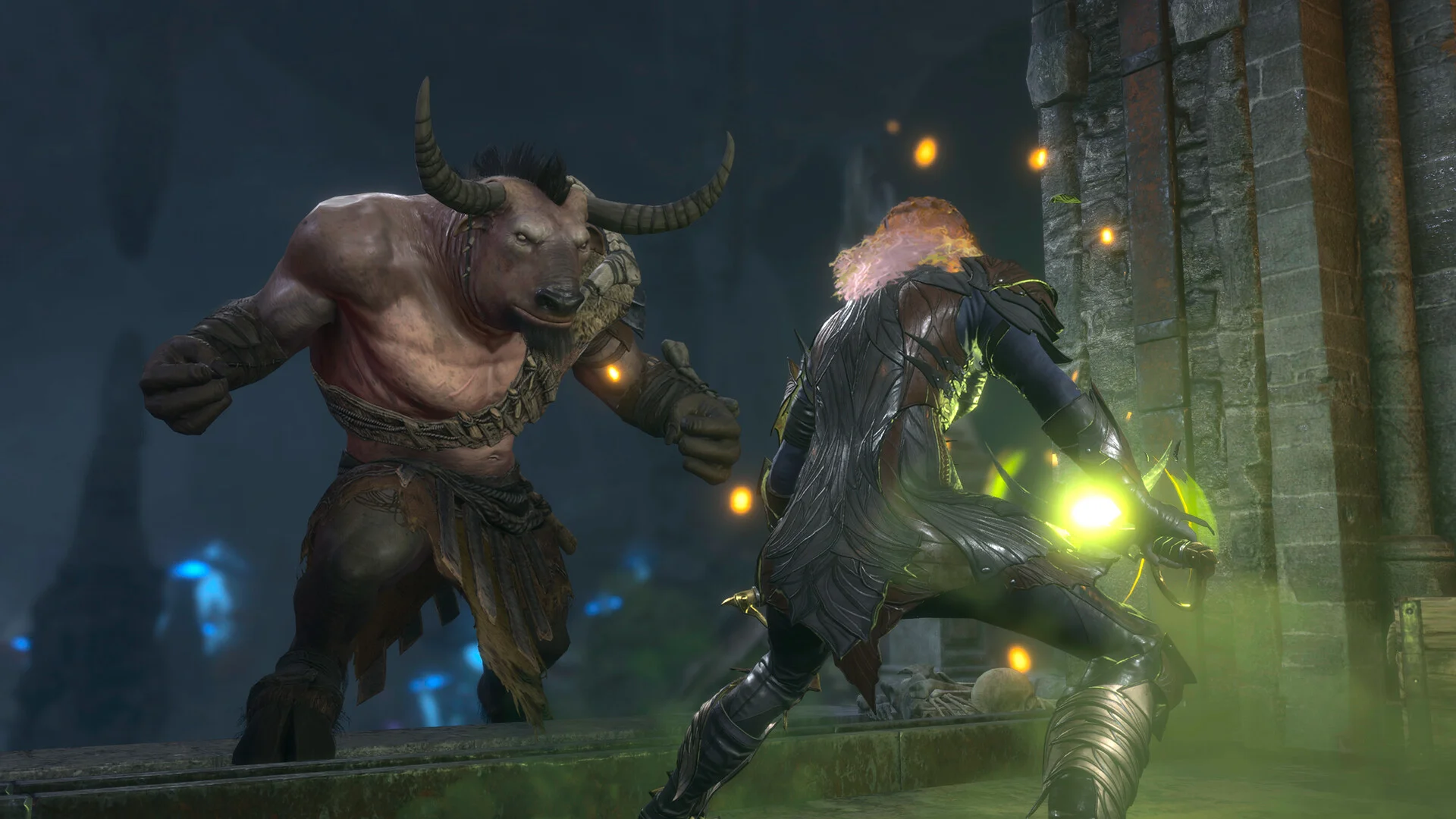
The close view works best when you are exploring, talking to characters, looting rooms, or walking through crowded areas. It makes the scale of towns, ruins, and companions easier to appreciate, especially when paired with controller movement or WASD Character Movement.
Keep the regular tactical view available for fights, traps, jumps, and moments when party positioning matters. Baldur's Gate 3 often places enemies above, below, or behind the party, so a wide angle remains useful even if you prefer the new view most of the time.
MCM now separates Global, Close Camera, Combat Camera and Far Camera settings. Start with a built-in camera preset, then adjust distance and tracking one option at a time. The Far Camera tab also offers Use Vanilla Camera if you prefer the original controls when zoomed out.
True Third-Person Camera vs. Native Camera Tweaks
Native Camera Tweaks expands Baldur's Gate 3's existing camera limits. It can improve pitch, zoom, and movement without turning the entire exploration view into a dedicated over-the-shoulder mode.
True Third-Person Camera builds on that work and focuses on a quick switch between close exploration and the normal camera. It is the better match if you specifically want your character centered in front of the camera while moving around the world.
Do not run separate, conflicting native camera packages together. Version 2.0 uses its own TrueThirdPersonCamera.dll; the creator’s migration instructions remove the legacy BG3NativeCameraTweaks files before installation. Keep unrelated mods intact and use the exact migration checklist for your installed version.
Is WASD movement required?
No. WASD Character Movement is optional. The camera mod works without it, and controller users already have direct character movement.
Keyboard and mouse players may prefer the WASD combination because it lets the character move in the direction of the keys while the mouse controls the view. Without it, you can still use Baldur's Gate 3's normal mouse movement and switch cameras whenever you want.
Install and test the camera first. Add WASD Character Movement only after the camera works, so a second mod does not make troubleshooting harder.
How to fix a missing camera toggle
If holding X, Square, or the keyboard hotkey does nothing, check the setup in this order:
- Confirm that the native camera
TrueThirdPersonCamera.dllis installed; theTrueThirdPersonCamera.logdiagnostic file is also written inBaldurs Gate 3\bin\NativeMods. - Confirm that Native Mod Loader is installed in the correct
binfolder. - Open BG3 Mod Manager and make sure MCM and True Third-Person Camera MCM are both under Active Mods.
- Export the load order again instead of only moving the mods into the left column.
- Confirm that Script Extender is installed and detected.
- Open MCM in game and check the camera hotkey under Global Settings.
- Close the game completely before replacing files or exporting the load order again.
If the problem started immediately after a Baldur's Gate 3 update, check the mod pages for compatible releases. Reinstalling the same old native files repeatedly will not fix a version mismatch.
How to fix a stuck camera
For a controller cursor stuck after opening and canceling the inventory wheel during L3 free look, the creator’s current workaround is to press B again.
If Caps Lock leaves keyboard movement stuck after combat or turn-based mode, enter turn-based mode, turn Caps Lock off, and exit that mode. This is the creator’s listed workaround, not a reason to reinstall every dependency.
The creator now reports separate camera states for split-screen players and recommends Forced Split Screen in Gameplay settings. If camera height becomes wrong around the Steeped in Bliss effect, move the affected character away from the character carrying that effect. Do not treat older 1.x bug reports as confirmation that every issue remains in 2.0.
What to do after a game or mod update
Read the version-specific changelog before replacing files. Migration from 1.x to 2.0 needs the old package and configuration removed first; it is not just a new bin folder copied over the old installation. Keep backups and follow the creator’s migration section before installing the new files.
Update MCM, Script Extender, and Native Mod Loader from their original pages when required. Launch the game after each major tool update instead of replacing everything at once. This keeps the source of any new problem clear.
Do not remove a mod during an active save, immediately overwrite every dependency, and then keep playing without testing. Load a backup, confirm the camera and MCM work, and only then continue your main campaign.
How to uninstall True Third-Person Camera
Close Baldur's Gate 3 before removing version 2.0. Its native files to remove are these two exact names in Baldurs Gate 3\bin\NativeMods:
TrueThirdPersonCamera.dllTrueThirdPersonCamera.log
In BG3 Mod Manager, move True Third-Person Camera to Inactive Mods, right-click Delete Mod and choose Permanent as the author instructs, then export the new load order. Optional settings/preset removal is separate: back those up and consult the current uninstall section for the exact folders. Do not delete Native Mod Loader, Script Extender, or MCM if another installed mod still depends on them.
Launch the game and test a backup save. The camera should return to its normal behavior once the native files and MCM package are gone.
Can you use the mod on PS5 or Xbox?
No. The official console mod system does not allow the native loader and Script Extender files this camera needs. The mod's installation process requires access to the PC game directory and BG3 Mod Manager.
Console players can still use Baldur's Gate 3's built-in controller camera, but it does not provide the same dedicated toggle and close over-the-shoulder behavior.
Is the True Third-Person Camera mod worth using?
It is a strong option for players who want exploration to feel closer and more personal without changing Baldur's Gate 3's combat rules. Walking through the world from behind your character can make familiar locations feel surprisingly different, while the toggle lets you return to the tactical camera when a fight demands it.
The trade-off is the installation. This is not a one-click official mod, and every native dependency adds another item to check after a game update. If you are comfortable managing BG3 Mod Manager and a few files in the bin folder, the setup gives you a camera style the base game does not offer.