





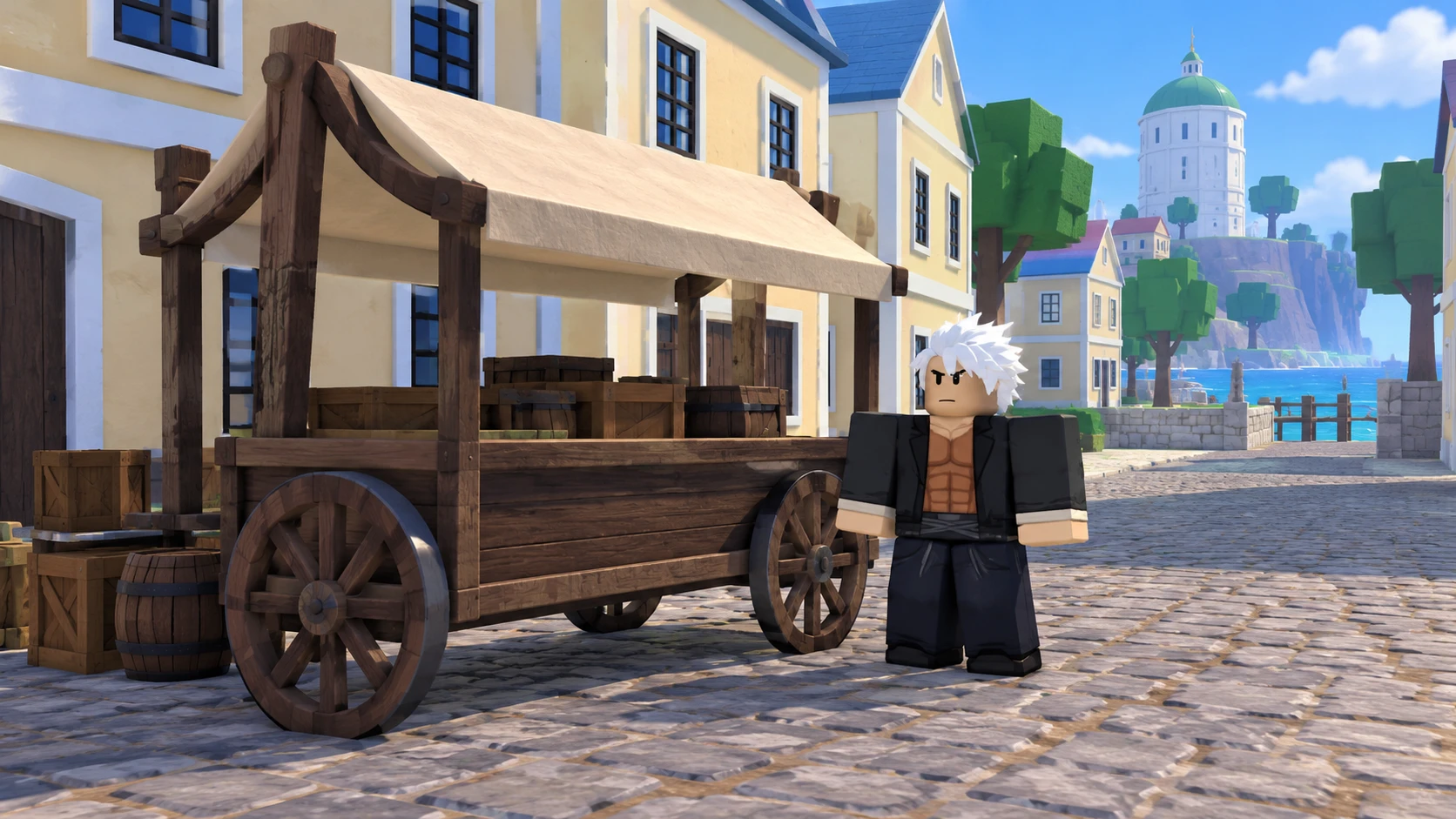
Pixel Twelve
Blox Fruits Gacha Location: Find Zioles in Middle Town

How To

Blox Fruits Gacha Location: Find Zioles in Middle Town

Find the First Sea Gacha in Middle Town, check the level 50 requirement and Money price, then store your random fruit and confirm it in Treasure.

By Nova RainesGame: Blox FruitsVerified Oct 3, 2026
Add to list
Guide Type
How To
Last Verified
Oct 3, 2026

Guide details

Overview

Find the First Sea Gacha in Middle Town, check the level 50 requirement and Money price, then store your random fruit and confirm it in Treasure.

Before you look for the Gacha

The Blox Fruit Gacha gives you one random physical fruit for in-game Money. You need to be at least level 50, and the ordinary roll has a two-hour cooldown. It is not a free fruit, a Robux purchase or a way to pick a specific power.

This PC walkthrough starts at the waterfront of Middle Town in the First Sea. The old Jungle location is no longer the First Sea route after Update 30. Second and Third Sea Gacha locations are different; do not use this town route there.

If you have not reached level 50, keep following the First Sea beginner guide instead of spending your opening session looking for a roll you cannot buy yet.
1. Find the covered cart in Middle Town

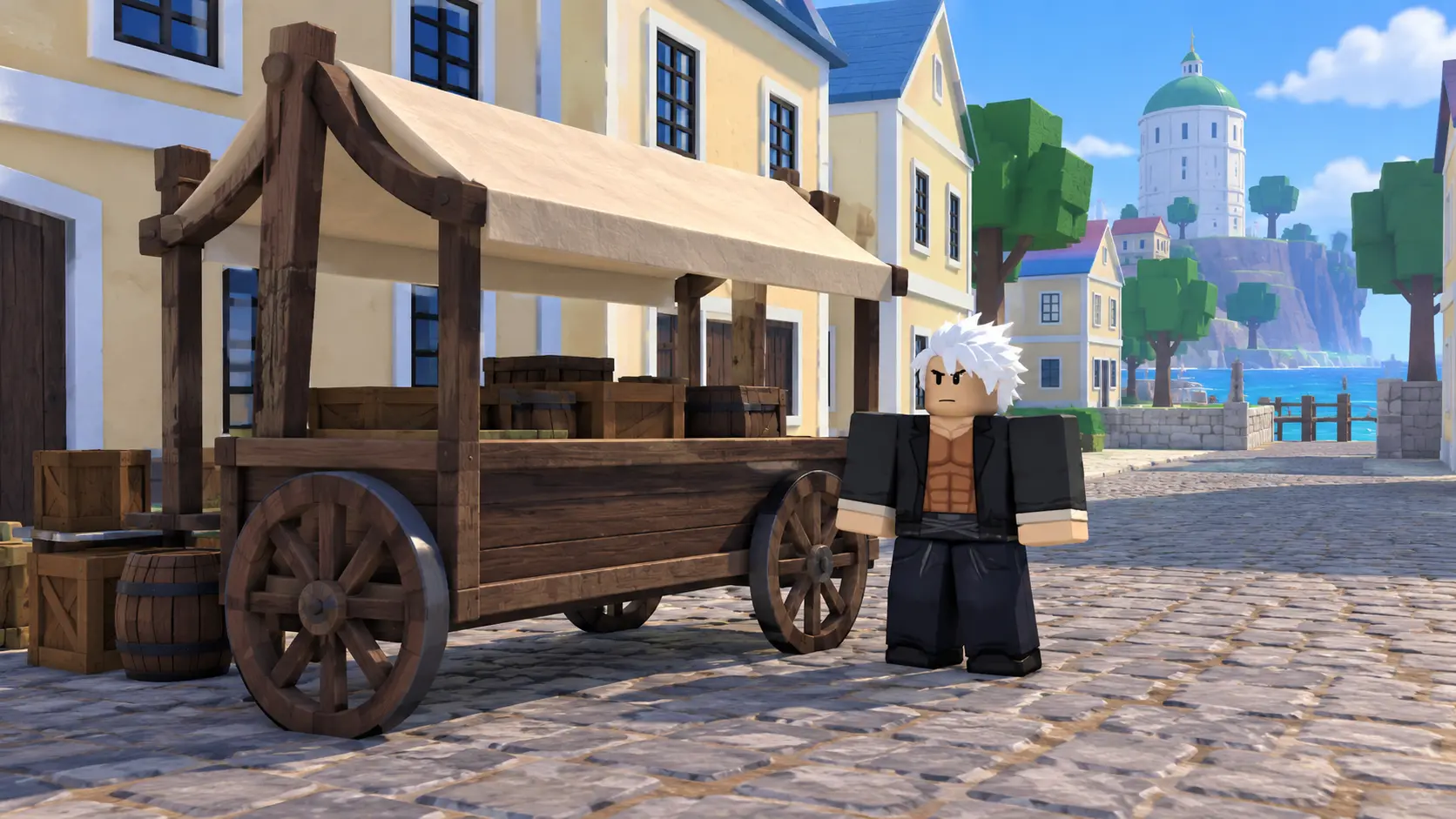
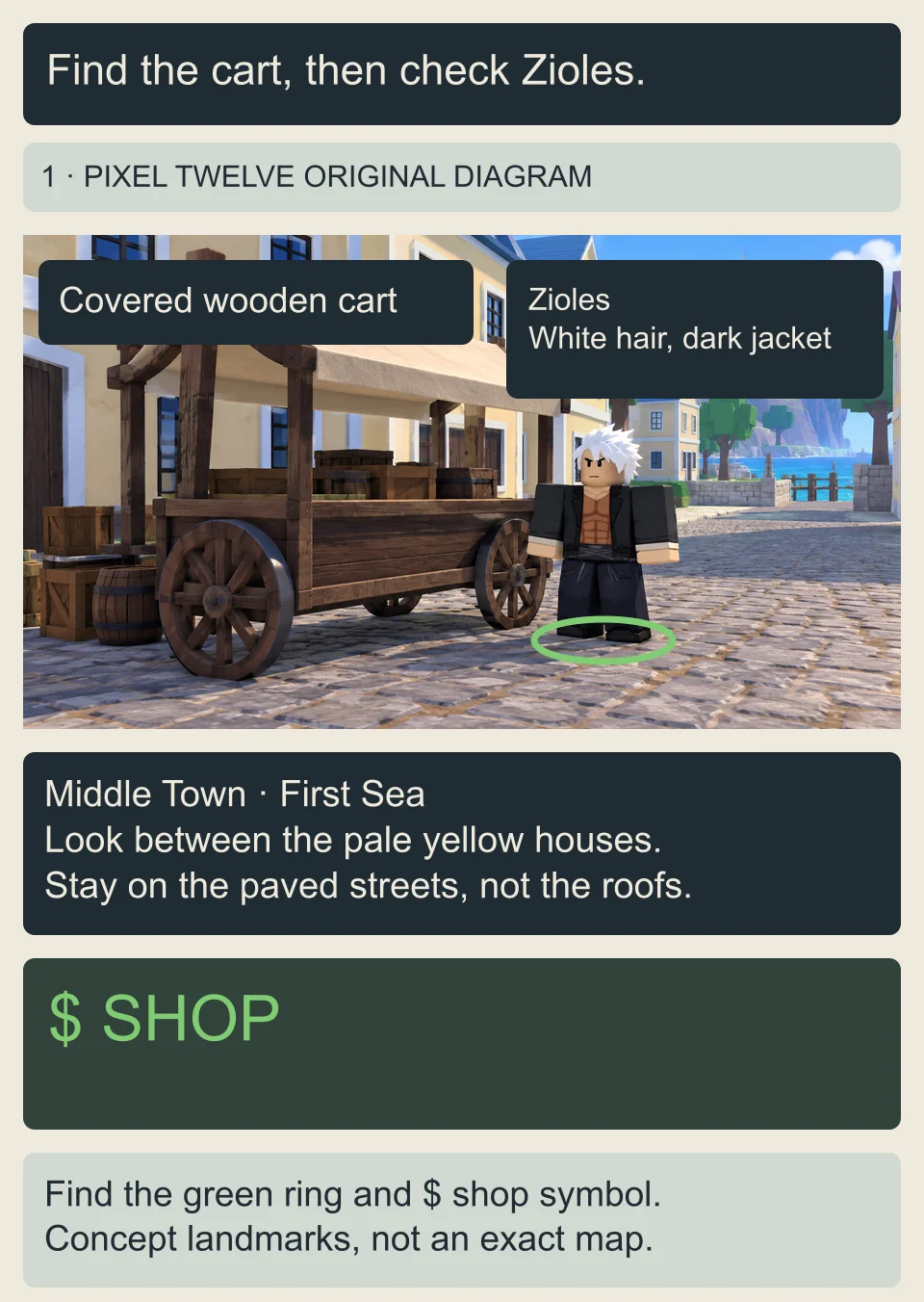
From Middle Town’s waterfront, look inland for pale yellow houses and paved streets. A large white building with a green dome helps you recognize the town. Stay at street level between the houses and look for a wooden cart with large wheels and a light canvas roof, rather than searching the roofs or the old Jungle clearing.

Original diagram shows a covered wooden wagon and a white-haired dark-jacketed Zioles-style character between yellow houses, with a green-dome landmark in the background and a boxed SHOP recognition cue.
Diagram: the First Sea Gacha is in Middle Town, not the old Jungle spot. Look for the covered wooden cart, white-haired NPC, green ring and Shop label. This original illustration teaches recognition; it is not a screenshot or a map drawn to scale.

Check the character beside the cart: Zioles has white hair and a dark jacket. Shop characters have a green ring at their feet and a green dollar-sign Shop label. Those cues help you find a shop, but the name Zioles is the final check; another shop character is not the fruit Gacha. The illustration shows recognition cues, not an exact map or a screenshot.

2. Talk to Zioles and choose Random Fruit

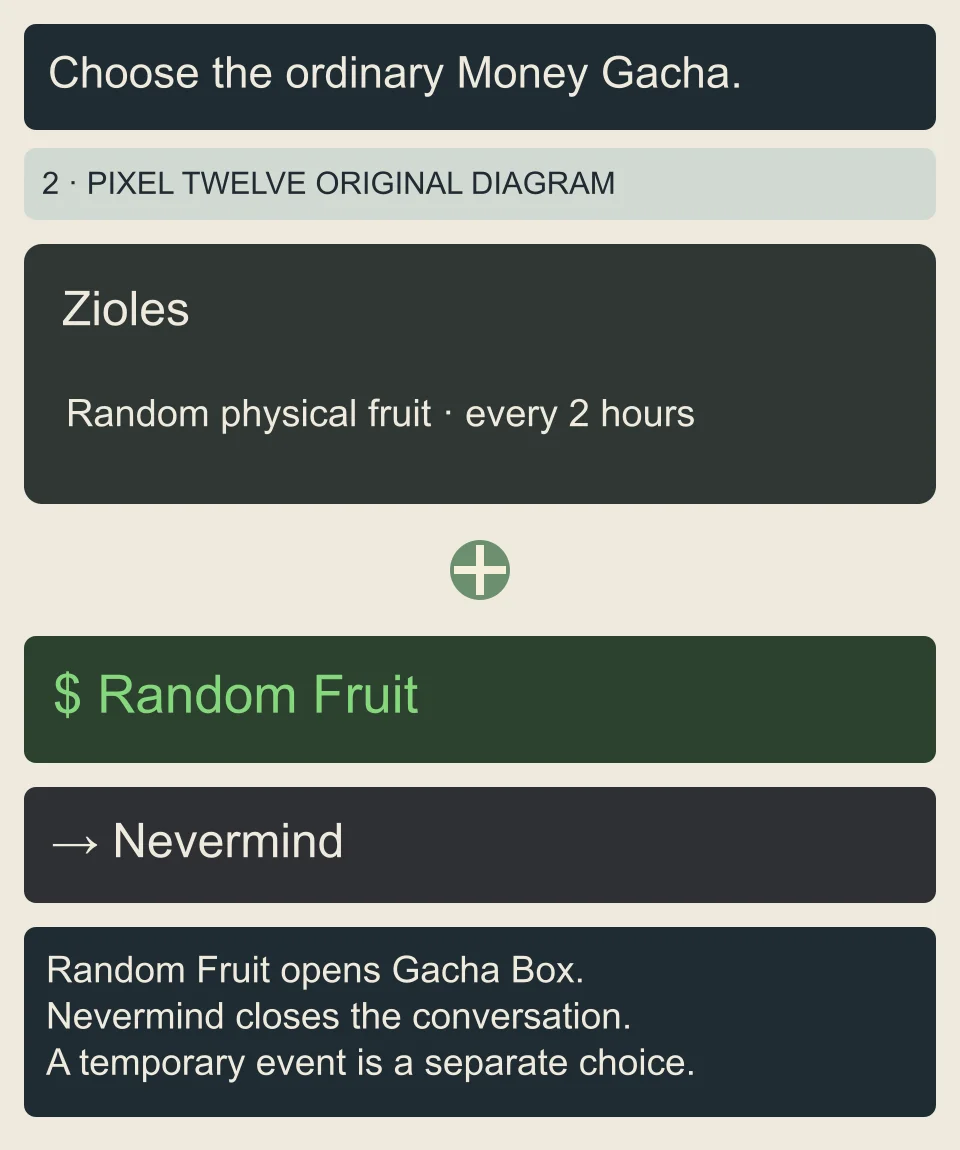
Move close to the white-haired character and click him to open the conversation. Read the name Zioles on the dialogue before selecting anything. Choose the option marked with a dollar sign and the words Random Fruit. That opens the ordinary Money-based Gacha, not a separate limited-event option.

Original dialogue diagram names Zioles, shows a green dollar-sign Random Fruit choice and a separate Nevermind close choice; no current event availability is promised.
Diagram: choose Random Fruit for the ordinary Money roll. Nevermind backs out. This is a simplified dialogue layout, not a screenshot; a limited event option may appear separately while that event is active.

Nevermind closes the conversation. Use it if the name or choices do not match. An event can add another option, but its currency and availability are separate; this guide does not depend on an event being active.

3. Check the price before rolling

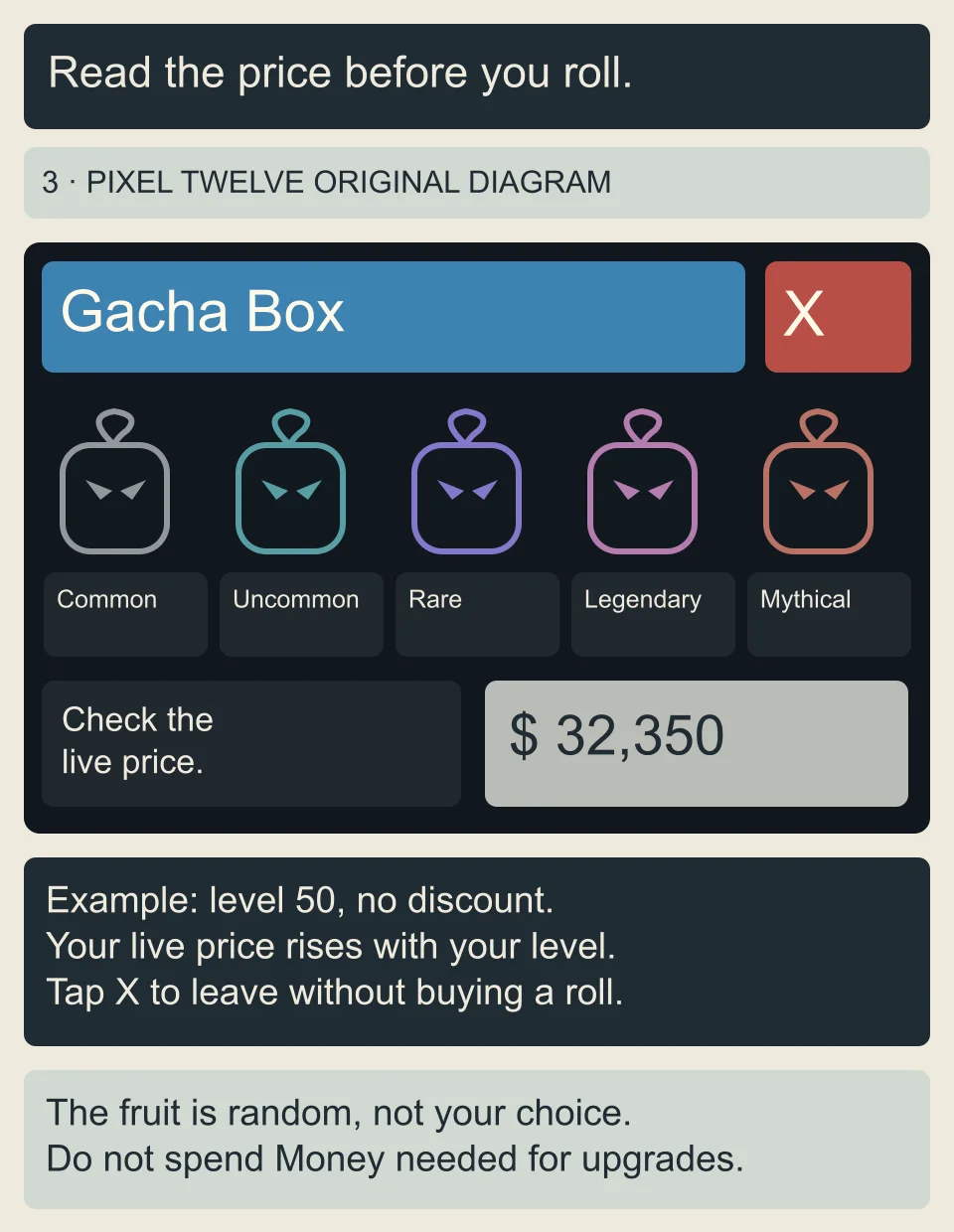
The next window is headed Gacha Box in blue, with a red X at the upper right. Look at the Money purchase area at the lower right and read its price before clicking. At level 50 the normal price is 32,350 Money; the price rises with your level, and an account discount can change the charge. Use the number shown in your own window, not this example.

Original Gacha Box diagram shows a blue header, red X at the upper right, five colored rarity categories and the lower-right Money purchase area with an example price of 32,350 at level 50.
Diagram: read the lower-right Money price before buying; X closes the box. The 32,350 example is the normal level 50 price, not every player’s charge. Rarity pictures do not let you choose the result. The window is simplified and is not a screenshot.

The colored Common, Uncommon, Rare, Legendary and Mythical pictures show rarity categories. They are not buttons that let you choose the reward. If the cost fits your budget, click the displayed Money purchase area to roll once. Keep Money for the next weapon or fighting-style purchase rather than spending it all on a random result.

If you are not ready to pay, use the red X to close the box. If your roll is on cooldown, wait for the remaining time shown by the game. The Gacha’s two-hour cooldown is different from the Dealer’s four-hour stock refresh; waiting for new Dealer stock does not choose your Gacha result.

4. Select the physical fruit, then Store it

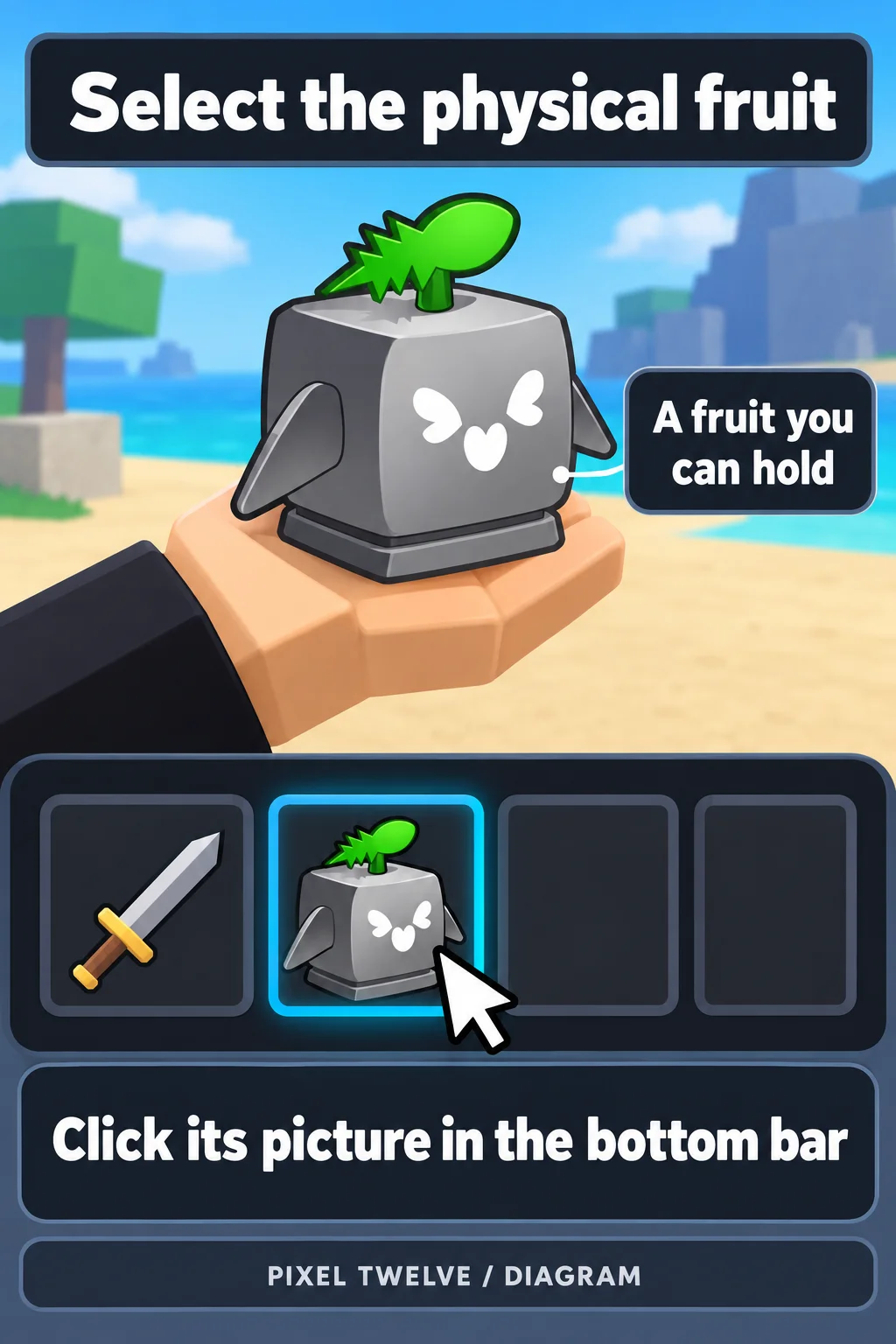
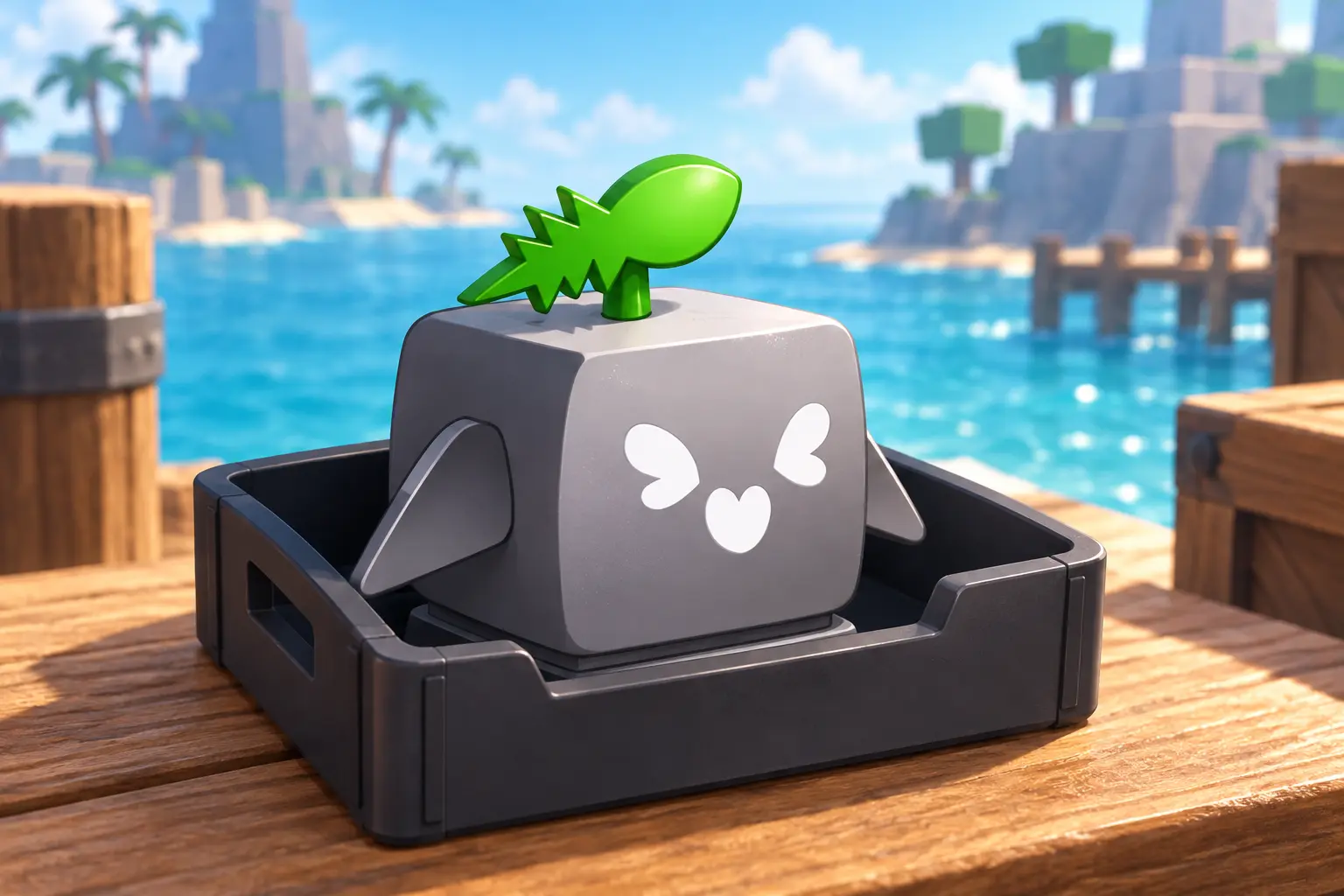
After a successful roll, read the fruit’s name in the result and find its matching picture in the item bar across the bottom of the screen. Click that picture and check that your character is holding the fruit. Rocket is the gray, green-topped example in the diagram; your random fruit may look different.

Original Pixel Twelve diagram showing the gray Rocket physical fruit in a blocky hand and its selected picture in the bottom hotbar.
Diagram: select the physical fruit picture, then check that your character is holding the item. Rocket is the example, not the shape of every fruit.

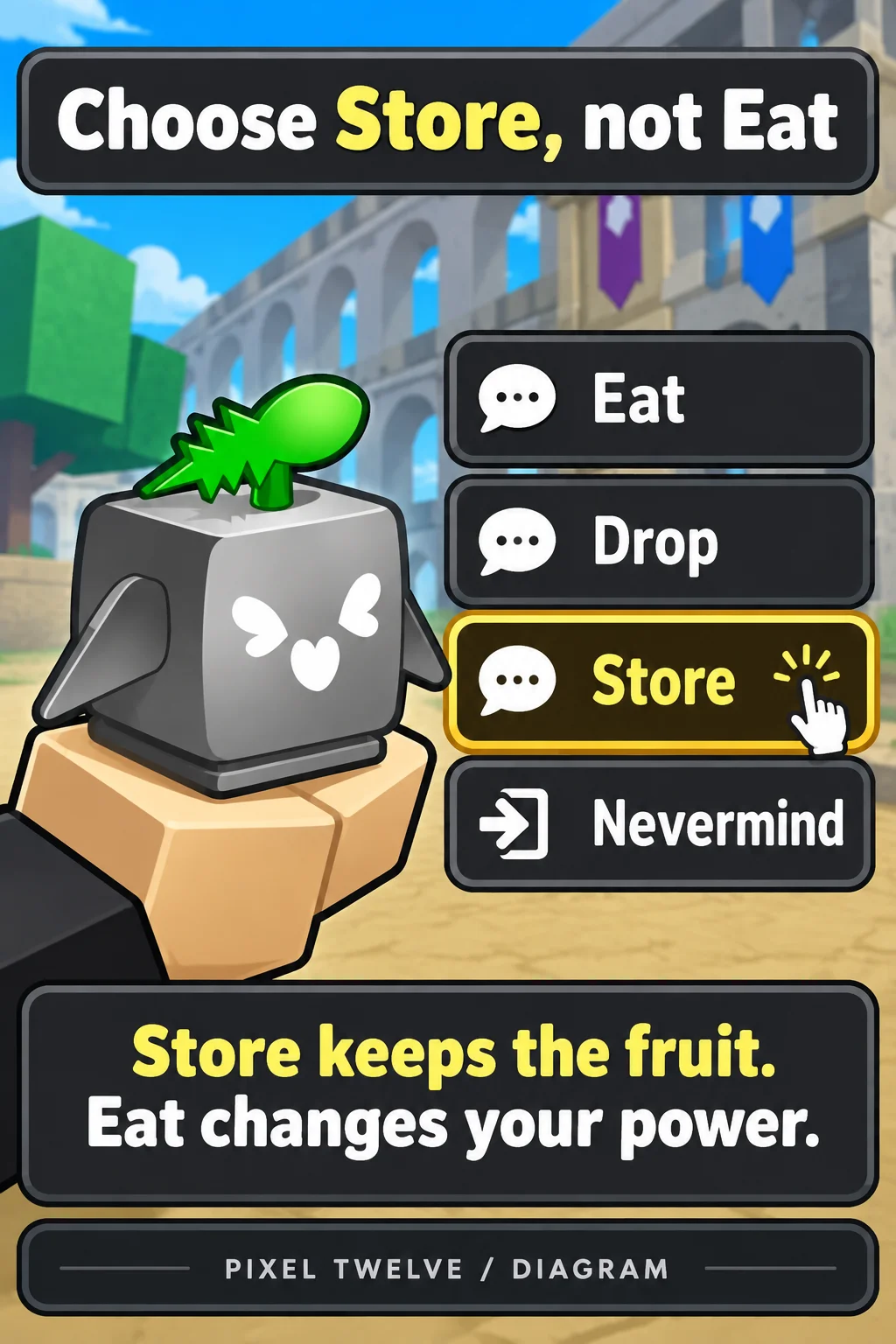
With the fruit selected, look for the action list on the right: Eat, Drop, Store and Nevermind. Choose Store, the third row, to save the item. Eat changes your active fruit power; Drop leaves an item outside saved storage. Neither is a storage command.

Original Pixel Twelve diagram showing Eat, Drop, Store and Nevermind vertically, with the third Store row highlighted.
Diagram: Store is the third action. Eat changes the active fruit power; it is not a storage command.

Do not leave the check at “the fruit disappeared from my hand.” Use the next two steps to find its saved card. If Store reports a capacity limit, do not eat the fruit just to clear the message: the standard allowance is one of each fruit type, so an already saved copy of the same fruit can block a second one.

5. Open Menu, then Items

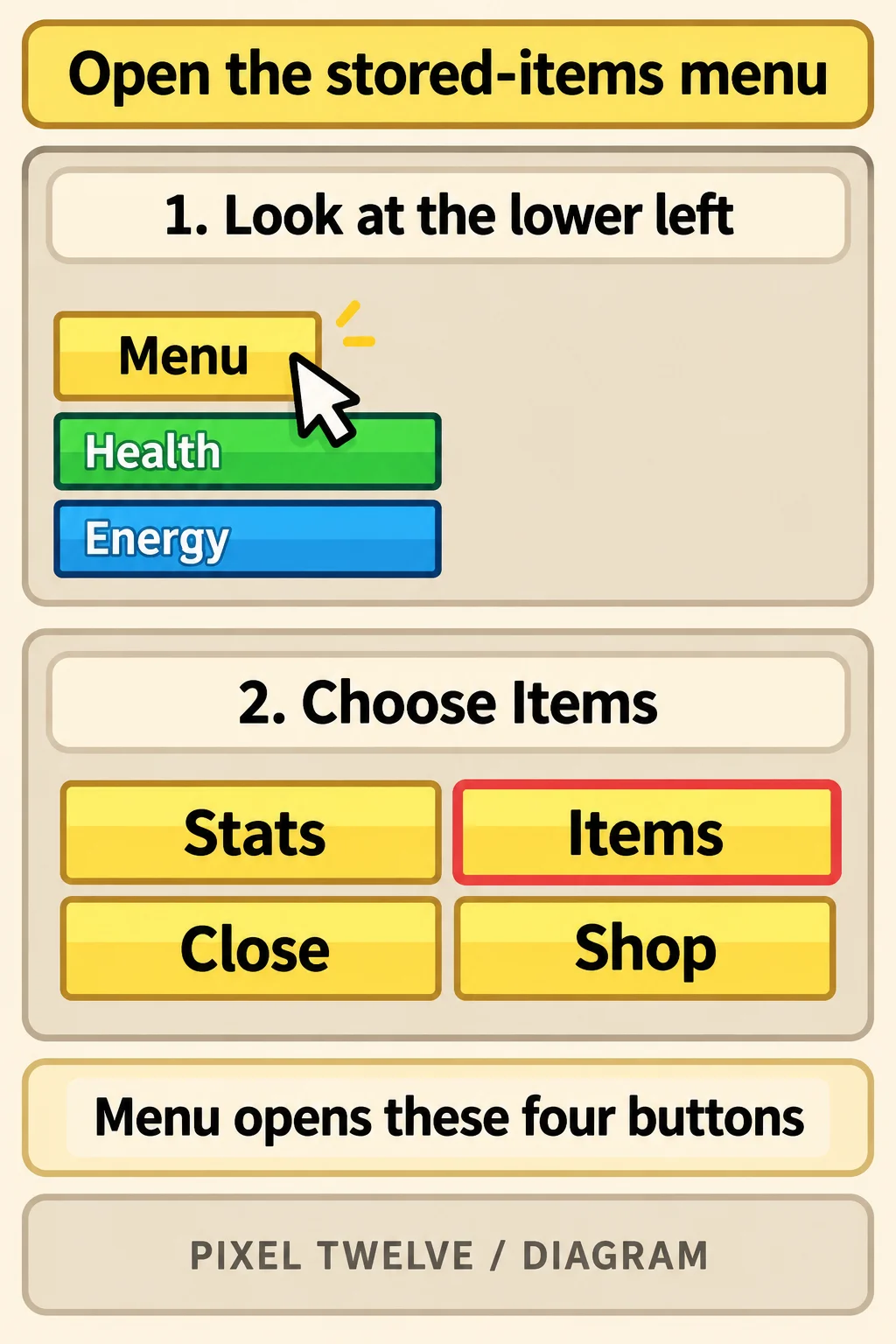
Look at the lower-left corner of the game view, above the Health and Energy bars. Click the yellow Menu button. In the four-button grid, choose Items at the top right, beside Stats; Shop is a different button underneath. If the grid is already open, go straight to Items.

Original Pixel Twelve diagram locating the yellow lower-left Menu button and the top-right Items button in the expanded four-button grid.
Diagram: use the lower-left Menu, then Items at the top right. The surrounding HUD is simplified.

6. Check Treasure → Fruits

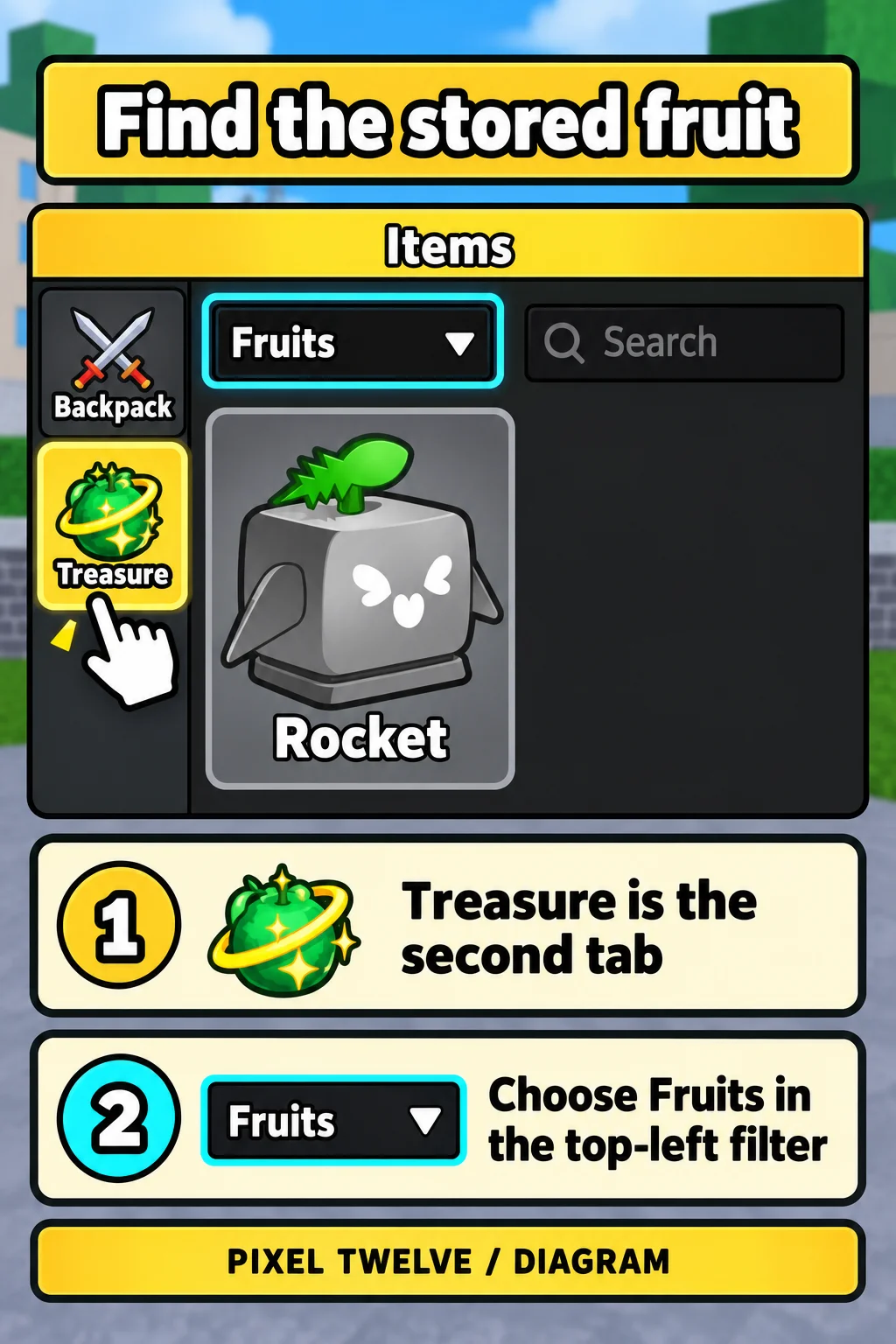
In the yellow-headed Items window, choose Treasure, the second tab down the left edge, below Backpack. Its picture is a green fruit with a gold ring. Then open the category dropdown at the upper left of the main panel and select Fruits if another category is showing.

Original Pixel Twelve diagram showing Treasure as the second left-hand Items tab, the top-left Fruits filter, upper-right Search and a saved Rocket card.
Diagram: choose Treasure, then Fruits. The simplified window shows where to look for the saved fruit, not a real account inventory.

Find the same fruit name and picture you saw after the roll. The Search box at the upper right can narrow the list; clear an old search before looking for a different name. A saved card in this list is the check you want. You do not need to take the fruit out again just to prove it is stored.

If storage is blocked or you need the difference between physical and permanent fruits, use our fruit storage walkthrough for the capacity and safety details. Unstored physical fruits can be lost if you die; buying one is not permanent access to that power.

If this is not the fruit route you need

For buying a known fruit, finding world spawns or trading, read How to Get Fruits in Blox Fruits. The Gacha is only one route, and it can give you a low-value result.

For other First Sea tasks and later progression, return to the Blox Fruits hub.

All step images here are original Pixel Twelve diagrams, not screenshots or proof of a roll on our account. Their labels show what to look for; menu positions and event choices can change with updates. This route is written for the observed PC interface, not guessed touch controls.

Get Pixel Twelve's biggest stories first.

Add as a preferred source on Google