Pixel Twelve
Minecraft Dungeons 2 Stuck on Signing In: PC Guide

How To

Minecraft Dungeons 2 Stuck on Signing In: PC Guide

Stuck on Signing In in Minecraft Dungeons 2? Check for a hidden Microsoft login window, confirm the account shown, then verify Steam files. If an old account keeps returning, follow the login-cache branch. These checks are not a guaranteed fix.

By Nova RainesGame: Minecraft Dungeons IIVerified Oct 1, 2026
Guide Type
How To
Last Verified
Oct 1, 2026

Guide details

Overview

Stuck on Signing In in Minecraft Dungeons 2? Check for a hidden Microsoft login window, confirm the account shown, then verify Steam files. If an old account keeps returning, follow the login-cache branch. These checks are not a guaranteed fix.

Start here: which screen are you stuck on?

This guide is for Minecraft Dungeons II, also called Minecraft Dungeons 2. If the game opens but stays on Signing In, follow the PC checks below. If Steam itself never gets past Preparing to launch, that is a different point in startup: start with the Steam file check instead.

If a numbered error replaces the loading message, write down that number. An endless Signing In screen, a failed Microsoft-account link and a message saying you do not own the game are not enough to prove the same cause. Do not assume that a fix for the original Minecraft Dungeons applies to the sequel.

There is no universal Dungeons II fix confirmed in the support information checked on October 1, 2026. Some players report that account refreshes and file verification did not help. If you have already completed a check once, move on rather than repeating it or deleting more files.
1. Look for a Microsoft login window behind the game

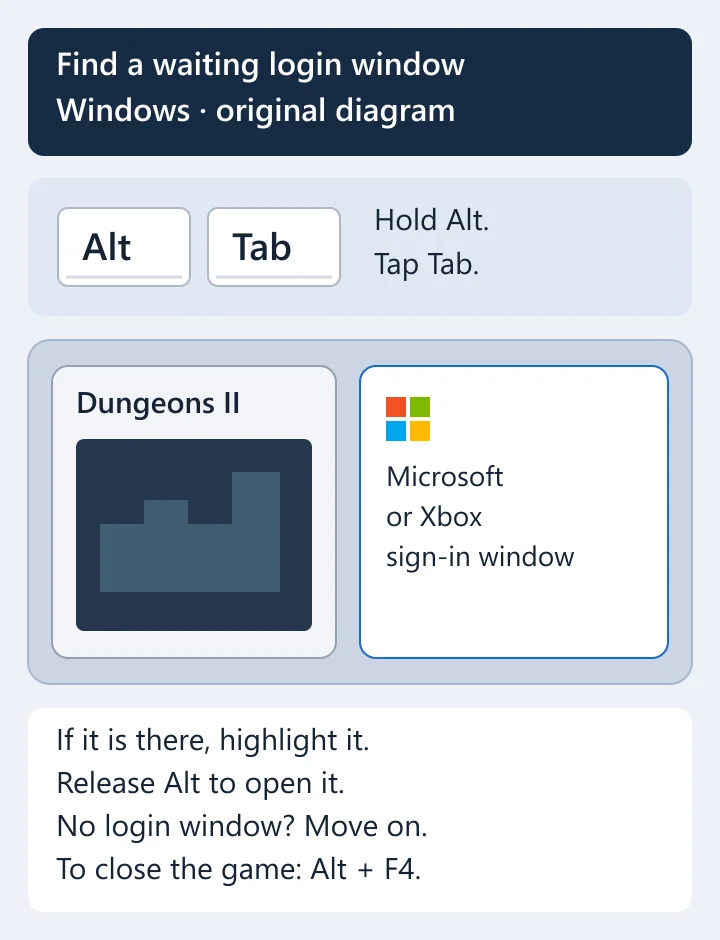
On Windows, hold Alt and tap Tab to see the open windows. Keep Alt held while you tap Tab to highlight a Microsoft or Xbox sign-in window, if one is there. Release Alt to open that window. Finish only the sign-in request started by the game, using the Microsoft account you intend to play with. Then use Alt + Tab to return to Dungeons II.

If there is no sign-in window, this check has not identified the cause. Select the Dungeons II window first, then press Alt + F4 to close that game, not your other apps. Reopen it from the same game client. If it still loops, save any other work and restart the PC once before moving to the next check.

Original Windows diagram: hold Alt and tap Tab, highlight a Microsoft or Xbox sign-in window, then release Alt. The previews are diagrams, not real game or account screens.
Original diagram: use the window title to find a waiting sign-in prompt. No separate prompt means this check has not found the cause.

2. Keep Steam ownership separate from your Microsoft login

Bought the game on Steam? Open Steam’s Library and find the full title Minecraft Dungeons II, not the first Minecraft Dungeons. Use the Steam account that owns that copy. Dungeons II’s account-linking help says a Microsoft link is needed for cross-platform progression on Steam; it does not turn a Microsoft purchase into a Steam purchase.

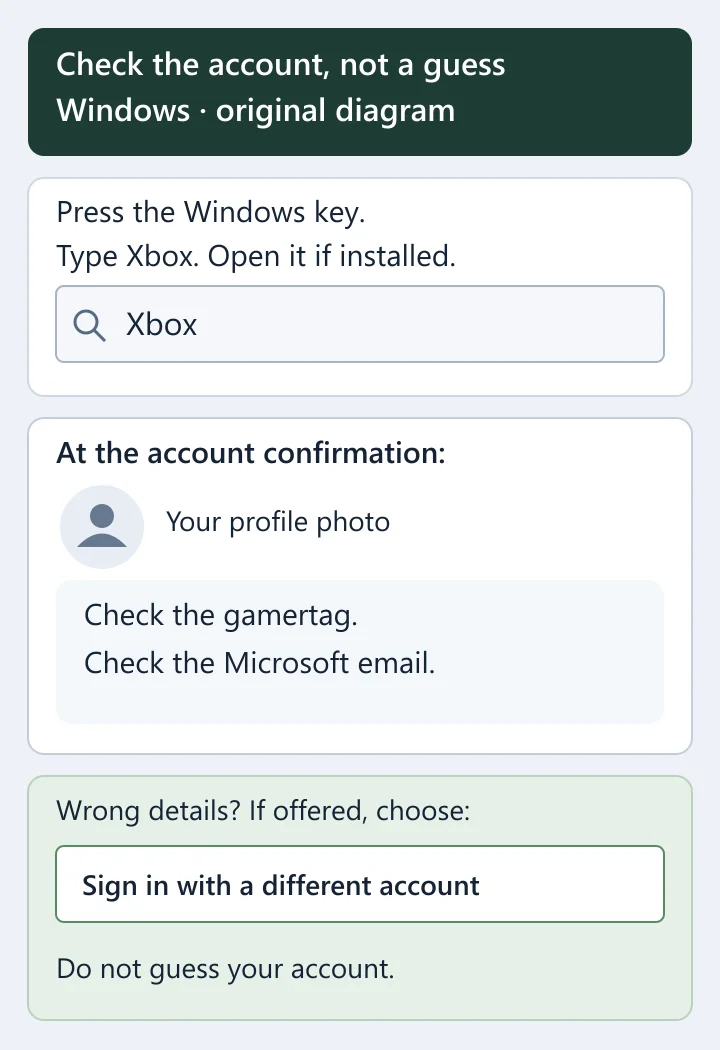
If the game opens a Microsoft sign-in prompt, check which account it shows before continuing. As an optional account check, press the Windows key, type Xbox and open the Xbox app if it is already installed. Minecraft’s general sign-in help suggests signing into that app before reopening a Minecraft game. At the Xbox account confirmation, look for the profile photo, gamertag and Microsoft email. If they are wrong and Sign in with a different account is offered, choose that labelled button. Do not keep switching accounts to guess which one has your progress.

Bought the Windows version from Microsoft or use an eligible Game Pass subscription? Dungeons II purchase support recommends checking that the Xbox app, Microsoft Store and Minecraft Launcher use the Microsoft account with that purchase or access. Do not apply that ownership check to a Steam purchase as though Microsoft order history must contain it. If you already confirmed the right account and signing in again did not help, move on.

Original diagram: search Windows for the installed Xbox app, then check the profile photo, gamertag and Microsoft email at account confirmation. The button label is Sign in with a different account when offered.
Original diagram, not a captured login screen. Only use the optional Xbox-app check if the app is already installed; check your real account details privately.

3. Steam: verify the installed game files

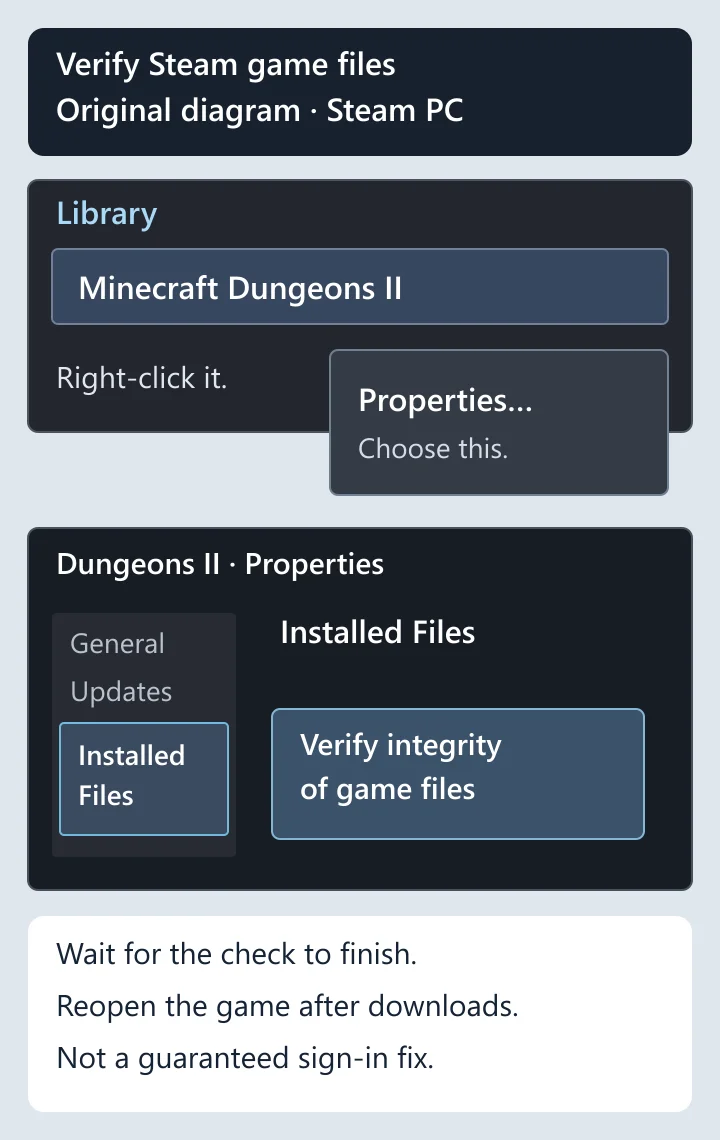
Close Dungeons II first. In Steam, select Library and find Minecraft Dungeons II in the game list. Right-click its name and choose Properties. You can also use the gear icon on the right of the game’s library page to reach Properties.

In the Properties window, select Installed Files in the left-hand list. On the right, click Verify integrity of game files. Let the check finish; it may take several minutes. Do not run file verification for several games at once. Open Dungeons II again after Steam finishes any required download.

This checks the installed game files. It does not prove that Microsoft sign-in is working, and a completed check is not a guaranteed solution to the loop. If it finishes and the same screen returns, keep that result for your support report rather than repeating the scan.

Original Steam PC diagram: right-click Minecraft Dungeons II in Library, select Properties, select Installed Files on the left and use Verify integrity of game files on the right.
Original diagram based on Steam’s official Properties example. The Installed Files selection and verification button are enlarged for phone reading; this is not a screenshot from our game account.

4. Wrong account keeps returning? Check only the login cache

Use this branch only if the sign-in browser keeps choosing an old or wrong Microsoft account. Dungeons II’s account-linking help lists clearing the webcache folder for that problem. It does not confirm that this fixes every endless Signing In screen.

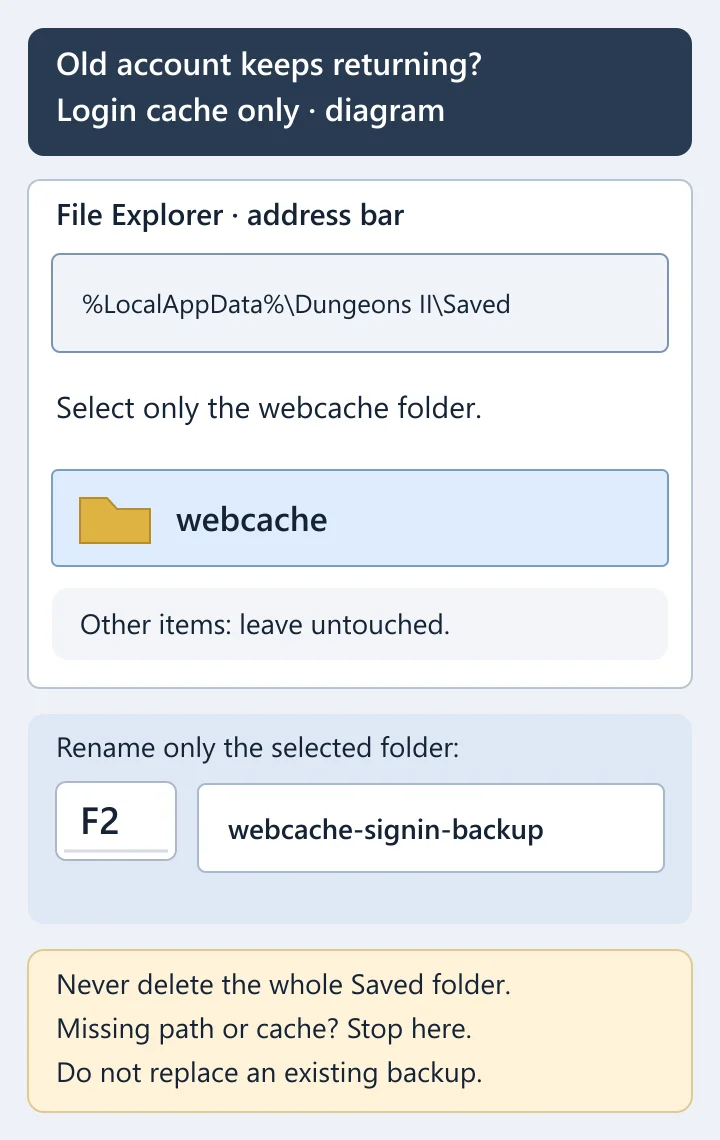
Close Dungeons II. Press Windows + E to open File Explorer, click the address bar at the top, paste %LocalAppData%\Dungeons II\Saved and press Enter. Look for the folder named exactly webcache. If the path or that folder is missing, stop this branch; do not create a folder or remove something with a similar name.

To keep a backup instead of deleting it, select only webcache, press F2, rename it webcache-signin-backup and press Enter. Leave every other item and the Saved folder itself alone. Reopen the game and try the correct account. If a backup with that name already exists, do not replace it. If Windows says the folder is in use, stop and close the game fully rather than forcing the change. Keep the backup until the account and progress you expect are visible.

Original File Explorer diagram: use %LocalAppData%\Dungeons II\Saved, select only webcache, press F2 and rename it webcache-signin-backup. Do not remove Saved or other files.
Original diagram: the official help identifies webcache for an old-account login. Renaming keeps a backup instead of deleting it; no universal fix or own in-game test is claimed.

5. Check the Sign-in row on Xbox status

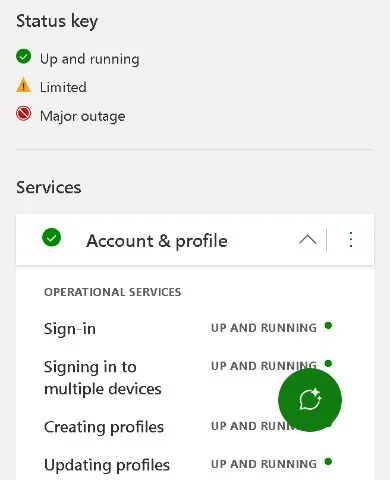
Open the official Xbox status page. Scroll to Services, open the Account & profile row with the chevron on its right, then find Sign-in inside that section. The page’s Status key explains Up and running, Limited and Major outage. If sign-in has a warning, read that update before changing more PC settings. A clear status page does not prove that every Dungeons II account can sign in.

Do not assume that deleting Xbox credentials, resetting the game or disconnecting your accounts is harmless. Those are different actions from checking Steam files. Do not paste a script from a comment into PowerShell, replace game DLLs from an unofficial download, or disable Windows security to try to reach the menu.

Xbox status with Account & profile expanded and Sign-in visible beneath it. The status shown is an example captured on October 1, 2026.
Xbox status screenshot, October 1, 2026: expand Account & profile and find Sign-in. This is an example of where to look, not a live status feed. Open the page again for its current status.

Open Xbox status: https://support.xbox.com/en-US/xbox-live-status

If Signing In still does not finish

Stop repeating the same account and file checks. Send Minecraft support the game name, Windows version, the store you bought it from, the exact wording or error code, and the checks you have already tried. Include a screenshot of the message, but hide your email, account details and any sign-in code first.

Mention whether a separate Microsoft login window appeared, whether the game worked before, and whether the failure happens before the menu or while linking the account. These details help separate a stuck sign-in from a purchase-access problem. Do not include your password, recovery codes or a private login link. The official support page may ask you to complete a security check before showing its request form.

Get help from Minecraft support: https://help.minecraft.net/hc/en-us/request/new?ticket_form_id=360001225811

Read our Minecraft Dungeons II login-error report

Get Pixel Twelve's biggest stories first.

Add as a preferred source on Google