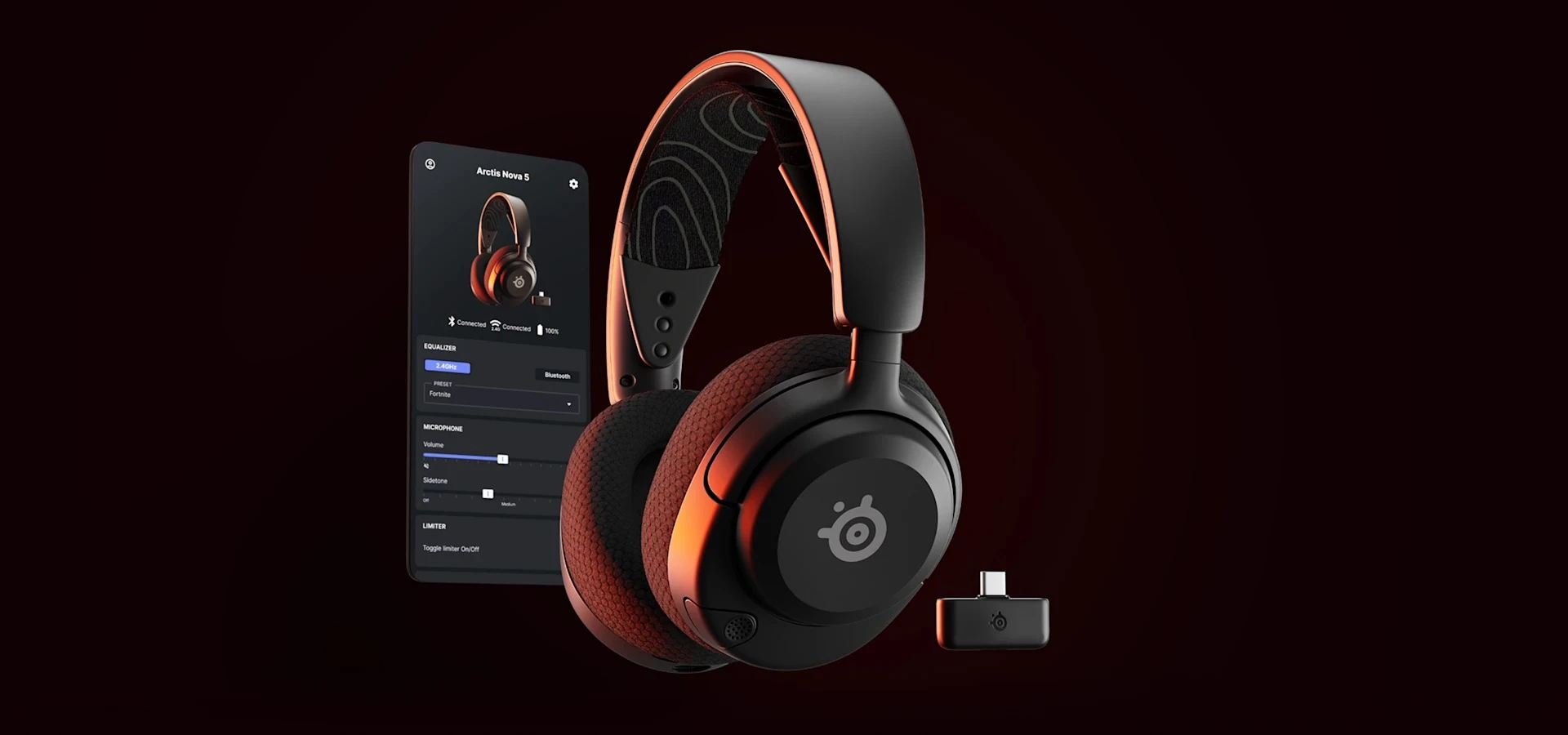
The Arctis Nova 5 Wireless can handle games on your PC or PlayStation and calls on your phone. Use its included USB receiver for gaming and Bluetooth for your phone. Before buying, check the full name: the regular Nova 5 covered here does not work with Xbox.
There is another detail worth knowing. The headset can stay connected to the receiver and your phone, but you hear one source at a time. Its QuickSwitch button changes between them. It will not play your phone music over the sound of your game.
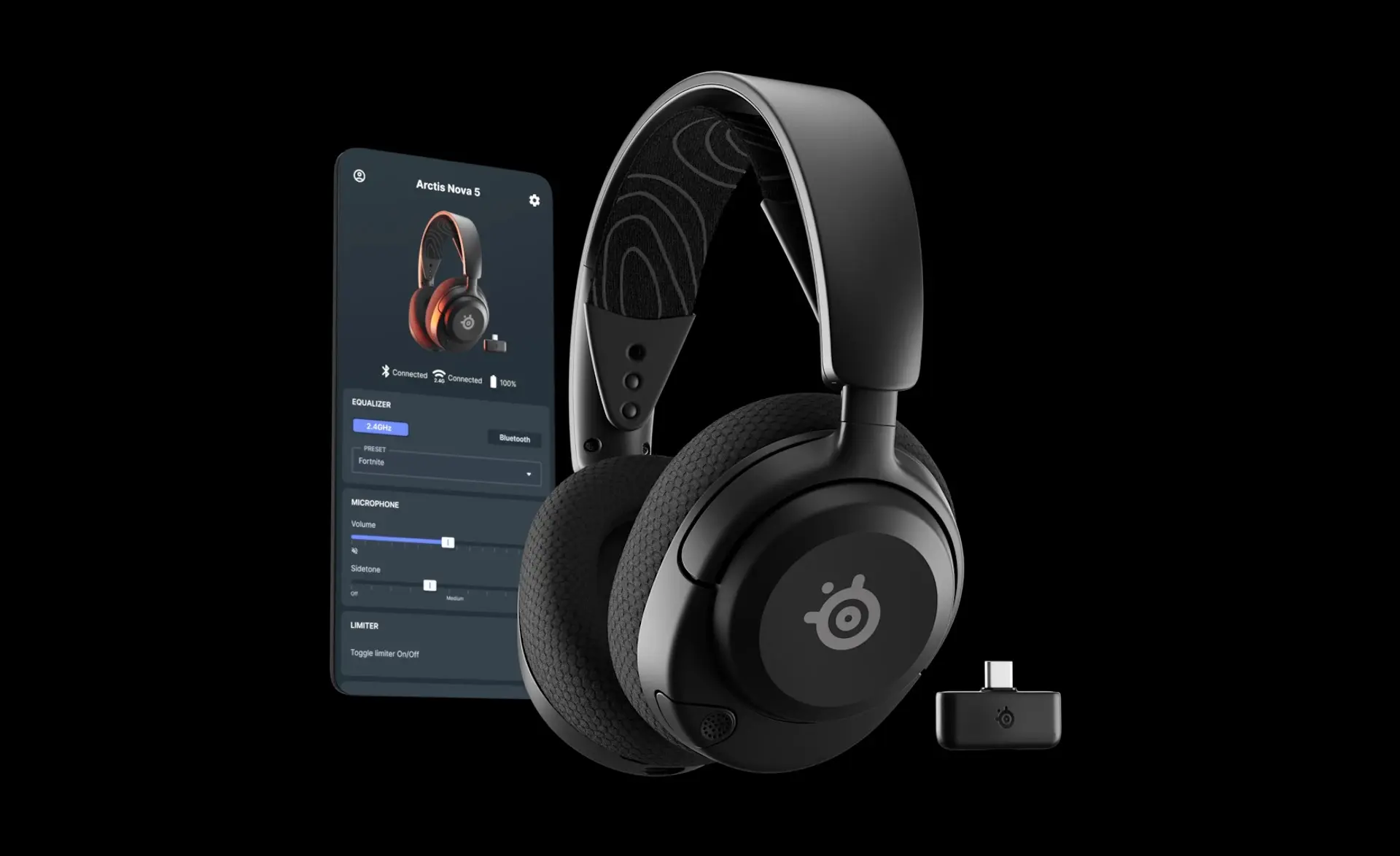
SteelSeries Arctis Nova 5 Wireless Headset
SteelSeries · Arctis Nova 5 Wireless
Consider the regular Nova 5 for PC or PS5 gaming and switching to your phone. It is not the Xbox version.
Product specifications
- Version
- Regular Nova 5 Wireless, black
- Gaming connection
- 2.4GHz via included USB-C receiver
- Phone connection
- Bluetooth 5.3
- Xbox support
- No; requires Nova 5X version
- Audio sources
- Receiver or Bluetooth, one at a time
- Microphone
- Retractable ClearCast 2.X
- USB-A connection
- Adapter cable included
- Firmware updates
- SteelSeries GG on Windows
Pros
- USB receiver and USB-A adapter cable included
- QuickSwitch changes between game and phone audio
- Phone app changes sound presets
- Microphone retracts when not in use
Cons
- Regular Nova 5 does not support Xbox
- Cannot play Bluetooth and game audio together
- Some buyers find the ear space shallow or the fit tight
- Firmware updates need the desktop app
Check the model before buying
Nova 5, Nova 5P and Nova 5X are similar names, but they are not interchangeable. The 5X is the version in this family that supports Xbox. The regular Nova 5 and 5P do not, and buying a 5X receiver will not add that support.
The purchase card on this page links to the black, regular Nova 5, not the 5X. It makes sense if you play on PC or PlayStation and want to use the same headset with your phone. If an Xbox is part of your setup, choose the correct Xbox version before ordering.
Use the USB receiver for games
The small USB-C receiver, also called a dongle, carries the headset's 2.4GHz wireless connection. That is the gaming connection. Plug it into a supported device, switch the headset on and use QuickSwitch to select the receiver if you were last listening through Bluetooth. The headset and receiver arrive paired.
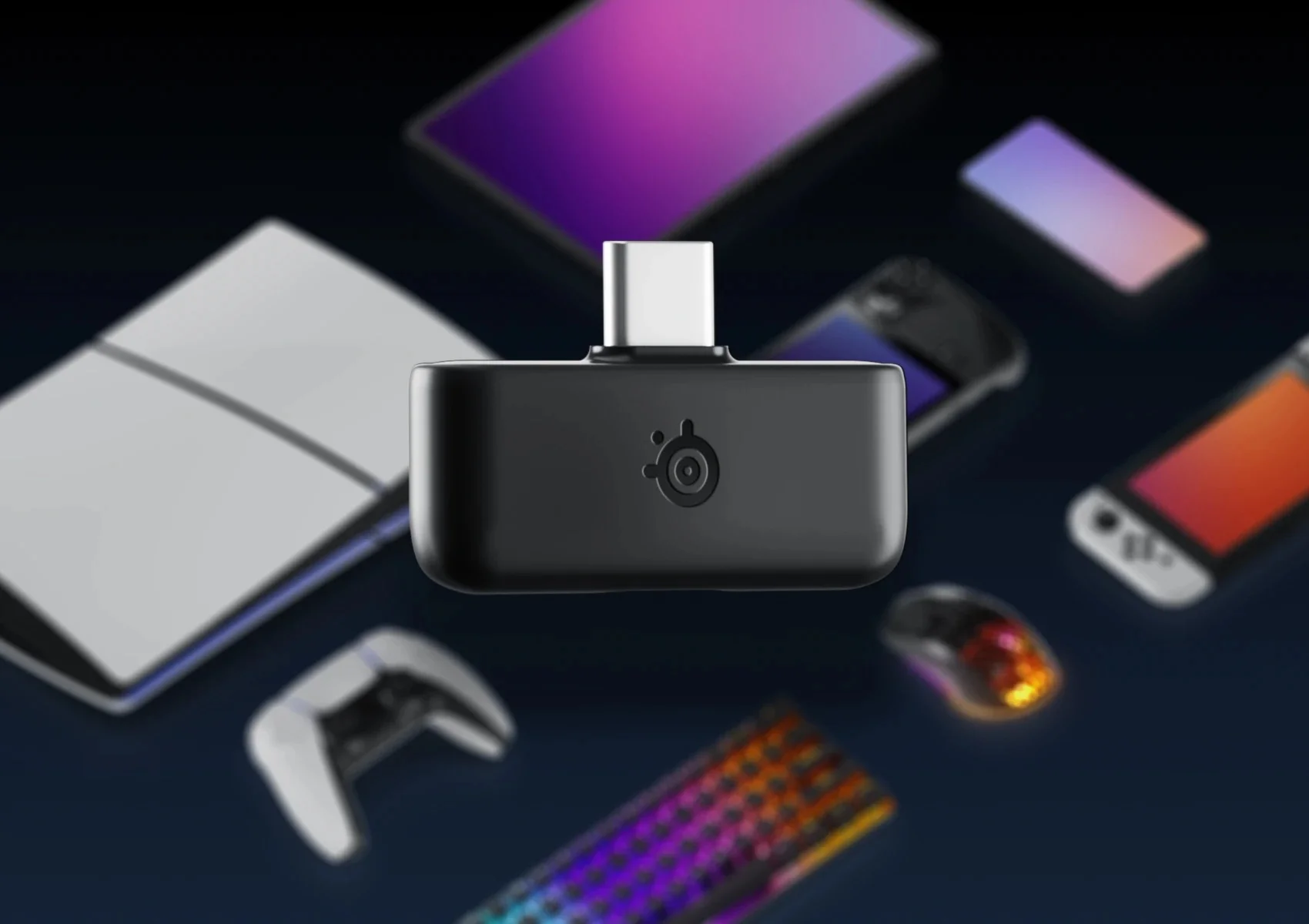
You do not need a new adapter just because your computer has the larger USB-A ports. A USB-C to USB-A adapter cable comes in the box. On PC, select the Nova 5 as your sound output and microphone input if Windows keeps using your speakers or another mic.
For PS5, connect the receiver and open the console's sound settings. Choose the headset as the output device and set Output to Headphones to All Audio if you want both game sound and chat in your ears. Start with a comfortable volume. PlayStation does not support ChatMix, the feature for balancing game sound against chat, on this headset.
Bluetooth is for switching to your phone
With the headset on, hold QuickSwitch for two seconds to enter pairing mode. If it enters receiver pairing instead, press QuickSwitch to change to Bluetooth pairing. Look for the rapidly blinking blue light, then select Nova 5 in your phone's Bluetooth settings.
After pairing, a normal press changes the audio source. You can listen to your phone between matches, then return to the receiver without moving it out of your PC or console.
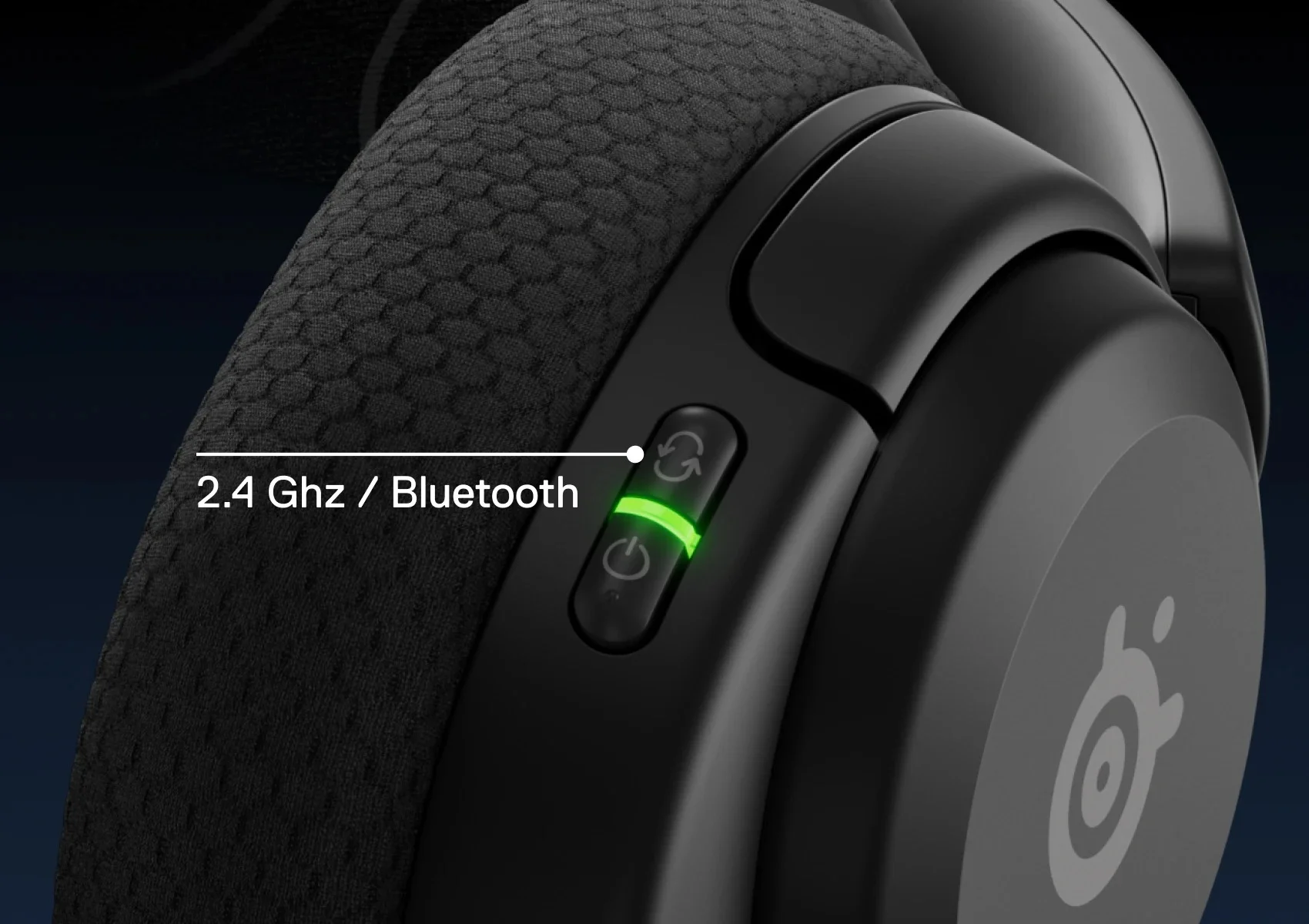
A phone call can interrupt that listening choice. The headset alerts you to an incoming call; answering it with QuickSwitch changes the audio to Bluetooth. When the call ends, it returns to the game connection. You will not hear the game and the call together. If you want phone Discord or music alongside console audio, look for a headset that explicitly supports playing both at once.
The phone app changes sound settings
The free Arctis Companion App lets you choose game sound presets from your phone. A preset changes which sounds are louder or quieter. Try one for a game you play, then compare it with the default setting rather than assuming a named preset will always sound better.
The headset keeps separate sound settings for Bluetooth and the receiver. You can change how music sounds on your phone without changing your gaming setting. For more options on a Windows PC, SteelSeries GG includes Engine and Sonar. Sonar's AI microphone noise reduction runs on the PC; it is not a built-in feature you get on PS5 just by installing the phone app.
Pull the microphone out for chat
The mic slides into the earcup when you do not need it. For a call or game chat, pull it fully out and place it near the corner of your mouth, facing you. Use the mute button when you want it off. Putting the mic away is not a replacement for checking mute.
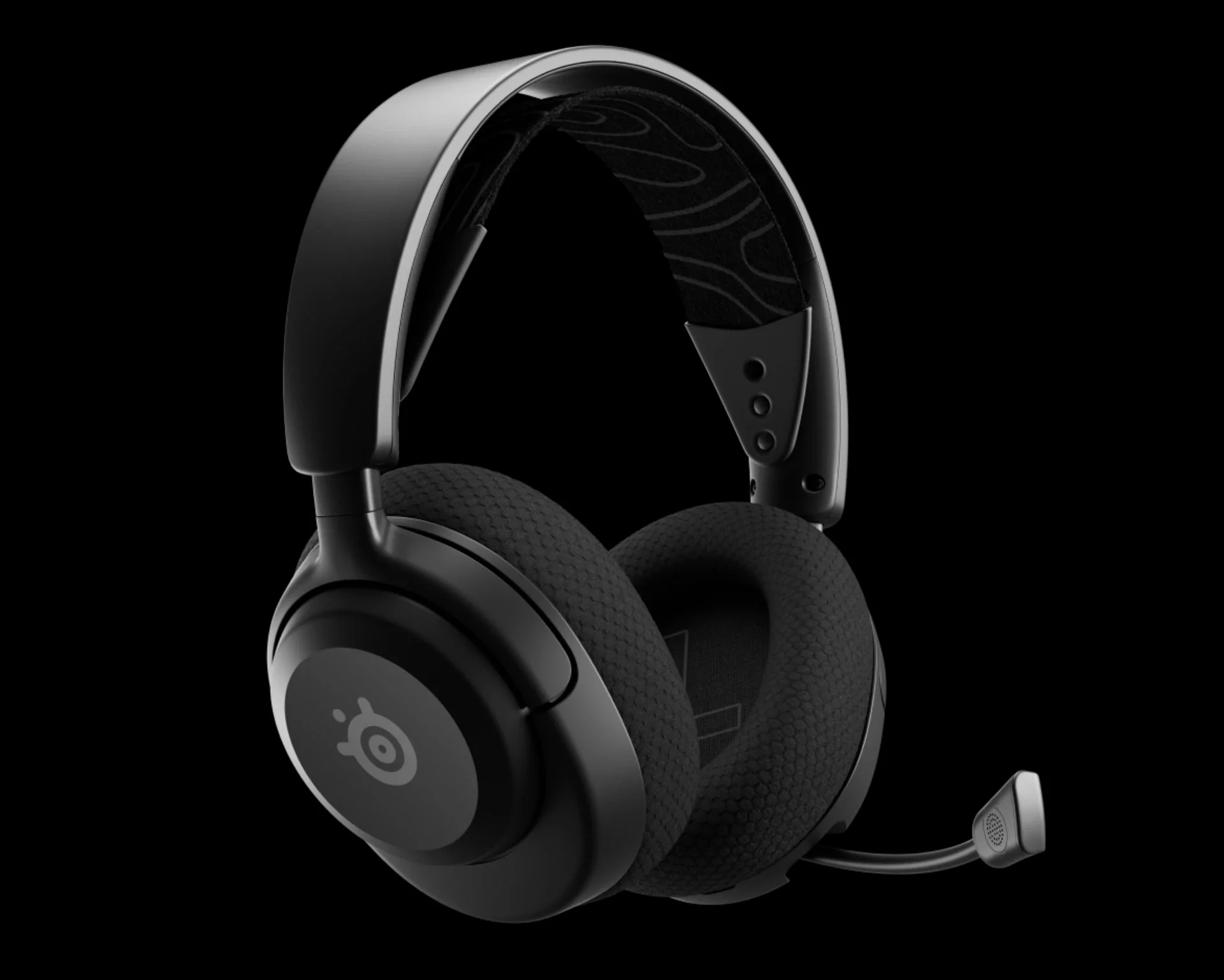
Fit is worth checking early, too. Buyer comments praise the soft cushions and headband, but some people say the ear space feels shallow or the fit is tight. Adjust the earcup height and headband before a long session. Your ears should not have to press against the inside of the cups.
Keep the receiver and software up to date
Some buyers report dropped connections, while others describe a stable connection. If yours cuts out, first connect the receiver directly to the computer or console rather than through a USB hub. Try another port before buying a replacement.
For firmware updates, connect both the headset and receiver to a Windows PC, open SteelSeries GG, then Engine, and follow any update banner. Firmware is the software inside the headset. The phone app can show its version, but headset updates use the desktop app.
This matters for Switch 2 owners as well. SteelSeries released a Nova 5 family firmware fix in April 2026 for a connection problem with Switch 2 system version 22.0.0. Update before assuming the headset is incompatible. That fix does not mean every connection problem has been solved.
Who should buy the Nova 5
We would consider the regular Nova 5 for someone who plays on PC or PS5 and wants to switch to phone calls or music without changing headsets. The included receiver and adapter cable cover both common USB port types, and you can change sound presets from your phone.
Skip this version if you need Xbox support. Also look elsewhere if hearing your phone and game together is essential. Those limits matter more than the number of presets on the box.