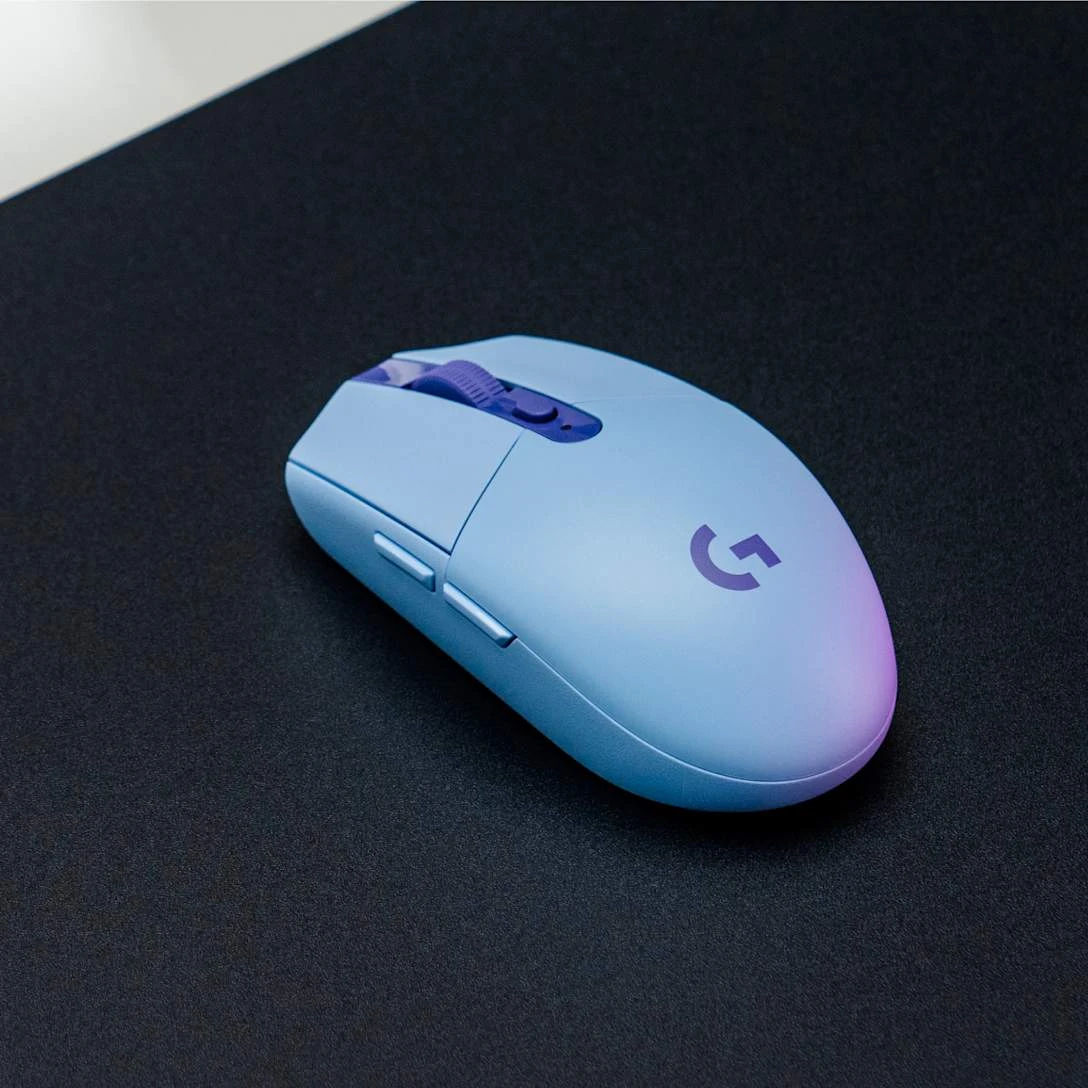
The original Logitech G305 LIGHTSPEED connects through a small USB receiver and runs on one AA battery. It is not a Bluetooth mouse, so you cannot pair it directly through your laptop’s Bluetooth settings.
That makes it worth considering if you want a wireless gaming mouse with a battery you can replace in seconds. If you want USB charging or a connection that leaves every USB port free, look for a different model. This guide covers the original G305, not the G305 X SUPERLIGHT. The purchase card below is for the black version.
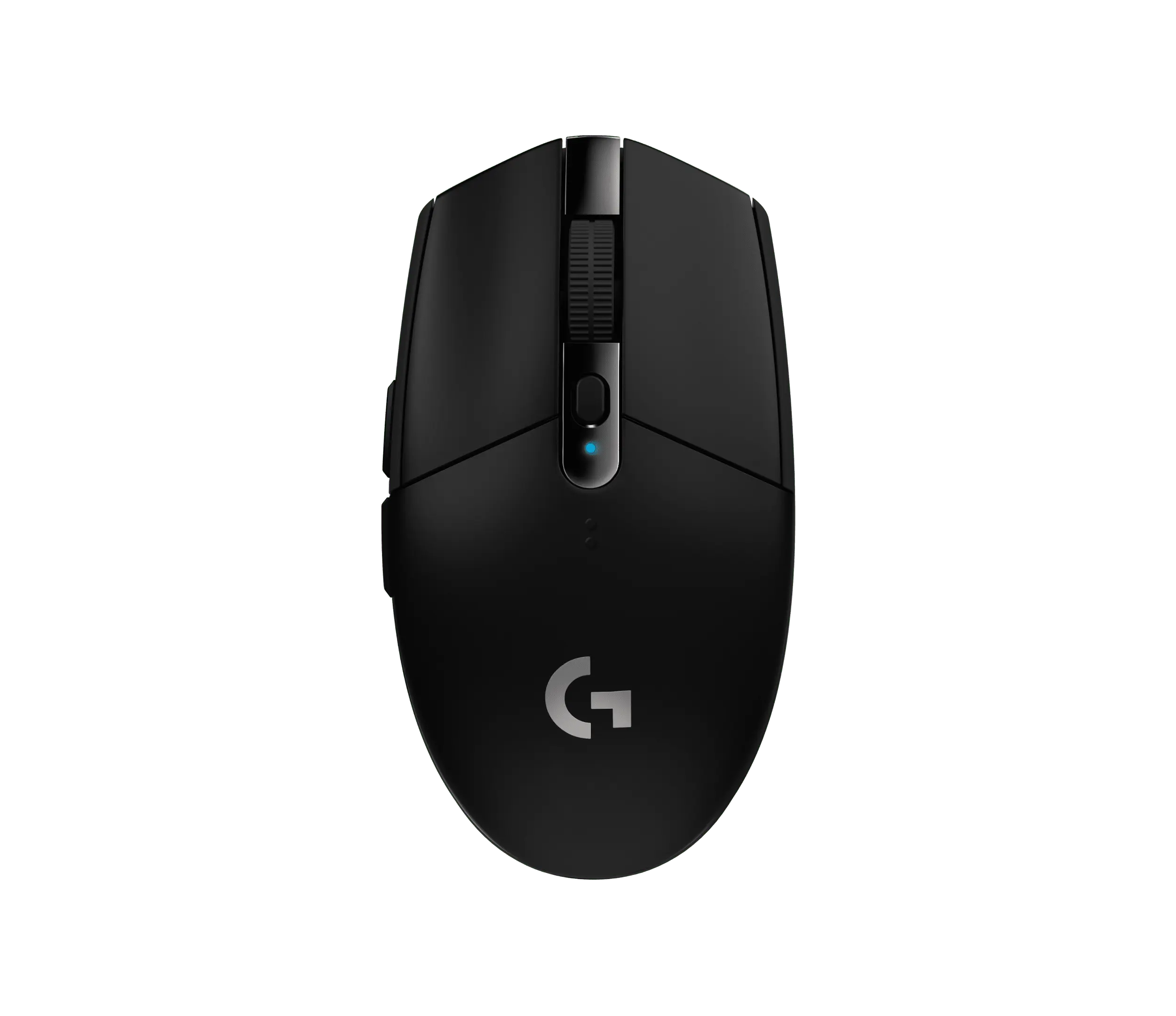
Logitech G305 LIGHTSPEED (Black)
Logitech · G305 LIGHTSPEED
Original G305 in black. Uses the included USB receiver and one AA battery.
Product specifications
- Connection
- LIGHTSPEED USB receiver
- Battery
- One replaceable AA
- Buttons
- 6
You need the receiver, even on a laptop with Bluetooth
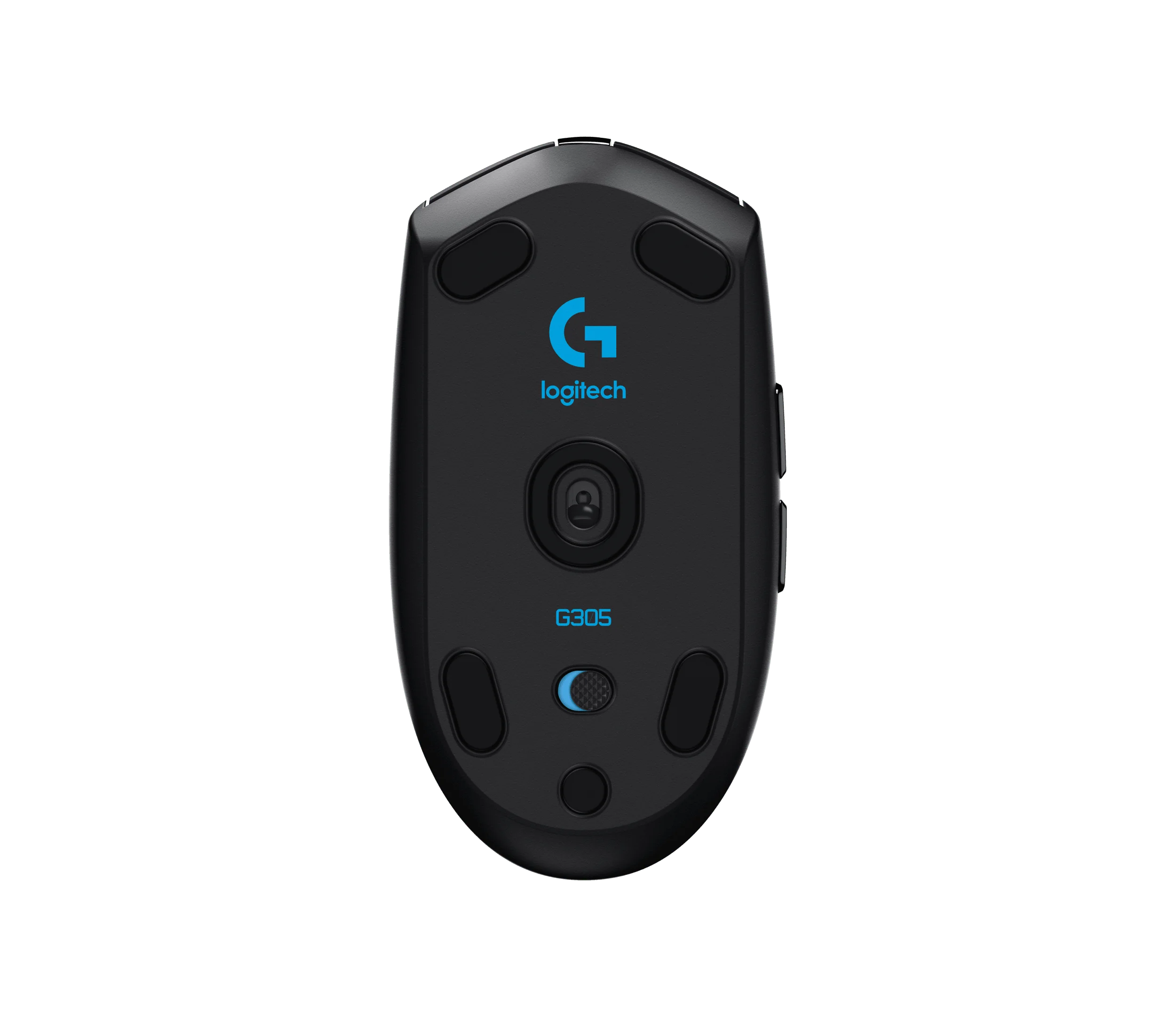
Plug the included LIGHTSPEED receiver into your computer, fit the battery, and switch the mouse on underneath. The receiver can stay in the computer while you use it. When you pack the mouse away, there is a storage slot under its top cover so the small part does not have to travel loose in your bag.
Check your laptop’s ports before ordering. The receiver uses USB-A, the larger rectangular connector. A laptop with only USB-C ports needs a suitable adapter or hub. Buying this mouse will not remove that extra piece from your setup.
The extension cable shown in Logitech’s setup guide is for the receiver, not for charging the mouse. It lets you move the receiver closer to your hand instead of leaving it behind a desktop tower. Logitech recommends keeping it close to the mouse when other wireless devices cause interference.
A spare AA replaces a charging cable
The removable cover gives you access to the AA battery. When it runs out, replace it; there is no USB charging port on this model. Keeping a spare battery nearby avoids having to stop playing while you find one.
Logitech advertises up to 250 hours in performance mode, but that is a manufacturer estimate, not a promise for every battery or setup. The indicator flashes red when the remaining charge falls below 15 percent. You do not have to wait until the mouse stops responding to change the battery.
The side buttons are on the left
The G305 has two side buttons on its left edge. That placement is easier to reach with a right thumb; a left-handed buyer should check whether it suits their grip. The button behind the scroll wheel changes sensitivity, which controls how far the pointer moves when you move your hand.
G HUB, Logitech’s settings app, lets you change button assignments and save a profile to the mouse. Basic setup does not require learning all those settings first.
Pros and cons
Pros: A replaceable AA means no charging wait, and the receiver storage slot keeps the small adapter with the mouse when you travel. Side buttons give you extra controls without reaching for the keyboard.
Cons: The receiver takes a USB port, there is no direct Bluetooth connection, and you need replacement batteries rather than a charging cable. The left-side buttons may also be awkward for a left-handed grip.
The original G305 makes the most sense for someone happy to leave its receiver plugged into one computer and keep a spare AA in a drawer. For a USB-C-only laptop, include the adapter in your buying decision instead of treating the mouse as the whole setup.