
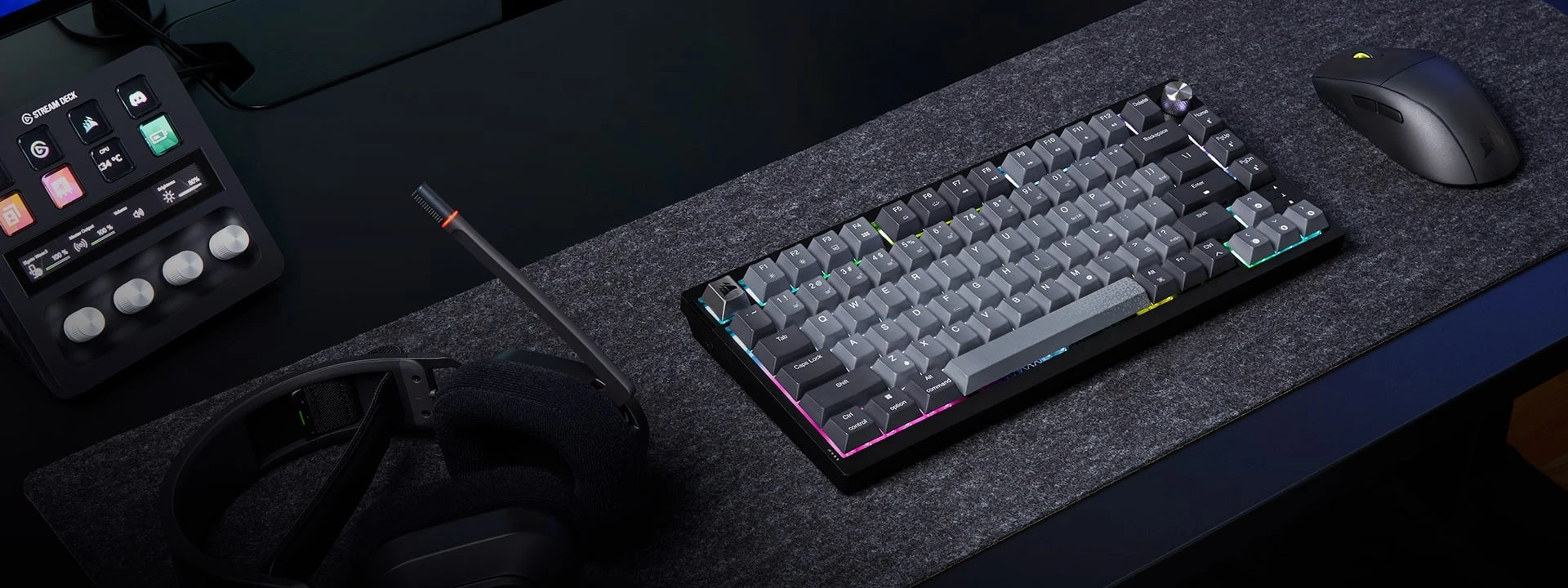
Moving to a smaller keyboard doesn't have to mean giving up the arrow keys. The Corsair K65 Plus Wireless keeps those and the full F1–F12 row, but drops the number pad. That leaves more room for your mouse without making you use shortcuts for basic things.
It also has a USB receiver, Bluetooth and a cable connection, which is handy if you switch between a gaming PC and a laptop. We'd consider it for a smaller desk, not for someone who types lots of numbers or wants the letters to light up. This guide covers the original Black/Gray model with MLX Red switches and the US keyboard layout.
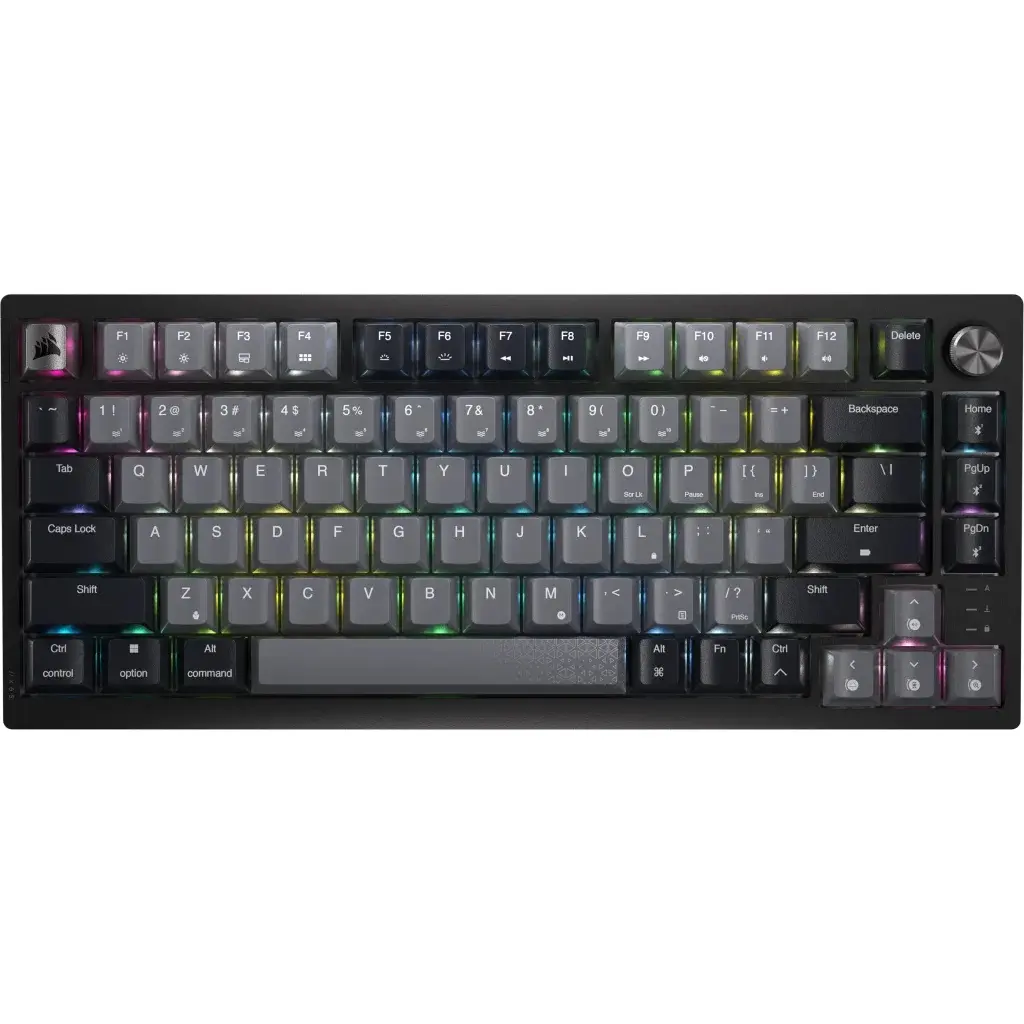
Corsair K65 Plus Wireless Keyboard
Corsair · K65 Plus Wireless
Consider it for a smaller desk if you still want arrow keys and a function row. This is the original US MLX Red version.
Product specifications
- Version
- Original Black/Gray, US QWERTY
- Model number
- CH-91D401L-NA
- Layout
- 75%, with arrows and F1–F12; no number pad
- Connections
- 2.4GHz USB receiver, Bluetooth, USB cable
- Switches
- Pre-lubed MLX Red linear; hot-swappable
- Keycaps
- PBT; labels do not shine through
- Dial
- Volume and mute by default
- Dimensions
- 320 × 136 × 35mm
- Weight
- 0.918kg
- Wrist rest
- Not included
Pros
- Compact layout keeps arrows and function keys
- USB receiver, Bluetooth and cable options
- Dial changes volume and mutes without an app
- Replaceable switches; puller included
Cons
- No number pad or included wrist rest
- Stock letters do not light up
- Some buyers report wireless or lighting problems
- Fairly heavy for carrying with a laptop
The arrow keys stay. The number pad goes.
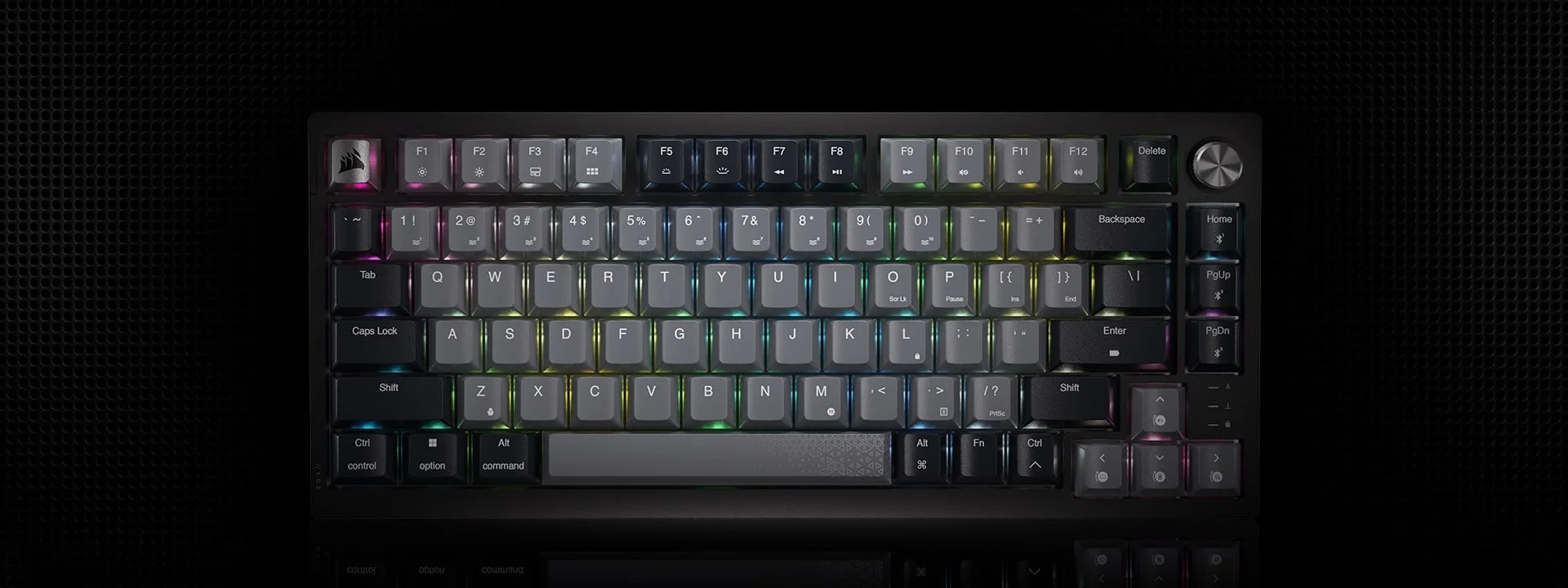
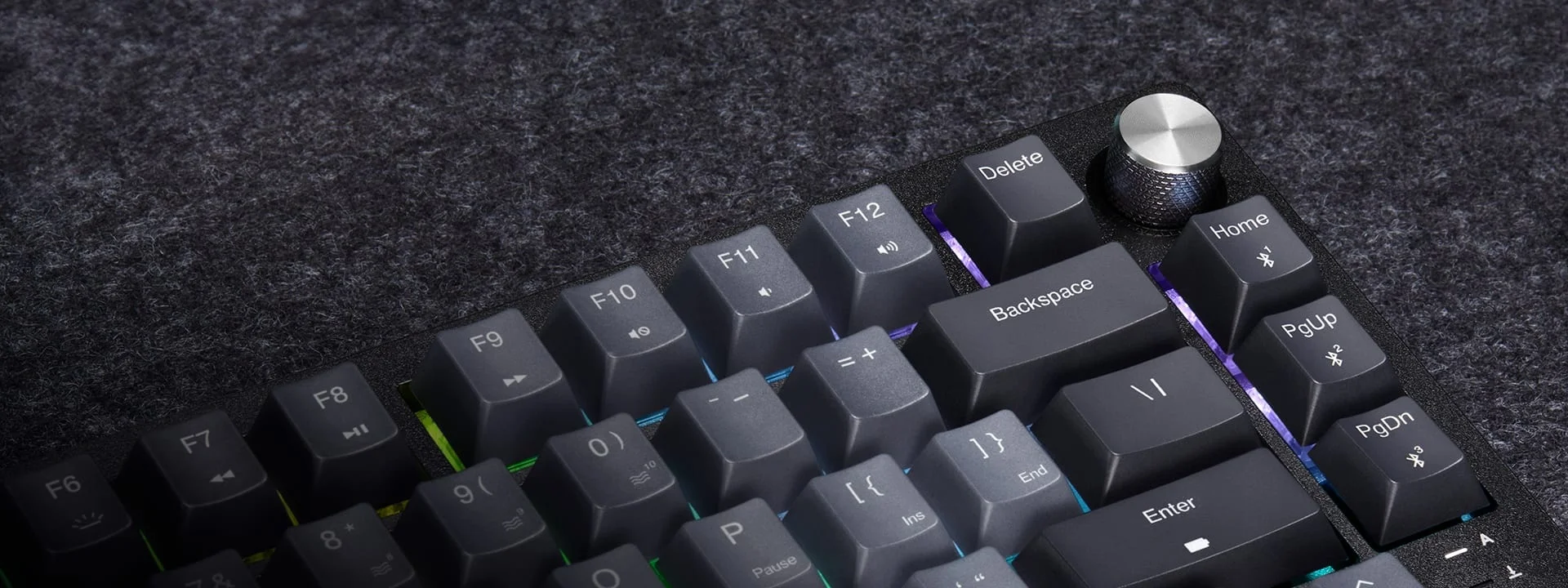
Corsair calls this a 75% keyboard. That describes the layout, not its speed: the main typing keys, function row and arrows fit into a narrower body. Home, Page Up and Page Down sit along the right edge. Those navigation keys sit beside the typing keys rather than in a separate group, so expect a little adjustment when reaching for them.
The smaller width matters most when your mouse keeps getting close to the keyboard. If you play with big mouse movements, removing the number pad can give you more room. But if you enter figures into spreadsheets every day, losing that separate set of number keys may be more annoying than the space you save.
There's no wrist rest in the box. Don't choose it just because it looks small: think about your hand position too. The keyboard is fairly heavy for its size, so it makes more sense on a desk than as something to carry with a laptop every day.
Pick a connection for the device you're using
For a gaming PC, we'd start with the included USB receiver. It provides the keyboard's 2.4GHz wireless connection and has a storage slot on the back when you aren't using it. Bluetooth is a useful option for a laptop or tablet without plugging in that receiver. The keyboard can remember three Bluetooth devices, though it only types on one at a time.
The cable option has one detail that's easy to miss. To use it as a wired keyboard, connect the USB cable and move the connection switch to Off. Leaving the switch on Bluetooth or 2.4GHz keeps that wireless connection active while the cable charges the battery. Plugging in a cable doesn't automatically change the mode.
Battery life also depends on the lights. Corsair's longest battery claim is for use with the lighting off, not with all the colored lights turned on. Buyers report different results, so we'd keep the cable nearby rather than plan around the best advertised figure.
The dial controls volume without opening an app
The metal dial in the top-right corner changes volume by default; pressing it mutes the sound. That is useful when a game, video or call suddenly gets loud. The keyboard's shortcuts can also change its job to scrolling, zooming or adjusting the lights. You don't need to install software just to turn the volume down.
Corsair's iCUE app adds settings for lighting and key assignments. If you enjoy changing those, check the full model number before buying: CH-91D401L-NA is the US version covered here. Some other regional K65 Plus versions aren't supported by iCUE, despite sharing a similar name.
Smooth keys, but the letters don't glow
The original keyboard uses MLX Red linear switches. Linear means the key moves down smoothly, without a deliberate bump partway through the press. Buyers often praise the typing feel and quieter sound. It still makes noise, though; don't read “quiet” as “silent,” especially if you're sharing a room during a call.
There's a more visible drawback at night. The stock keycaps—the plastic covers on the keys—don't let light shine through their letters. The colored lighting shows around the keys, but it doesn't make the labels glow. If you look down at the keyboard while typing in a dark room, that matters more than how many lighting effects it offers.
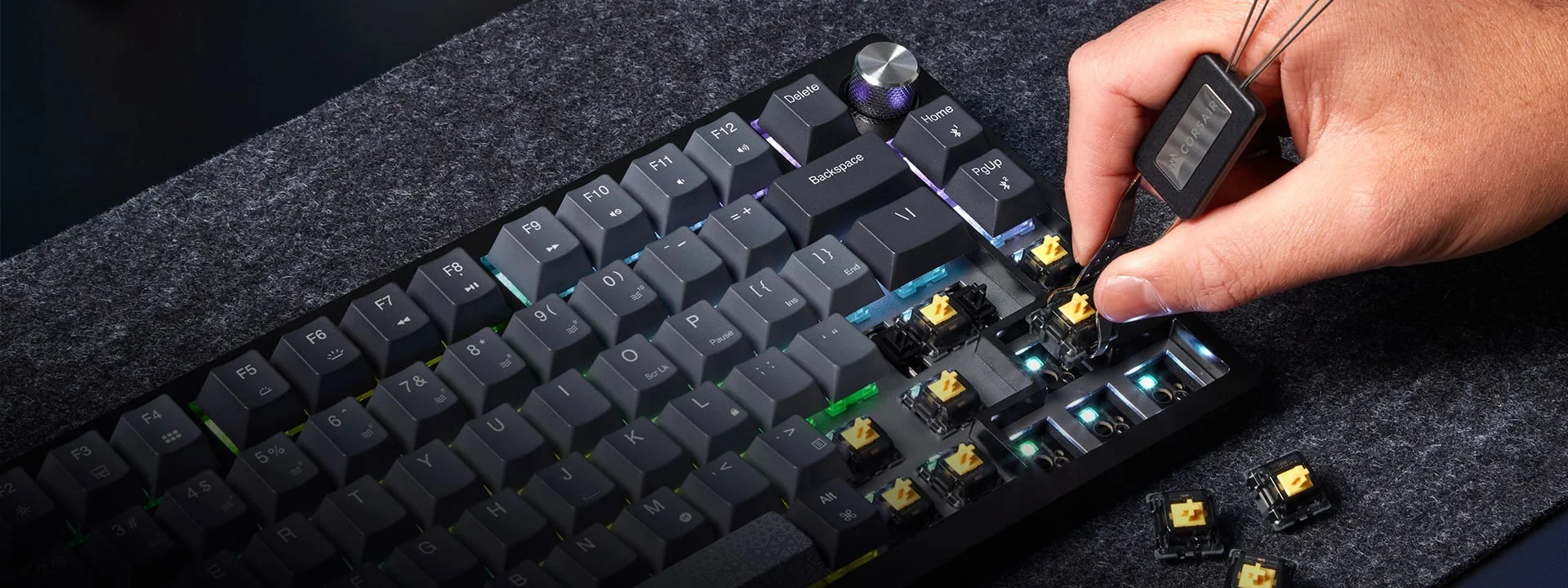
The switches are hot-swappable, meaning you can pull them out and replace compatible ones without soldering. A puller is included. It's a useful option if you later want a different feel, but there's no need to buy extra switches before you've tried the ones it comes with.
Check wireless and lighting settings early
Not all buyer feedback is about the keys. Some owners report wireless dropouts, lighting that flickers or custom colors that don't stay as expected after restarting their computer. Others say their wireless connection works well. These are reported problems, not something every keyboard will do, but they're worth checking while you can still return a faulty unit.
Try the keyboard on your usual computer in each mode you plan to use. Check that the keys register correctly and that your chosen lighting behaves the way you expect after a restart. If a problem keeps happening, contact Corsair support rather than assuming another lighting setting will fix it.
For firmware updates—the software inside the keyboard and receiver—use iCUE's device settings. Corsair says wireless devices and their receivers should be connected directly to the computer during an update, not through a hub. Don't unplug them while the update is running. We haven't confirmed a current update that fixes every reported connection issue.
Who we'd recommend it to
The K65 Plus makes sense if you want a compact keyboard but still use the arrows and function keys, and you like having both a receiver and Bluetooth. The dial and replaceable switches are useful extras. We'd pass if a number pad, glowing key labels or a light keyboard for travel is more important to you. Check those everyday needs before paying for features you won't use.