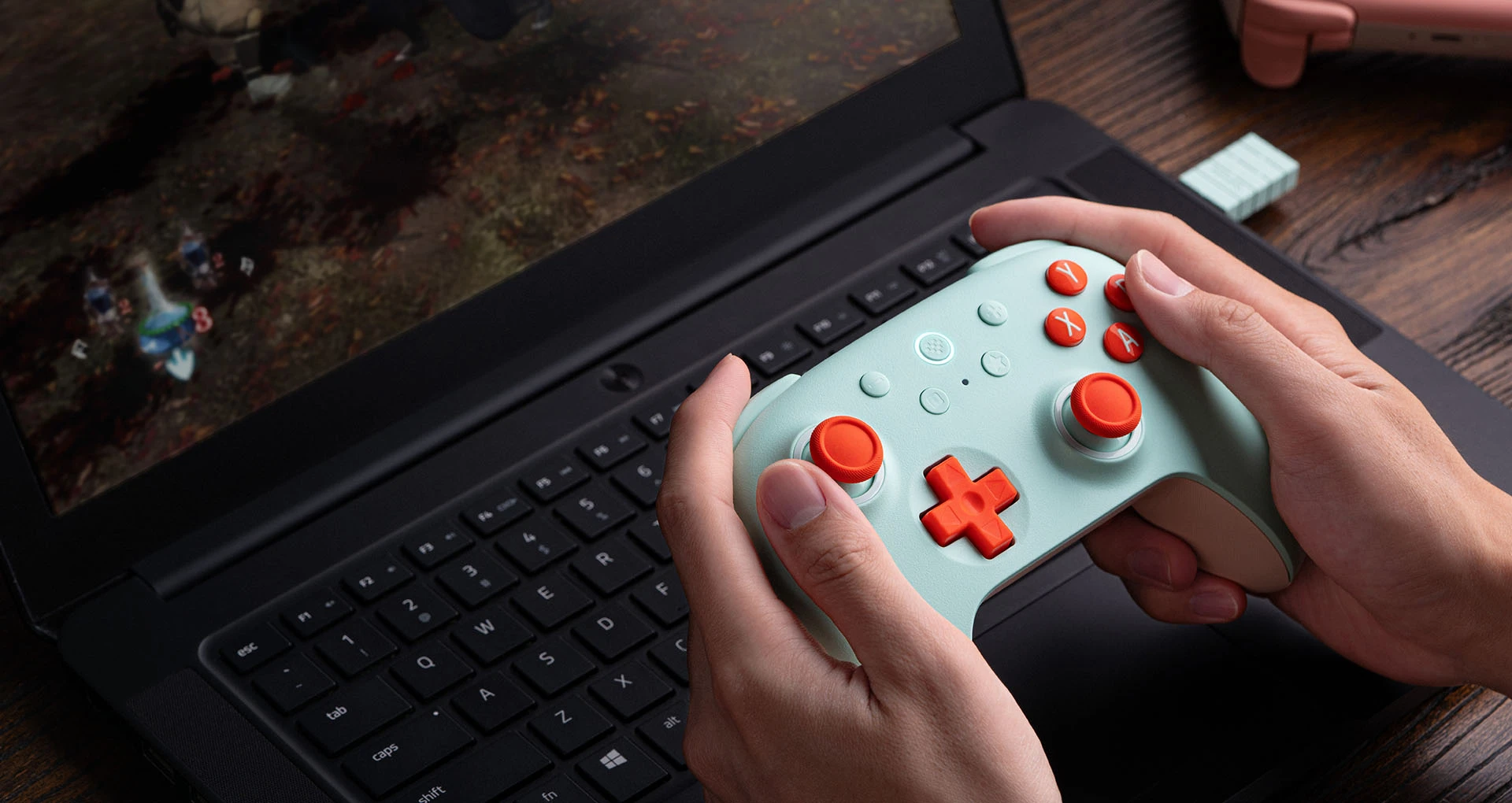
The 8BitDo Ultimate 2C Wireless is a rechargeable controller for Windows PCs and Android devices. You get a USB receiver for wireless PC play, a cable when you prefer to plug in, and two extra buttons near the triggers. On Windows, plan to use the receiver or USB cable. Bluetooth is officially supported for Android.
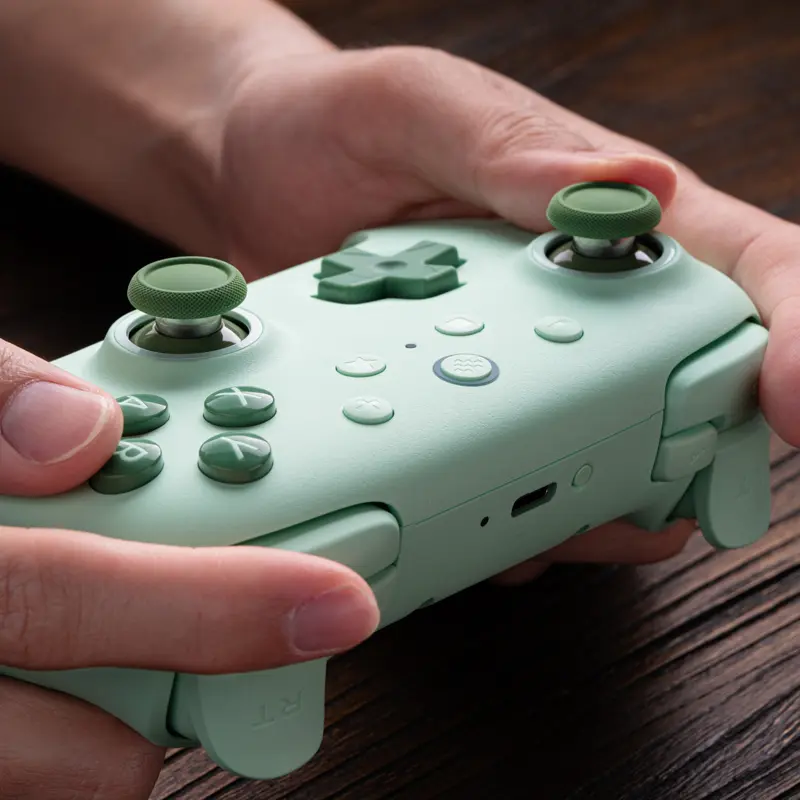
Before you order, check the full product name. The Ultimate 2C Wireless for Windows and Android is different from the Ultimate 2C Bluetooth sold for Nintendo Switch. The Green controller linked here is the Windows/Android model. The photos below show several colors from that same range.
8BitDo Ultimate 2C Wireless Controller
8BitDo · Ultimate 2C Wireless
For Windows PC play with the included receiver or USB cable, plus Android over Bluetooth. Green Wireless model, not the Switch Bluetooth version.
Product specifications
- Version
- Ultimate 2C Wireless for Windows/Android; Green
- Windows connection
- Included USB-A receiver or USB data cable
- Android connection
- Bluetooth; Android 9 or later
- Windows requirement
- Windows 10 version 1903 or later
- Extra controls
- L4/R4 shoulder buttons; not rear paddles
- Stick and trigger sensors
- Hall Effect
- Battery
- Built-in rechargeable battery; USB-C charging
- Headset socket
- None
- In the box
- Controller, USB-A receiver, USB cable and manual
Pros
- USB receiver is included for wireless PC play
- Rechargeable battery; no spare AA batteries needed
- Extra shoulder buttons can repeat useful game commands
- Bluetooth support for Android controller-compatible games
Cons
- Windows Bluetooth is not officially supported
- Not the version to buy for Switch, Xbox or PlayStation
- Narrow grips and top extra buttons will not suit everyone
- Some owners report connection or button problems; check updates
Connecting it to a Windows PC
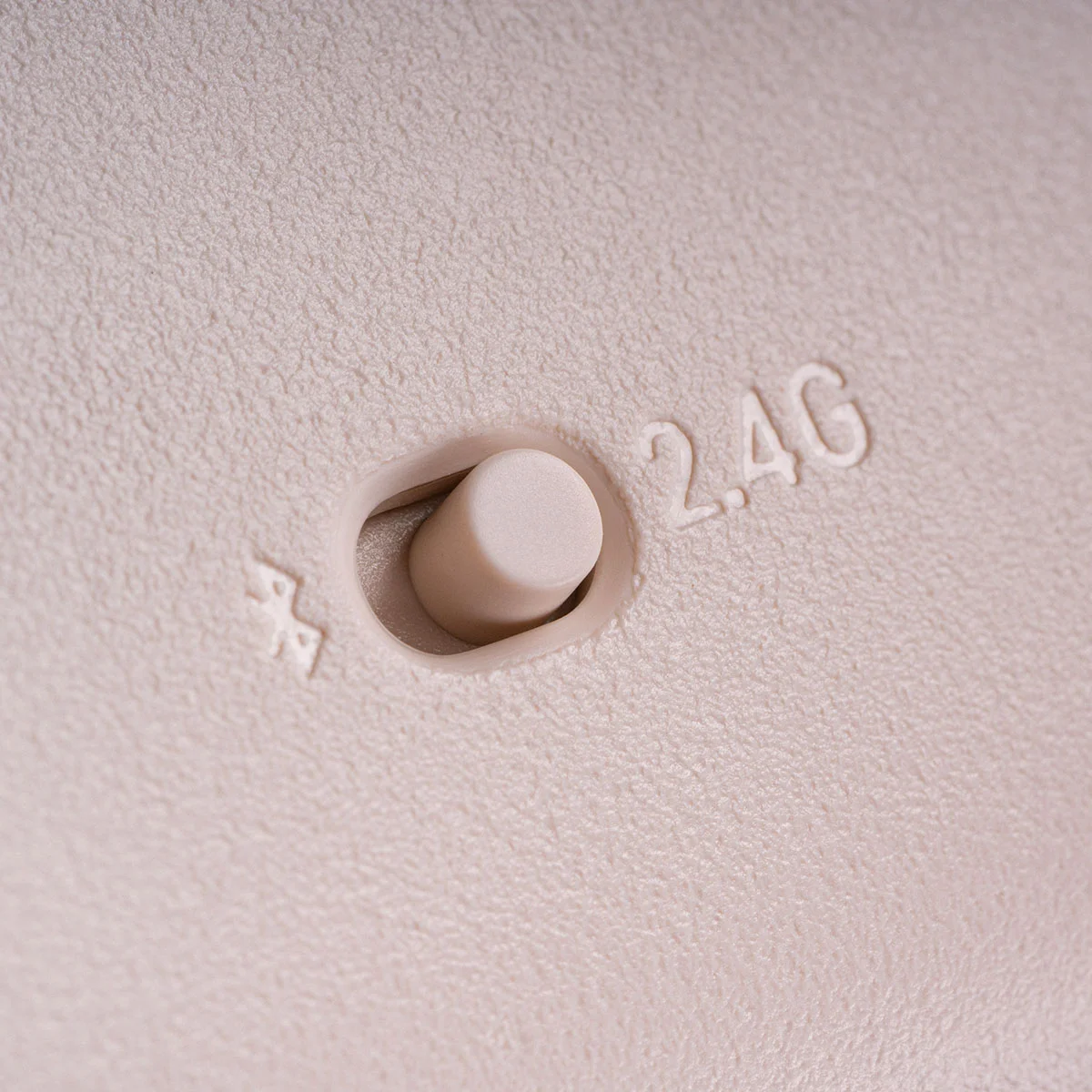
For wireless play, plug the included receiver into a USB-A port, move the controller's rear switch to 2.4G, and press the Home button. A steady status light means it has connected. The manual lists Windows 10 version 1903 or later, which also includes Windows 11.
That small receiver needs a place on your computer, even if your laptop already has Bluetooth. If your laptop only has USB-C ports, you'll need a USB-C adapter or hub with a USB-A port. Check your ports before buying another accessory.
You can also connect the controller with a USB cable. Make sure it's a cable that carries data, not one that only charges. This is a useful way to play at a desk or check whether a connection problem is limited to wireless use.
Credits
Image: 8BitDo.You may see reports of people getting Bluetooth to work on Windows. That isn't the connection 8BitDo officially supports for this model on PC. Don't buy it expecting the same Bluetooth setup as an Xbox controller.
Using Bluetooth on Android
Move the rear switch to the Bluetooth symbol, turn on the controller with Home, then hold the Pair button for three seconds. When the status light flashes quickly, open your device's Bluetooth settings and choose 8BitDo Ultimate 2C Wireless. The light stays on once it connects.
Android 9 or later is supported, but the game still needs controller support. Pairing a gamepad doesn't add controls to a game designed only for a touchscreen. Check the games you actually want to play rather than assuming every Android game will work.
For an Xbox or PlayStation console, choose a controller that specifically supports that console. This Windows/Android model is not a replacement for a console-compatible pad. The similar names elsewhere in the Ultimate range make this easy to overlook.
What the extra L4 and R4 buttons do
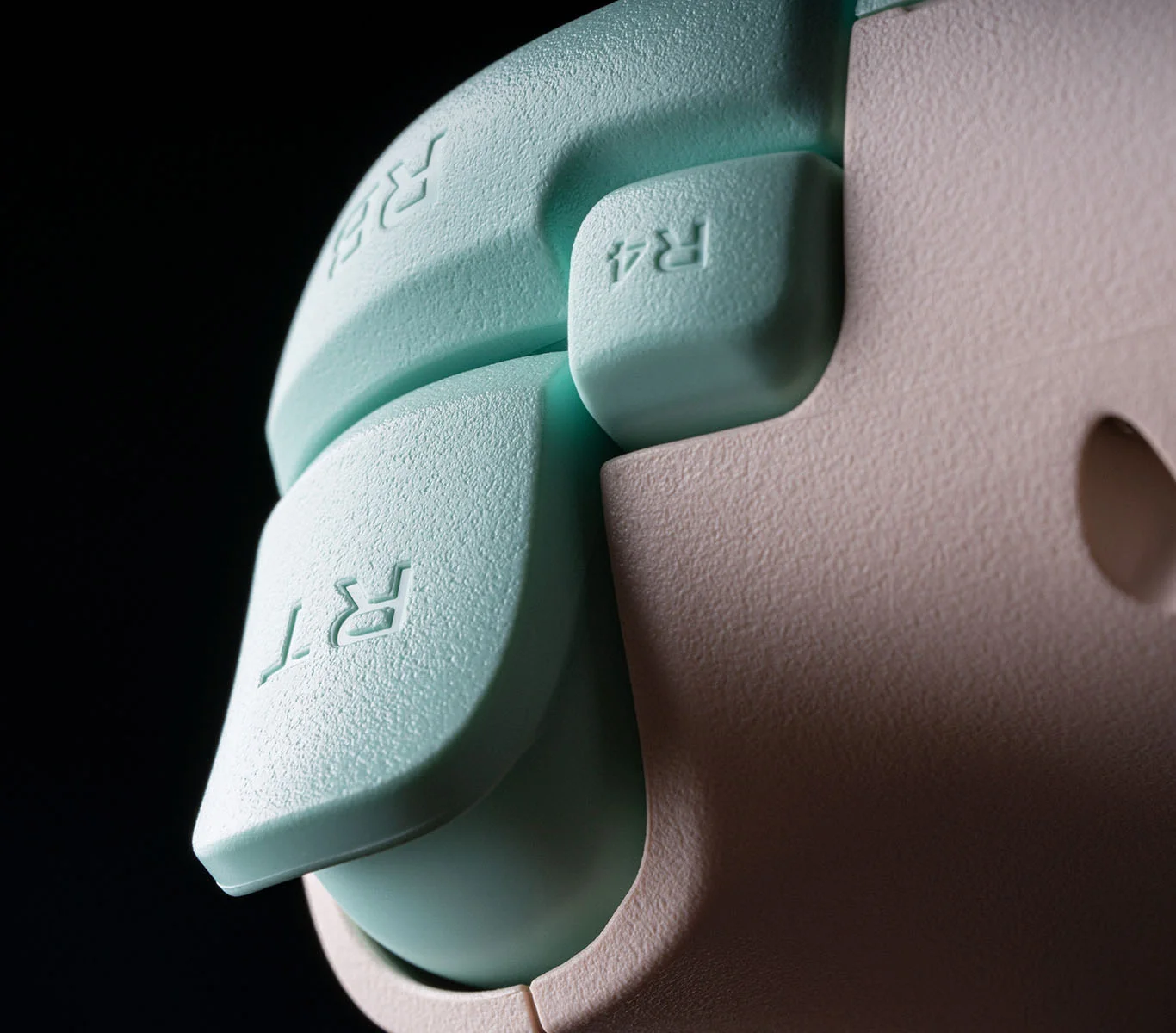
L4 and R4 sit between the usual shoulder buttons and triggers. They're extra buttons on top, not paddles underneath. That matters if you're used to pressing rear paddles with your middle or ring fingers: these ask your fingers to reach a different place.
Credits
Image: 8BitDo.You can assign an existing button's action to L4 or R4 on the controller itself, without an app. For example, copying your jump button to a shoulder button can let you keep your thumb on the right stick while jumping. They give you another way to press a command, rather than two entirely new commands that every game automatically recognizes.
Think about which action you'd put there before paying for extra controls. They can be useful when a game asks you to press a face button while aiming. For slower games where the standard layout already feels comfortable, you may barely use them.
Sticks, buttons and comfort
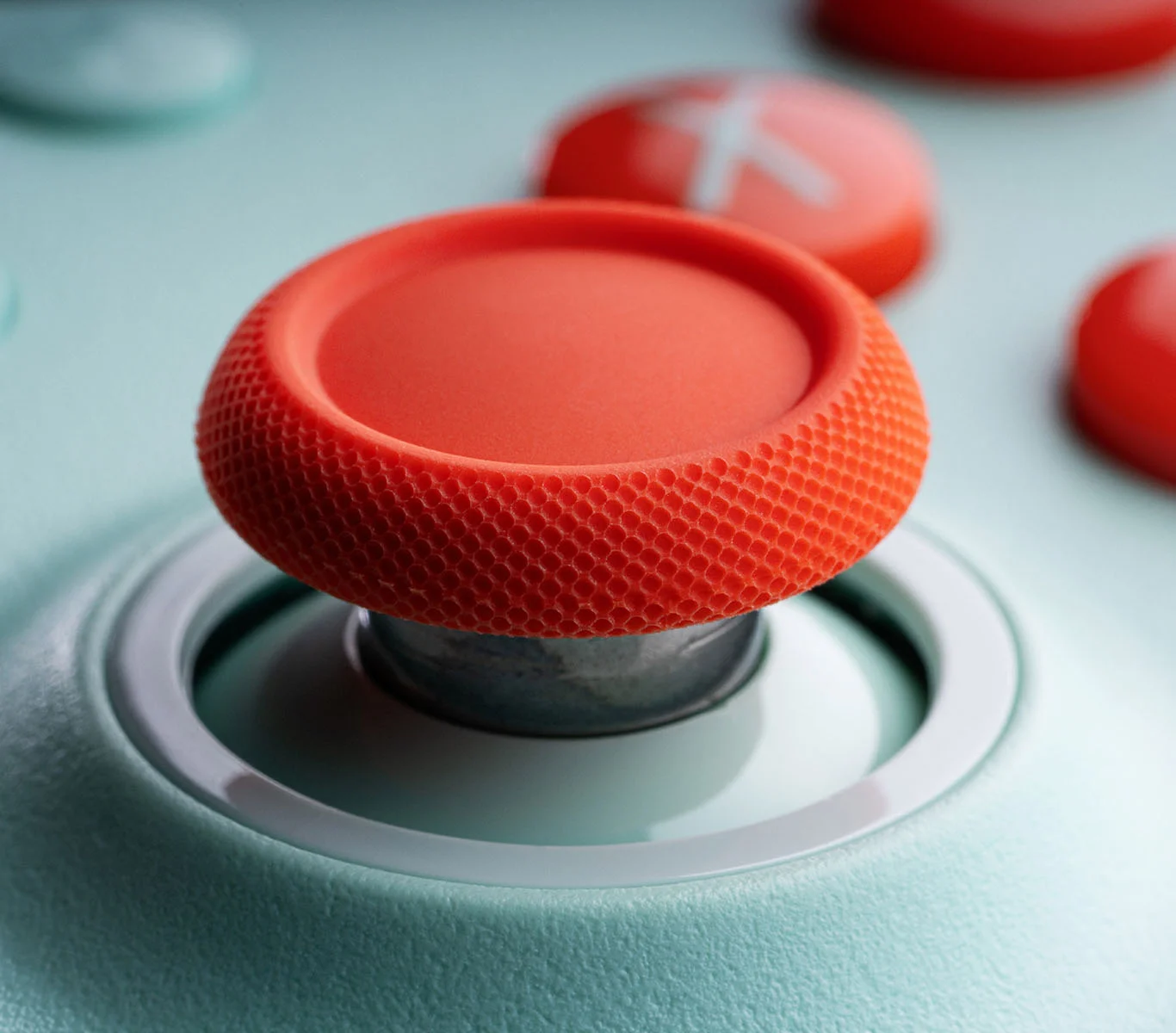
The sticks and triggers use Hall Effect sensors, which read movement with magnets. They avoid one source of wear found in traditional stick sensors, but that does not make the whole controller immune to drift, damage or worn parts. Treat “drift-free forever” claims with caution.
Credits
Image: 8BitDo.The grips are relatively narrow, and comfort isn't the same for everyone. Some owners like the shape for long sessions; others prefer the wider grip of an Xbox controller. Look at the photos of the controller in someone's hands, especially if broad grips are what you're used to.
Feedback on the directional pad is mixed too. If you mostly play fighting games or platformers with the D-pad, test your usual diagonal inputs when the controller arrives. For games where you mainly use the sticks, that may matter much less.
The advertised 1,000Hz polling rate means it can report inputs to the PC up to 1,000 times per second over the receiver or cable. It doesn't mean every game responds instantly, and it isn't the Bluetooth specification. Your game, computer and display also affect how quickly an action appears on screen.
Charging and everyday use
There's a built-in rechargeable battery and a USB-C charging port, so you don't need to keep spare AA batteries. A charging dock isn't included. There is also no headset socket on the controller; connect a wired headset to your PC or another suitable audio connection instead.
8BitDo advertises up to 19 hours over the receiver and 32 hours over Bluetooth, with roughly two hours to recharge. Those are the manufacturer's figures, not our own battery test. Buyers often praise the battery, but vibration and how you use it can change the time between charges.
If you play several evenings a week, charging it between sessions is simpler than waiting for it to run flat. Keep the receiver somewhere safe when you move the controller between a PC and an Android device. Losing that small part takes away the intended wireless PC connection.
If it disconnects or presses Home by itself
Connection complaints are worth taking seriously. Some owners report wireless dropouts or unwanted Home-button inputs, while many others describe trouble-free PC use. These reports don't tell us how often a problem happens across all controllers.
As checked on October 3, 2026, 8BitDo lists controller firmware 1.09 and receiver firmware 1.03. Its notes say these updates address unwanted Home inputs and improve the wireless connection. Firmware is the software inside the device, and the controller and receiver have separate updates.
For the updates, visit support.8bitdo.com and select Ultimate 2C Wireless Controller. Check both parts, not just the controller. The update tool is available now, even if you've read an older review saying there was no software. Updates aren't a guarantee that every faulty unit will be fixed.
If problems continue, try the controller by USB and try the receiver directly in another port. That helps separate a wireless issue from a button or controller fault. A bumper that repeatedly misses presses, or a connection that still drops after the supported updates, is a reason to contact support or use the seller's return process.
Who we'd recommend it to
We'd consider it for someone who mainly plays on a Windows PC and is happy to use a USB receiver. The rechargeable battery and extra shoulder buttons are useful without needing a charging dock or a separate button-mapping app. Android Bluetooth support is a bonus if your mobile games already work with a controller.
We'd choose something else for a Switch, Xbox or PlayStation console, for Windows Bluetooth as a must-have, or for a headset plugged straight into the controller. If rear paddles or a wider grip are what you want, this model doesn't give you those just because it has two extra buttons.
The important checks are simple: the correct Wireless version, a USB-A port for the receiver, and a shape you like holding. For wireless PC use, those matter more than choosing a color or buying on the strength of a polling-rate number alone.