Pixel Twelve
Tearaway on PS Vita: how to use the rear touch pad for drums and paper puzzles

How To

Tearaway on PS Vita: how to use the rear touch pad for drums and paper puzzles

A visual beginner guide to Tearaway’s rear touch controls on the original PS Vita: recognize the symbols, find the panel, bounce from a drum and make a finger appear in the game.

Game: TearawayVerified Sep 29, 2026
Guide Type
How To
Last Verified
Sep 29, 2026

Guide details

Overview

A visual beginner guide to Tearaway’s rear touch controls on the original PS Vita: recognize the symbols, find the panel, bounce from a drum and make a finger appear in the game.

Before you try it: this is the original Vita game

This guide is for Tearaway on PlayStation Vita, released in 2013. It is not for Tearaway Unfolded on PS4, which has different controls. The messenger on your screen is called iota or atoi. You move that little paper character through the world and help when the path is blocked.

The short version: look for a clear paper surface marked with PlayStation shapes. When the game puts one in your path, use the large touch panel on the back of the Vita to affect that part of the world. The front screen and the back panel are separate touch surfaces. Tapping the front screen will not beat a rear-touch drum.
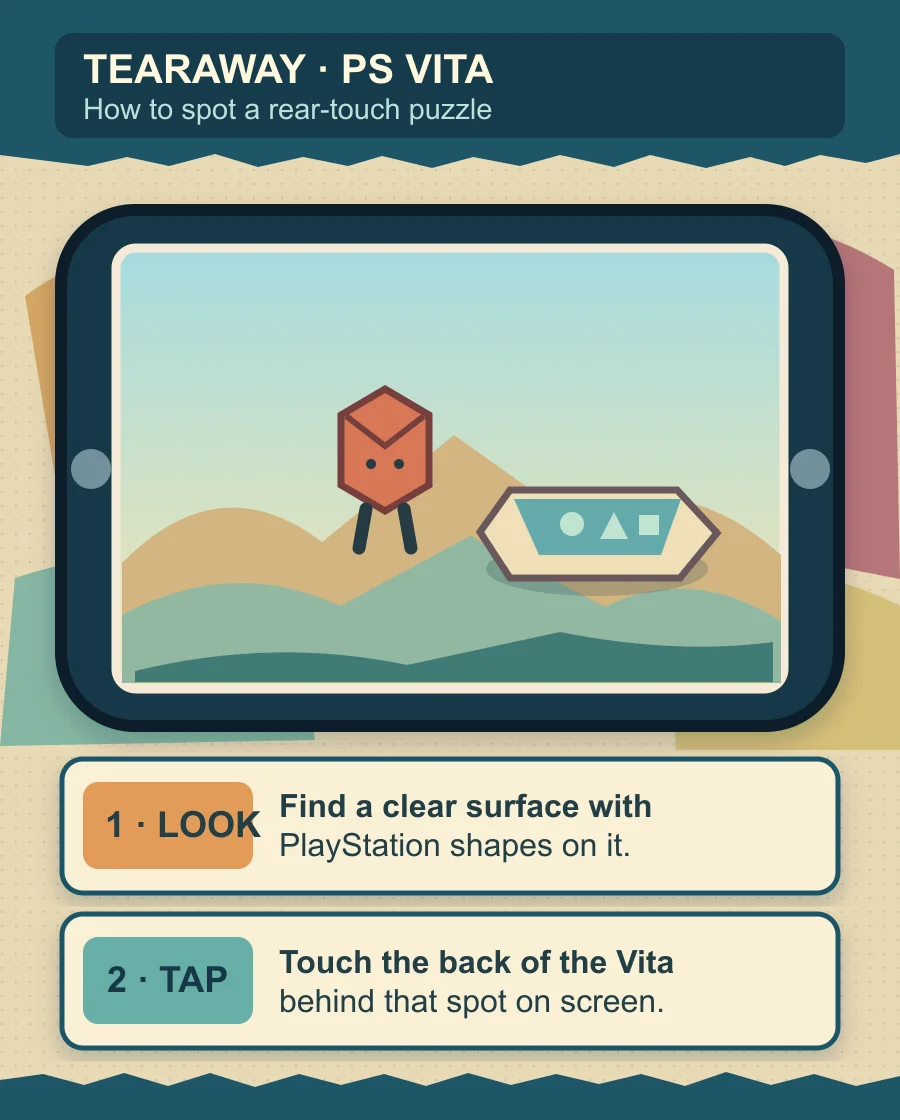
1. Spot a place that responds to rear touch

Look on the ground or on a paper object near the messenger for a pale, see-through patch. PlayStation button shapes—circle, triangle, square or cross—are printed inside it. Those symbols are your cue that this surface can react to the rear panel. It may be a drum under the messenger, or a thin piece of paper in front of an obstacle. A plain colored floor without the symbols is not the cue.

Original Pixel Twelve diagram of a PS Vita screen with a small paper messenger next to a pale marked surface; two padded instruction panels say to look for PlayStation shapes and touch the back of the device.
Original Pixel Twelve diagram, not a game screenshot. Find the pale marked patch first; then touch the rear pad behind that part of the screen.

If you are not sure whether the patch is interactive, walk the messenger next to it and pause. Find the four small shapes inside the patch before touching the hardware. The diagram uses simple paper shapes to make this clue easier to see on a phone; it is not a picture of a particular level.

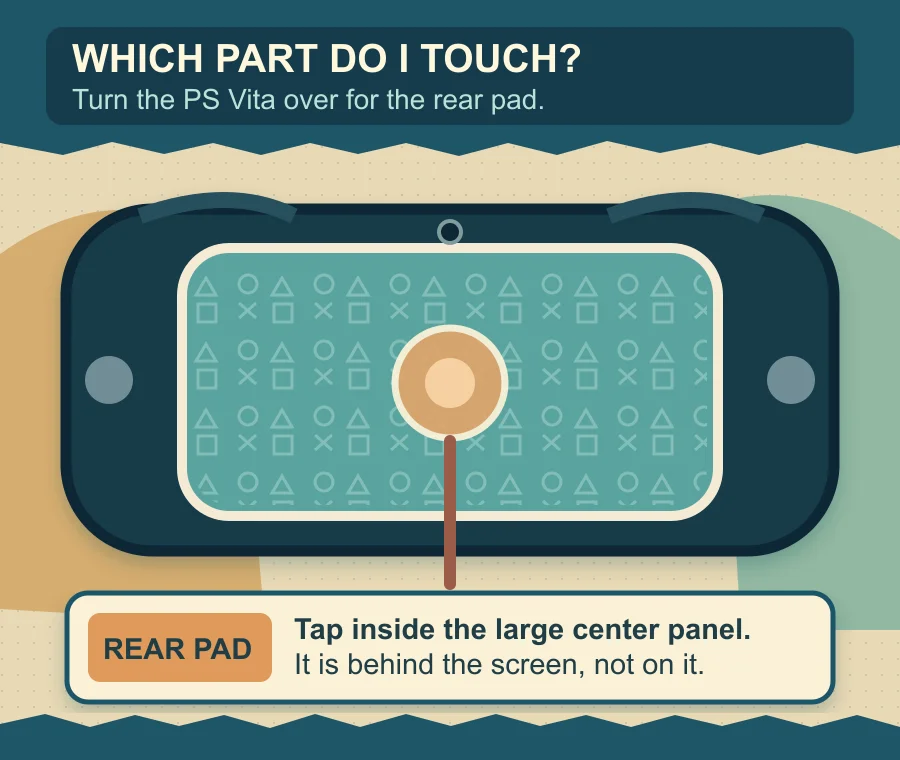
2. Find the touch panel on the back of the Vita

Hold the Vita normally so the game stays visible. Slide one fingertip around to the back of the handheld. The rear touch pad is the large center panel behind the screen, between the areas where your hands hold the sides. It is not the touchscreen on the front, the small shoulder buttons along the top edge or the camera lens. Sony’s hardware guide identifies this center area as the rear touch pad.

Original Pixel Twelve rear-view diagram of a PS Vita, with the large central rear touch panel outlined and one finger pressing inside it.
Original Pixel Twelve diagram, not a photo of the console. Turn the Vita over only if you need to find the panel; then hold it normally and tap that same large center area while watching the game.

Try a short tap inside that panel at the point roughly behind the marked object on your screen. On some puzzles you may need to press or move your finger instead of just tap. Look at the paper world after each touch: the drum should flex, or a finger should appear through the marked paper. If nothing changes, check that your fingertip is on the center pad and that the marked object is in view.

3. Bounce from a paper drum

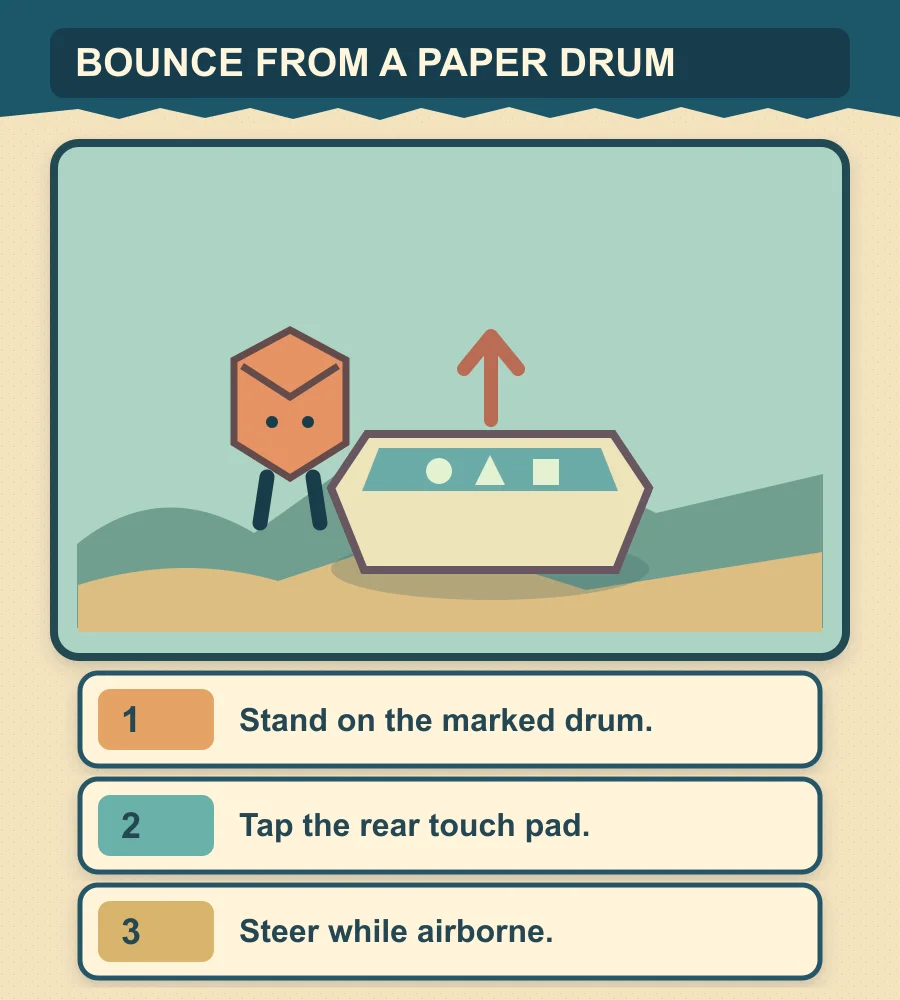
When the path rises above you, look for a round or raised paper drum with the pale PlayStation-symbol surface. Move iota or atoi onto it. With the messenger on the drum, tap the rear pad behind that spot. The drum should beat and throw the messenger upward. Watch for a safe platform above or across the gap, then use the left stick to guide the messenger toward it as you land.

Original Pixel Twelve three-step diagram with a paper messenger on a marked drum, an upward arrow, and padded labels to stand on the drum, tap the rear pad and steer while airborne.
Original Pixel Twelve diagram, not an in-game screenshot. First stand on the marked drum, then tap the rear panel; a tap while you are still beside the drum will not make the same bounce.

If the messenger barely moves, do not keep tapping at random. Check that the character is actually standing on the drum, not on the paper floor beside it. Then try one firm tap on the center rear pad. The official PlayStation hands-on describes this exact interaction: rear touch beats a drum and launches the messenger.

4. Push through paper when an object is in the way

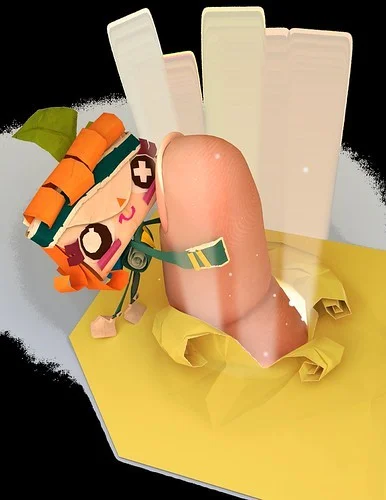
A marked surface is not always a trampoline. If a paper object blocks the route or enemies threaten the messenger, look for the same clear surface with PlayStation shapes near it. Press the rear touch pad behind that area. Your fingertip can appear inside the paper world. Move your finger on the pad to nudge the object away or protect the messenger, then lift your finger when the path is clear. Watch what moves on the screen so you know whether this is a push puzzle rather than another drum.

Official original Tearaway promotional illustration of a large fingertip bursting through yellow paper beside a small paper messenger.
Official Tearaway illustration, not a gameplay screenshot. It shows what the rear-touch finger effect looks like; in the game, look for the marked paper patch before pressing the pad.

Do not confuse this with an action that explicitly asks you to draw or cut paper on the front touchscreen. PlayStation’s original hands-on shows front touch being used to cut a paper crown. If the game asks you to trace a shape, touch the screen. If it shows the pale PlayStation-symbol surface, try the rear pad.

If the touch is not working

No visible symbol patch? Move forward or look around for the pale, see-through surface. Rear touch is contextual; it does not change every piece of scenery.

You can see the patch but nothing happens? Check that your fingertip is on the large center panel on the back, not on a shoulder button or the front glass. Try tapping behind the marked patch, then watch that exact spot.

The drum moves but the messenger does not launch? Put iota or atoi on top of the marked drum before the tap. Move toward the safe platform after the bounce.

A finger appears but you expected a jump? You found a different rear-touch action. Move the finger over the blocking paper object instead of looking for a trampoline.

Remember: symbols on clear paper → large panel on the back → watch whether the paper bounces or your finger pushes through.

Get Pixel Twelve's biggest stories first.

Add as a preferred source on Google